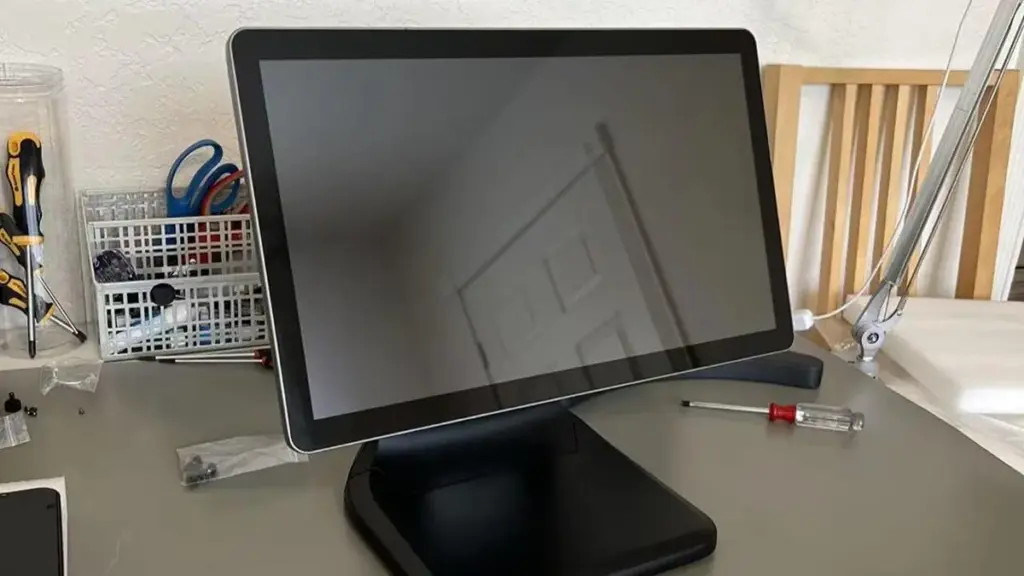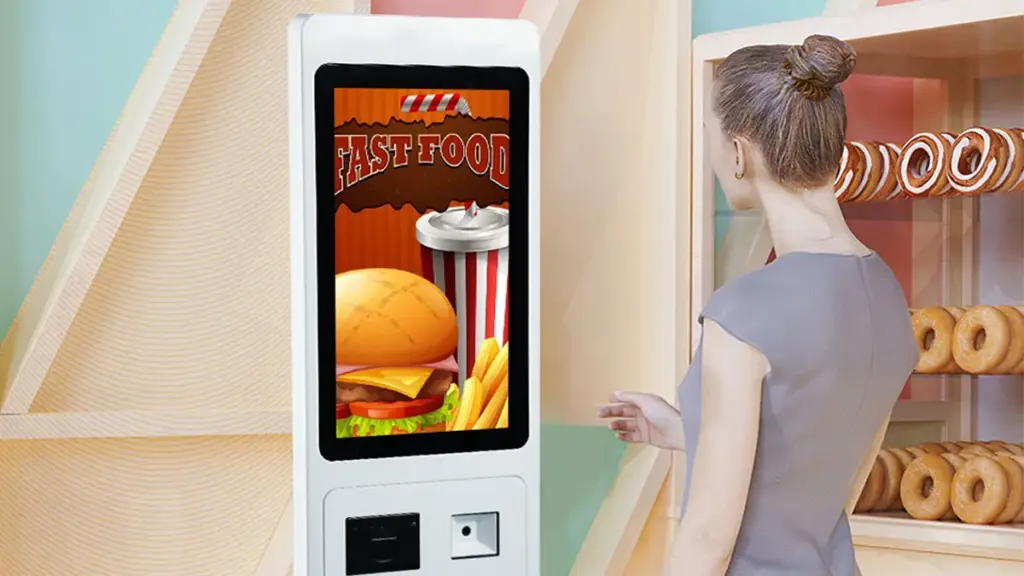
The spec sheet settles this argument before you open a spreadsheet. Ask each candidate one question: does it carry its own processor, Erinnerung, and storage, and does it boot an operating system? A panel PC lists all four rows. A touch screen monitor lists none of them, because a host you supply does that work.
On the two pages used here, the touch screen monitor vs panel PC difference also shows in the connector table. The monitor lists video inputs and the integrated unit lists video outputs. Treat that row as a reading aid for these models, not a rule for every product, since interface options vary by SKU. Everything teams fight about afterwards follows from where the computing sits. Cable count, Hitze, spare parts, firmware ownership, and the overnight service visit depend on whether a host sits inside the bezel or in a cabinet elsewhere in the machine.
Equipment builders, HMI integrators, and purchasing engineers face this choice on almost every machine revision, and most articles answer it with definitions. This one works through the procurement consequences instead. Two TouchWo pages anchor the comparison: open frame versus panel mount touch monitors covers the mechanical integration of a display, Und what an industrial PC is covers the computing side. Read those first if the vocabulary is new, then come back to the decision.
Where Does the Computing Sit in Each Unit?
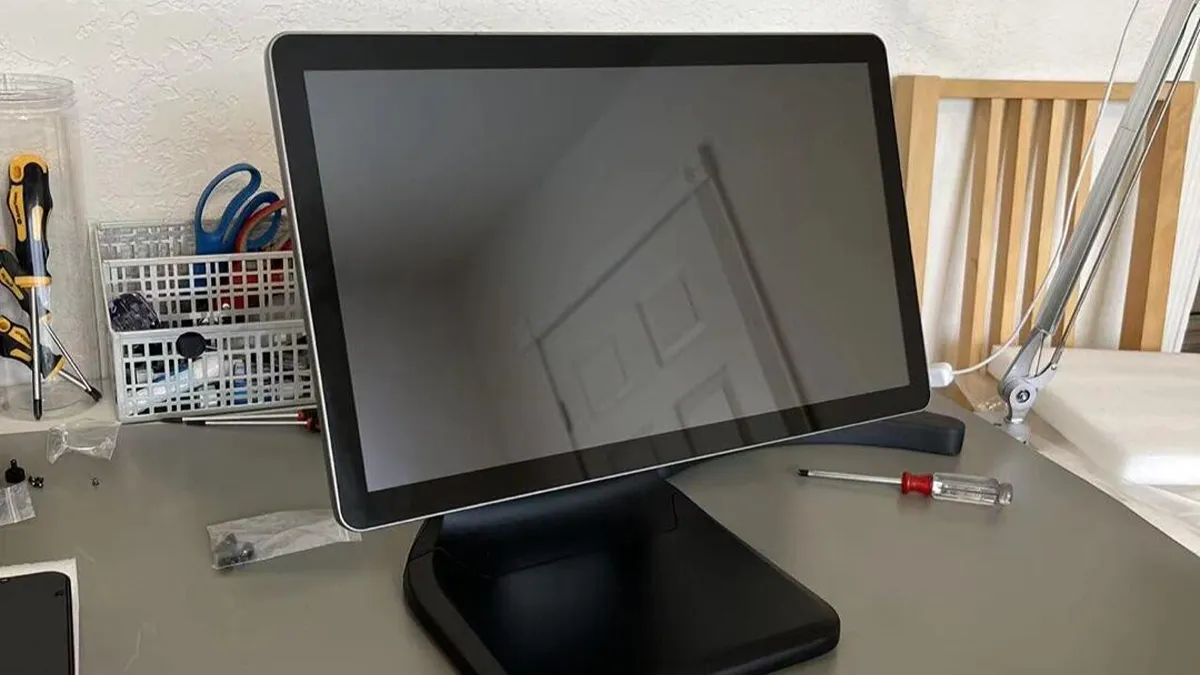
A touch monitor displays and senses input. A panel PC adds a processor, Erinnerung, Lagerung, and an operating system behind the same glass.
A touch screen monitor needs a computing device in front of it. Der 15.6-inch industrial touch monitor DM156G shows the pattern in its interface table. One HDMI 1.4 input and one VGA input carry the picture, with one audio input beside them.
A touch port marked as a USB B connection handles input, and power arrives through a two-pin Phoenix terminal or a DC 2.1 jack. It carries no CPU row, no memory row, and no operating system row, because it has none. Someone supplies a host, and that host runs your application.
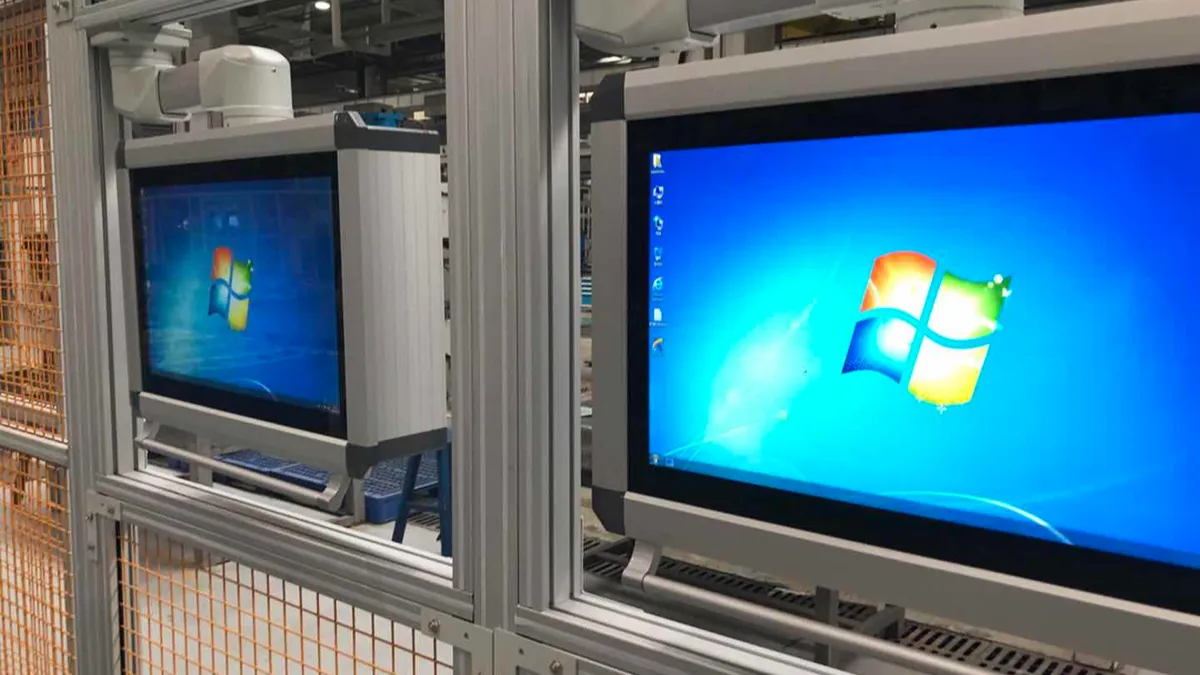
The integrated unit closes that loop. Der 21.5-inch Touch PC HD215 spec sheet lists Intel Celeron J6412, Core i5 8th-generation, or Core i7 10th-generation options. It adds DDR4 memory at 4, 8, oder 16 GB, mSATA storage from 128 Zu 512 GB, and a pre-installed OS row reading Windows 10, Windows 11, oder Linux.
The connector list on the same page points the other way: one HDMI output, one VGA output, four USB ports, and one RJ45 port rated 10/100/1000M. Audio in and out share that row, alongside a power socket fed by the listed 110-240 V AC input. The machine feeds a second display if your layout wants one.
Read the table below as the short version of that difference. It describes the two sheets cited above rather than every product in either category, so treat each row as a question for your supplier. Then hold the answers against your own bill of materials.
| Decision Factor | Touchscreen-Monitor | Panel-PC |
|---|---|---|
| Computing | External host supplies it | Built into the same enclosure |
| Video connectors | DM156G: HDMI 1.4 or VGA inputs | HD215: HDMI raus, VGA, second display |
| Touch signal | DM156G: one USB B touch port | HD215: wired inside, no touch cable |
| OS responsibility | Your host image covers everything | This model lists Windows 10 /11/Linux |
| Heat inside the bezel | Panel electronics only | CPU load, needs thermal planning |
| Spare unit scope | Display may swap, service plan permitting | Whole-unit swap unless a board-level plan applies |
Do not confuse an integrated touch PC with panel mount, a word that describes how a display fits into a cut-out. A monitor mounts that way too. The architecture question asks where the processor sits, and the mechanical question asks how the unit meets your sheet metal. Keep them on separate lines in your specification, since suppliers price them separately.
When Does an Existing Host Favor a Monitor?
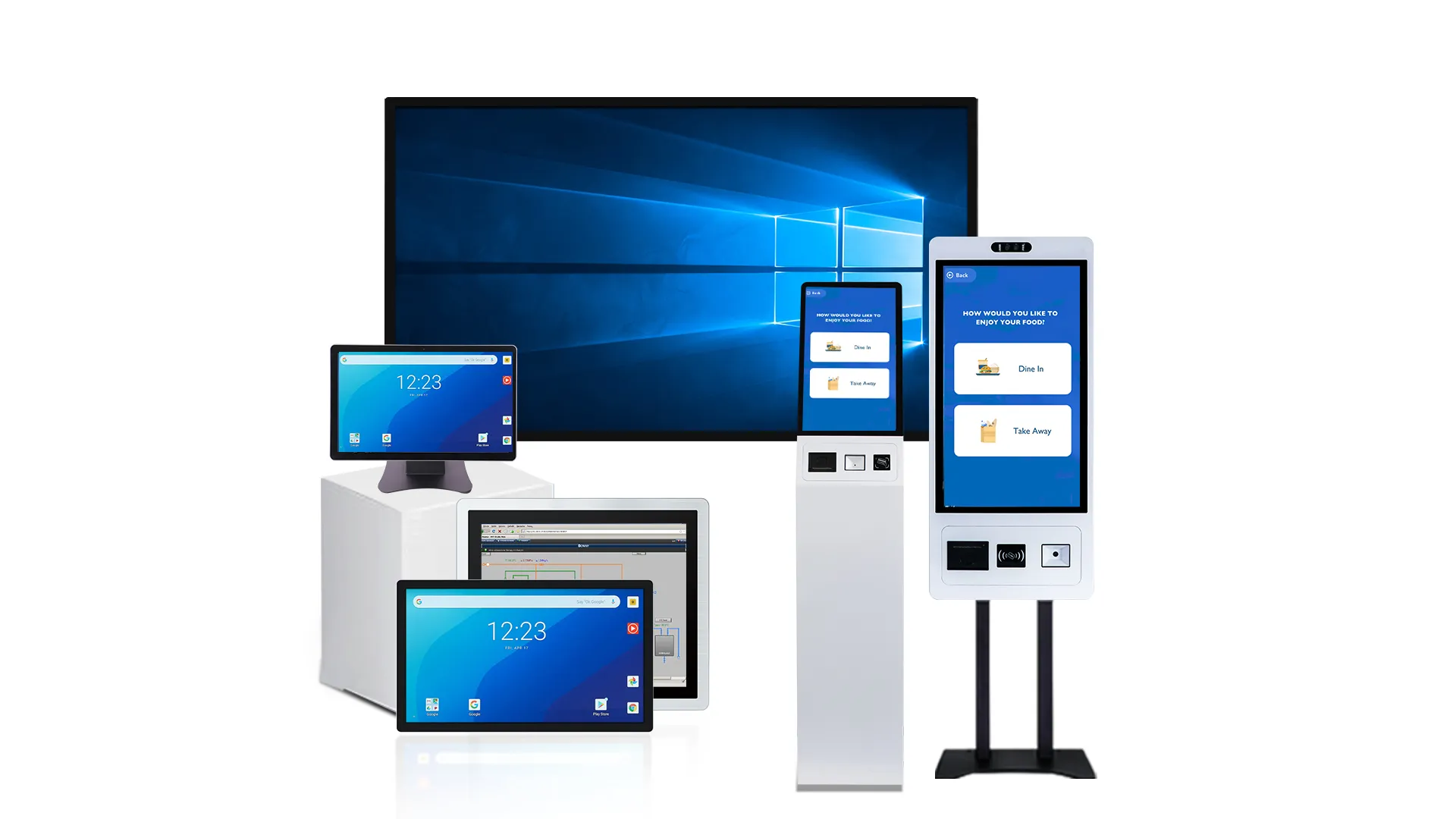
Plenty of equipment already carries computing. A test bench with a Windows industrial PC in a rack, a machine builder’s PLC panel with space left over, a kiosk cabinet with a mini PC you image yourself. In those cases a monitor adds a display surface without touching the software stack, and your team keeps one host image to maintain across the fleet.
Cost pulls the same direction on a per-station basis. The monitor carries no CPU, Erinnerung, or licence, and it weighs little on the wall. The DM156G lists a machine body of 38.7 × 24.3 × 4.6 cm und 2.42 kg netto, and it ships with a mounting bracket, power adapter, and a USB-B cable. Add the host you already own to that column, and the comparison is fair rather than nominal.
Three conditions make the monitor route the better buy. Check each against your own cabinet, your own host, and your own image. If any one of them fails, an integrated unit is usually the simpler answer.
- Host capacity exists: spare USB port for the touch signal, a free video output, and a power socket inside the cabinet.
- Cable runs stay short: VGA and HDMI carry different maximum runs and resolutions, so confirm your host’s output against the panel’s native 1920 × 1080 before ordering a long cable.
- Driver ownership is clear: your team controls the host image, so touch input behaves after each OS update you push.
A touch display behaves as an input device on the same USB path as a mouse. A host with the right class support makes it work without custom code. Der USB-IF Device Class Definition for HID 1.11 documents that class behaviour, and it functions as interface background only. It says nothing about whether your host and one specific panel work together, so confirm the touch controller and driver position for the exact model you buy.
When Does an Integrated Panel PC Fit Better?
Equipment OEMs face a different problem from a factory that standardises one host model. Your customer buys a machine, not a display plus a computer they must source, mount, cable, and image. An integrated machine arrives as one article number, and your documentation describes one device once you confirm how it is powered. That matters commercially too: you price a machine, not a display and a footnote about a computer.
The integrated route also solves space you cannot reclaim with care. A monitor needs a host somewhere, and on a retrofit that means a cabinet wall, a VESA plate behind the panel, or a shelf that collects dust. The HD215 page describes wall-mounted, Desktop, and floor-standing setups, and its spec table gives a 50.4 × 29.6 × 4.15 cm body at 4.5 kg netto. Whether that removes a power brick from your desk depends on the supply arrangement the quoted configuration ships with. Count the cables your enclosure has to close over before you claim a tidier install.
Compute choice moves inside the machine rather than outside it. Buy the CPU, Erinnerung, and storage tiers you need per SKU within one model family. The HD215 spans Celeron J6412 to Core i7 10th-generation, 4 Zu 16 GB DDR4, Und 128 Zu 512 GB mSATA. A variant that needs to drive a second display or record local logs uses its HDMI output and four USB ports without an adapter pile.
Pay attention to heat and duty. An integrated unit concentrates processor load behind glass that faces a customer or an operator, and the datasheet numbers become limits you design around. The HD215 lists a 30,000-hour LED backlight rating, 300 CD/m² Helligkeit, and total consumption under 60 W. Its operating range runs 0–50 °C at 0–90 % Luftfeuchtigkeit. So a sunlit entrance or an outdoor pole needs its own brightness and temperature check instead of these figures.
How Do Connections, Leistung, and Space Differ?
Write both options as a bill of materials before you compare prices. It settles most arguments on paper, because the list exposes what each column quietly adds. Cables, adapters, Reittiere, licences, and spares each land on one side or the other.
| Per Station | Monitor Route | Panel PC Route |
|---|---|---|
| Cables at the unit | Video, USB touch, power | Leistung, plus network if wired |
| Host placement | Cabinet, Gestell, or VESA plate needed | Keiner, computing sits behind glass |
| Power supplies | Confirm the adapter each device ships with | Confirm whether the quoted SKU needs an adapter |
| Peripheriegeräte | Plug into the host’s USB ports | HD215: its four USB ports |
| Netzwerk | Host’s own port carries traffic | HD215 lists RJ45 and Wi-Fi |
| Thermal load | Split between two enclosures | Concentrated behind one panel |
Power arrives in different shapes, and the two sheets describe it their own way. The DM156G lists a DC 12 V 3 A figure on its power row and two connection routes: a 2-pin Phoenix terminal or a DC 2.1 jack. Its carton includes a power adapter and cable, and its standby row reads under 20 W.
The HD215 lists a 110-240 V AC input and a DC 12 V 5 A figure on the same power row. Its standby sits at 0.5 W or less, and total consumption under 60 W. Its delivery list carries a power cable, while its connector table carries a power socket. Ask which arrangement ships with the configuration you quote, and how many adapters and cables cross your panel.
Those answers belong in your wiring standard and your spares list. Document the confirmed adapter part number and the cable route together, so a second site does not repeat the guesswork. A standby figure on a sheet is not a measurement of your machine at night, so run your own meter test before pricing any energy saving.
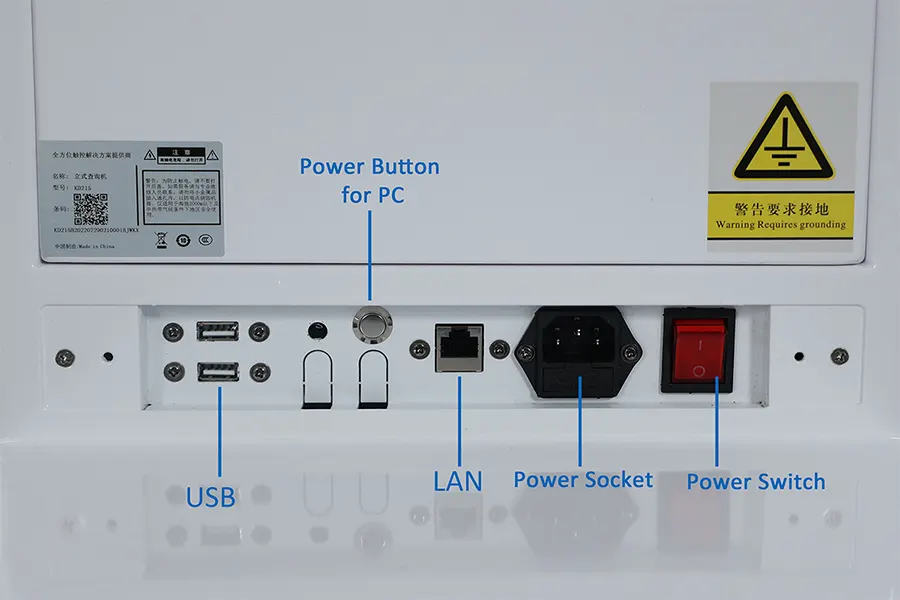
Space decides the tie in tight equipment. A host in a cabinet needs airflow and a door that closes, and a VESA plate behind a screen collects heat that a sealed front panel has nowhere to move. Compare the envelope each route adds to your own design: the host box plus its clearance, or the depth of the integrated unit you shortlist. These two sheets are not a thickness comparison, since the 15.6-inch DM156G is 4.6 cm deep and the 21.5-inch HD215 is 4.15 cm deep. You can also weigh both families on the touch screen PC range before you shortlist.
What Changes in Maintenance and Replacement?
A monitor can fail as a part. A panel PC can fail as a whole system, and your service plan decides the recovery.
Consider the two failures a service team actually meets. On a monitor deployment, glass or a backlight dies. A separate monitor may let technicians replace the display without replacing the host, depending on the mounting and service procedure.
On an integrated unit, the same symptom can mean a machine that carries your software, your configuration, and your saved data. Whether that is a whole-unit swap or a board-level repair depends on the service plan you bought. Put that answer in your maintenance document before a night shift needs it.
That asymmetry favours monitors where uptime depends on local data and where the host outlives the display. It favours integrated units where the fleet is large, the site visit is expensive, and a spare unit that arrives pre-loaded beats a technician carrying two boxes. Neither answer is universal, which is why the choice belongs in your service design rather than in a preference.
Plan the spare holding around the numbers on the datasheet instead of a hunch. Note the panel size, Auflösung, Helligkeit, and connector set for each route, then buy a spare that matches them. A display that fits mechanically but needs a different cable type can still stall the repair. Ask the supplier which components a given model keeps available for spares, and what changes when a board revision arrives mid-programme.
Durability claims deserve the same treatment. A row marked as tested with a particular component fitted tells you the test condition, not the configuration your machine will ship in. So this article quotes no vibration or impact figure for either model, and neither should your specification sheet. Ask which standard, which level, and which configuration each figure refers to, and request the report for the exact model you are buying.
Hold any such record against your own machine instead. Log the vibration source your equipment actually produces, mount the sample the way it will ship, and then compare. A number tested on a bare panel can still fail once your bracket, cable bundle, and enclosure change how energy reaches the glass.
Which Specifications Should Be Tested With Your Application?
Run the sample against your production image, not a clean desktop. Both routes share the same display fundamentals, so start there. A 1920 × 1080 native panel at 16:9 shows your real layout, and projected capacitive touch with a ten-point rating tells you whether your gestures hold. A Mohs class 7 cover glass tells you how the surface takes keys and cleaning agents. Then push the differences.
For the monitor route
Confirm that your host’s output matches the input the panel carries, since the DM156G specifies HDMI 1.4 and VGA rather than DisplayPort. Drive it at native resolution with your application running, and watch for scaling blur in small text. Check the touch port on every USB update you deploy, and verify brightness against the light at the real position. Then run the machine’s own vibration source with the display mounted, and record what changes in touch accuracy.
For the panel PC route
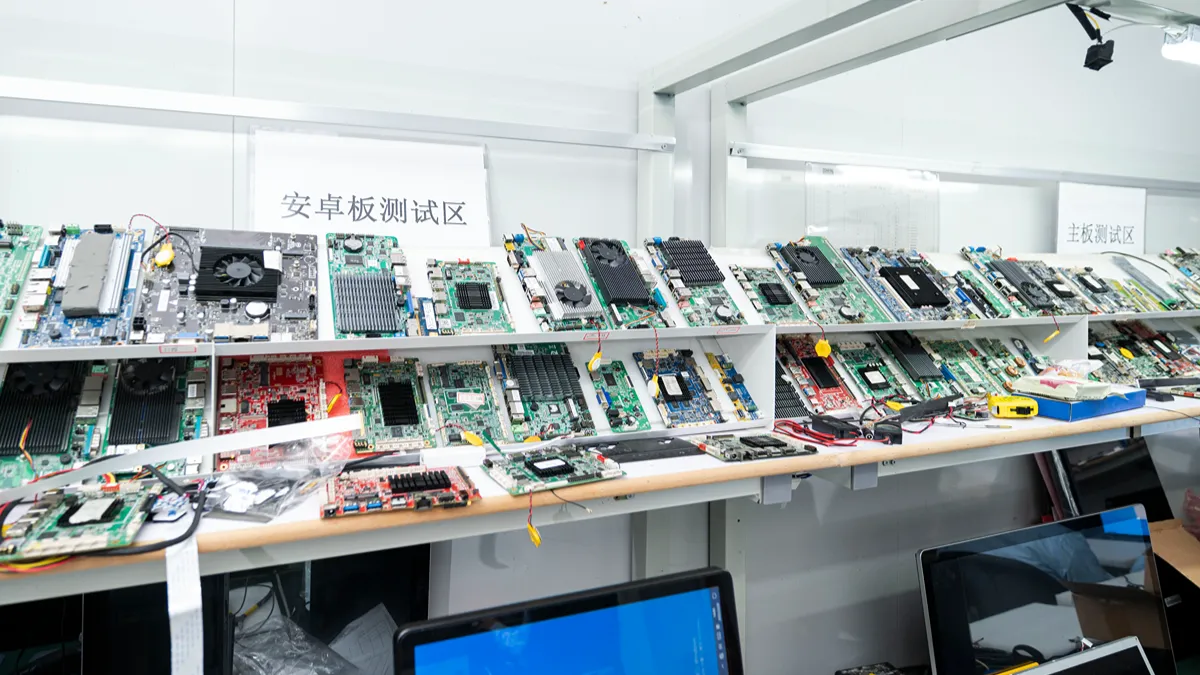
Load your application and your data set, then measure at the extremes. Check CPU load with your heaviest screen, memory with the peripheral drivers installed, and surface temperature once your run reaches steady state at the temperature your site reaches. Confirm the operating system image, patch policy, and rollback route before you commit a production build. Ask what changes in the delivered BIOS and driver package, since a Windows machine you patch yourself and a factory Linux image follow different maintenance plans.
Close the loop on both routes with the same question: what happens when the supplier revises the board? Ask for a compatibility statement covering the replacement, and require a sample of the new revision before your line accepts it. That applies to a monitor’s touch controller as much as to a panel PC’s mainboard.
Häufig gestellte Fragen
Does a touch screen monitor work without a PC?
Not on its own, because an industrial touch monitor carries a video input and a touch port, so it needs a computing device behind them. That host can be a desktop, a mini PC, a single-board computer, or a player box. Check the input types against what your host outputs, and confirm one free USB port for the touch signal.
Can a panel PC connect to external equipment?
Ja, through the same on-board connections a desktop uses, and integrated models usually carry more than buyers expect. The HD215 sheet lists four USB ports, one gigabit RJ45, W-lan, a VGA output, an HDMI output, and combined audio in and out. So a scanner, ein Drucker, and a second display connect without an expansion box.
Which option is easier to replace in the field?
A separate monitor may let technicians replace the display without replacing the host, depending on mounting and service procedure. An integrated unit often means a whole-unit change, which asks more of your image and restore process but less of your spares shelf. Confirm which case your supplier’s service plan covers before you promise a response time.
Letzte Gedanken
Answer the touch screen monitor vs panel PC question by architecture rather than by price. A touch screen monitor answers a deployment that owns computing already and wants display work kept apart from the host. An integrated unit answers a machine you ship as one article, where the listed ports, Netzwerk, and operating system options reduce work your customer would otherwise inherit.
Work the decision in order. Read the interface row on each candidate’s datasheet, and let inputs versus outputs settle the category. Write both routes as a bill of materials with cable and power counts. Model the failure you actually expect and the spare you must stock. Then test a sample with your own image, your own peripheral set, and your own duty cycle, and compare the results rather than the descriptions.
Tell TouchWo what computer and application your equipment already uses to identify a suitable monitor or integrated touch PC. Then ask for the interface list and test records for the exact model you shortlist. Bring the bill of materials you wrote for both routes, so both are quoted against the same document.