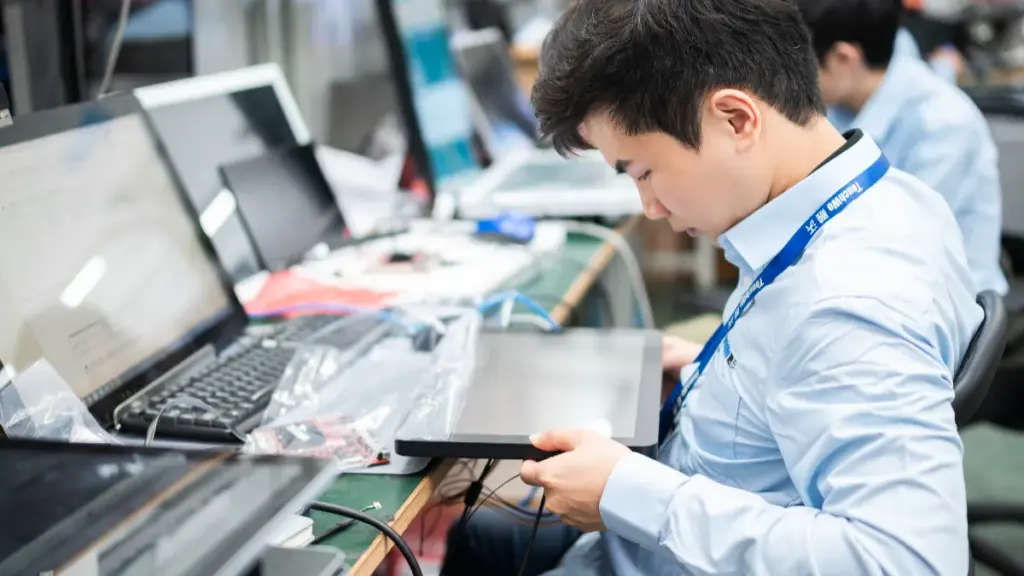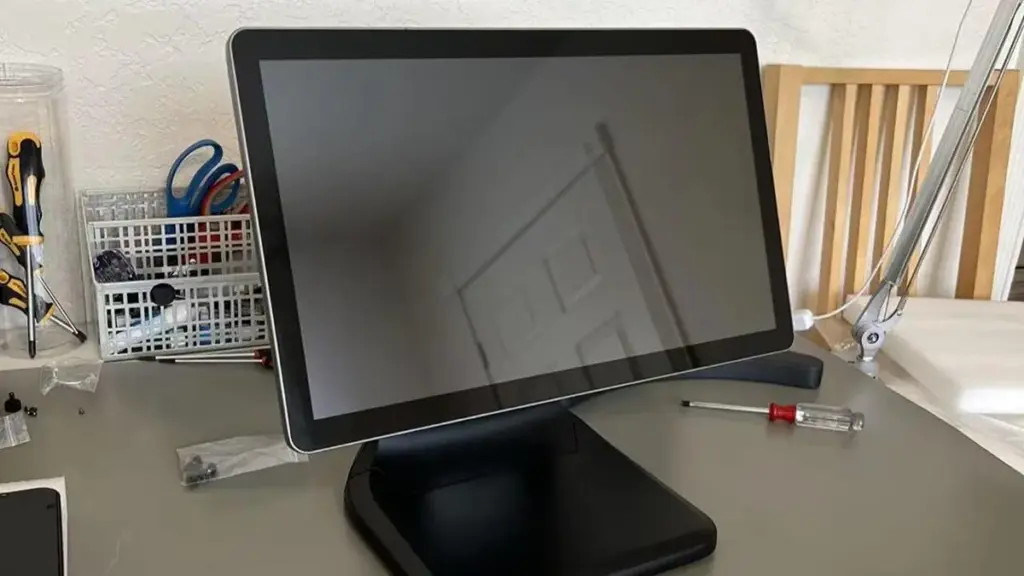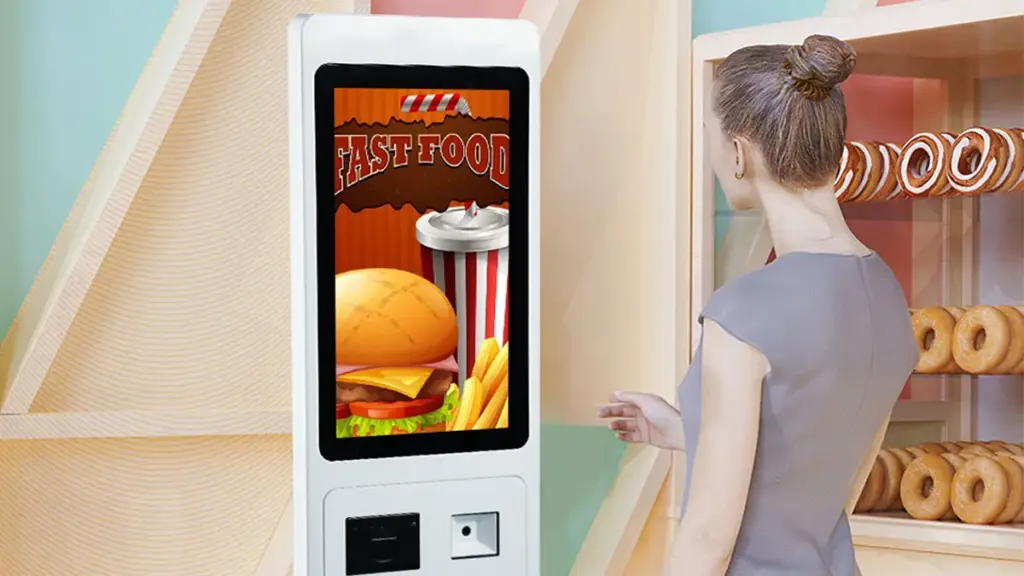
Touchscreens machen es einfach, intuitive Steuerung für viele gewerbliche und industrielle Geräte. Auch so, they carry clear drawbacks that buyers need to weigh before purchase. If you plan to deploy touch screens for kiosks, workstations or public‑use hardware, you should understand these downsides first. This article breaks down key limitations, real‑world pain points and practical points for your hardware selection.
Common physical and durability disadvantages of touch screens

Risk of surface scratches and physical damage
Most touch screens rely on exposed glass surfaces. Sharp objects can leave permanent scratches on the top layer. Heavy impact may also crack the touch sensor underneath. Public‑facing devices face higher risk from rough handling or accidental hits. Daily wear slowly reduces visual clarity and touch responsiveness over time.
Sensitivity to dirt, grease and moisture
Finger grease, dust or liquid easily covers touch screen surfaces. Dirty spots often cause missed taps or false touches. Water or high humidity can disrupt touch input in some models. You need regular cleaning to keep normal working status, especially in busy or dusty work spaces.
Performance‑related disadvantages of touch screens
Limited usability for users wearing gloves
Many standard touch screens fail to register input when users wear thick gloves. This creates problems for factory staff, outdoor workers or cold‑environment scenarios. You must pick special touch versions if glove operation is a core requirement for your use case.
Light reflection and visibility issues
Bright ambient light creates reflections across touch screen glass. Glare makes screen content hard to read under direct sunlight. Some units cannot adjust brightness enough to offset strong outside light. This drawback affects outdoor kiosks and open‑area installations most heavily.
Practical operational drawbacks for real deployments
Higher maintenance demand over long‑term use
Touch screens include layered sensor parts beyond standard display panels. Once touch layers degrade, simple display replacement cannot fix touch failure. Teams need scheduled inspection and proper cleaning routines to extend service life. Neglect speeds up performance drop‑off for installed units.
Compatibility gaps with certain application scenarios
Touch screens work best for tap‑and‑swipe operations. They offer less precision for fine, detailed work compared with mouse and keyboard setups. Complex data entry tasks may slow down when you only rely on touch input. Mixed input methods often deliver better results for heavy‑use work stations.
Häufig gestellte Fragen
Q:Can you fix a scratched touch screen surface?
A: Minor scratches may reduce visual comfort. Deep scratches hurt touch function. Surface polishing rarely restores full performance, and you often need layer replacement for heavy damage.
Q2: Do all touch screens stop working with gloves?
A: NEIN. Standard consumer touch screens reject gloved input. Special industrial touch screens support glove touch, yet this feature adds extra requirements during product selection.
Q3:How can I lower glare issues for touch screens?
A: Anti‑glare surface treatments help reduce reflection. You can also adjust installation angles to avoid direct sunlight exposure. Brightness tuning offers partial improvement but cannot solve all glare problems.
Q4: Are touch screens hard to keep clean in public locations?
A: Ja. Public touch screens collect grease and dirt fast. Set regular cleaning cycles, and follow recommended cleaning materials to avoid harming sensor layers.
Abschluss
Touch screens deliver great user experience for plenty of projects, yet they come with notable disadvantages around durability, environmental adaption and input limits. Every project balances pros and cons to match its working environment and end‑user needs. If you want tailored advice for touch screens that fit your operating conditions, submit your details through the form on our website. Share your scenario requirements, and you will get suitable guidance for your hardware project.