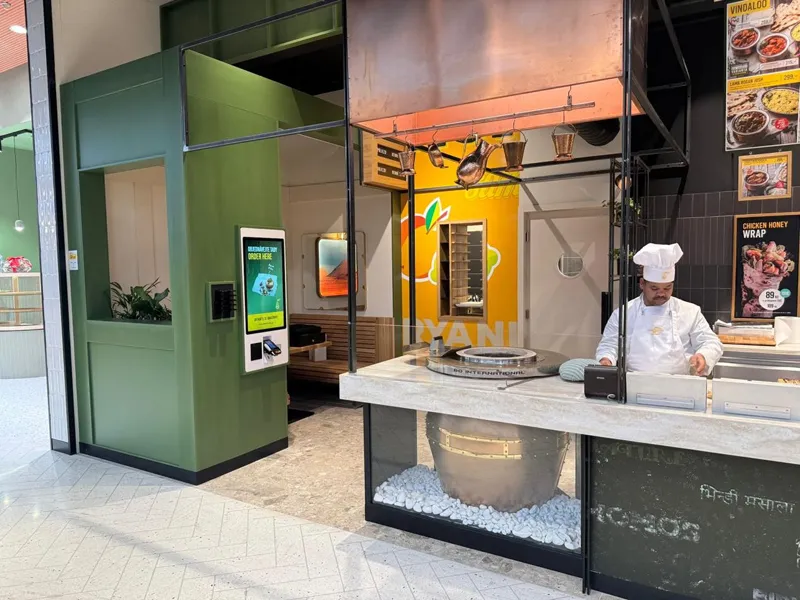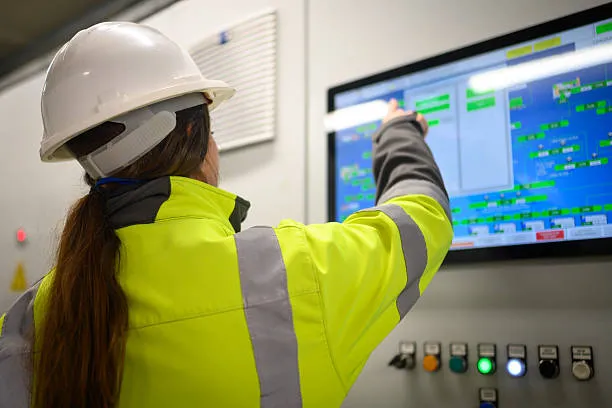
ໃນຍຸກດິຈິຕອນມື້ນີ້, ຈໍສະແດງຜົນສໍາຜັດໄດ້ກາຍເປັນເຄື່ອງມືທີ່ຈໍາເປັນສໍາລັບທັງການເຮັດວຽກແລະການພັກຜ່ອນ. ຈາກການນຳສະເໜີແບບໂຕ້ຕອບໄປຫາປະສົບການການຫຼິ້ນເກມທີ່ເລິກເຊິ່ງ, ຈໍສະແດງຜົນອະເນກປະສົງເຫຼົ່ານີ້ໃຫ້ການຄວບຄຸມ intuitive ແລະເພີ່ມປະສິດທິພາບການຜະລິດ. ເຖິງຢ່າງໃດກໍ່ຕາມ, ບາງທຸລະກິດບໍ່ຮູ້ວິທີຕິດຕັ້ງຈໍສໍາຜັດຢ່າງຖືກຕ້ອງ, ແລະດັ່ງນັ້ນອາດຈະລະເລີຍການຕິດຕັ້ງທີ່ເຫມາະສົມ. ໃນຄູ່ມືຂັ້ນຕອນໂດຍຂັ້ນຕອນນີ້, ພວກເຮົາຈະຄົ້ນຫາຂັ້ນຕອນລະອຽດເພື່ອຕິດຕັ້ງຈໍສໍາຜັດຢ່າງມີປະສິດທິພາບ, ຮັບປະກັນການປະຕິບັດແລະຫນ້າທີ່ທີ່ດີທີ່ສຸດສໍາລັບທຸລະກິດທັງຫມົດ.

ວິທີການເລີ່ມຕົ້ນ?
ກ່ອນທີ່ຈະດໍານ້ໍາເຂົ້າໄປໃນຂະບວນການຕິດຕັ້ງ, ເລືອກສິດ ຕິດຕາມກວດກາຫນ້າຈໍ ທີ່ເຫມາະສົມກັບຄວາມຕ້ອງການແລະຄວາມມັກຂອງທ່ານແມ່ນຈໍາເປັນ. ຂໍໃຫ້ພິຈາລະນາປັດໄຈທີ່ຈະພິຈາລະນາໃນເວລາທີ່ເລືອກຈໍພາບແລະປະເພດຕ່າງໆຂອງເຕັກໂນໂລຢີຫນ້າຈໍສໍາຜັດ.
ເລືອກໜ້າຈໍສຳຜັດທີ່ຖືກຕ້ອງ
ເມື່ອເລືອກຈໍຕິດຕາມກວດກາຫນ້າຈໍສໍາພັດ, ປັດໃຈຈໍານວນຫນຶ່ງຄວນໄດ້ຮັບການພິຈາລະນາ:
- ຂະຫນາດແລະຄວາມລະອຽດ: ກໍານົດຂະຫນາດແລະຄວາມລະອຽດຂອງຈໍພາບໂດຍອີງໃສ່ຄວາມຕ້ອງການການນໍາໃຊ້ຂອງທ່ານແລະພື້ນທີ່ທີ່ມີຢູ່.
- ເຕັກໂນໂລຊີຫນ້າຈໍສໍາຜັດ: ເຮັດຄວາມຄຸ້ນເຄີຍກັບເຕັກໂນໂລຊີຫນ້າຈໍສໍາຜັດທີ່ແຕກຕ່າງກັນ, ເຊັ່ນການຕ້ານທານ, ທີ່ຮັ່ງມີ, ແລະອິນຟາເຣດ, ເພື່ອເລືອກອັນທີ່ເໝາະສົມກັບຄວາມຕ້ອງການຂອງເຈົ້າທີ່ສຸດ.
- ຕົວເລືອກເຊື່ອມຕໍ່: ພິຈາລະນາທາງເລືອກການເຊື່ອມຕໍ່ທີ່ມີຢູ່, ລວມທັງ HDMI, USB, ແລະ DisplayPort, ເພື່ອຮັບປະກັນຄວາມເຂົ້າກັນໄດ້ຂອງອຸປະກອນ.
- ຊື່ສຽງຍີ່ຫໍ້: ຄົ້ນຄ້ວາຍີ່ຫໍ້ຈໍສໍາພັດສໍາພັດທີ່ເປັນທີ່ຮູ້ຈັກສໍາລັບຄຸນນະພາບຂອງເຂົາເຈົ້າ, ຄວາມຫນ້າເຊື່ອຖື, ແລະສະຫນັບສະຫນູນລູກຄ້າ.
ກະກຽມສໍາລັບການຕິດຕັ້ງ
ກ່ອນທີ່ຈະເລີ່ມຕົ້ນຂະບວນການຕິດຕັ້ງ, ລວບລວມເຄື່ອງມືແລະອຸປະກອນທີ່ຈໍາເປັນ:
- ໄຂຄວງ
- ວົງເລັບ Mounting (ຖ້າມີໄດ້)
- ສາຍໄຟຟ້າ
- ສາຍ HDMI ຫຼື DisplayPort
- ຜ້າອະນາໄມ
ຕັ້ງພື້ນທີ່ເຮັດວຽກຂອງທ່ານເພື່ອຕິດຕັ້ງ, ຮັບປະກັນໃຫ້ມີແສງສະຫວ່າງພຽງພໍ ແລະສະອາດ, ພື້ນຜິວແປ. ລະມັດລະວັງຄວາມປອດໄພໂດຍການປິດໄຟ ແລະຖອດສາຍໄຟອອກກ່ອນດຳເນີນການຕໍ່.
ຂ້ອຍຈະຕັ້ງໜ້າຈໍສຳຜັດແນວໃດ? ຄູ່ມືຂັ້ນຕອນໂດຍຂັ້ນຕອນ
ໃນພາກສ່ວນໂດຍຂັ້ນຕອນທີ່ສົມບູນແບບນີ້, ພວກເຮົາຈະນໍາທ່ານຜ່ານແຕ່ລະຂັ້ນຕອນຂອງຂະບວນການຕິດຕັ້ງເພື່ອຮັບປະກັນການຕິດຕັ້ງທີ່ລຽບງ່າຍແລະປະສົບຜົນສໍາເລັດ.
ຕິດຕັ້ງຈໍ Touch Screen
ເມື່ອທ່ານຊື້ຈໍ touchscreen ໃຫມ່, unbox ມັນຢ່າງລະມັດລະວັງແລະກວດເບິ່ງມັນສໍາລັບຄວາມເສຍຫາຍທີ່ເຫັນໄດ້. ໃຫ້ແນ່ໃຈວ່າອົງປະກອບທີ່ຈໍາເປັນທັງຫມົດແມ່ນມີຢູ່, ລວມທັງຈໍພາບ, ຜາມໄຊ, ສາຍໄຟ, ແລະອຸປະກອນເສີມໃດໆ.
ຫຼັງຈາກນັ້ນ, ຕັດສິນໃຈບ່ອນທີ່ທ່ານຕ້ອງການທີ່ຈະວາງຈໍພາບສໍາພັດຂອງທ່ານ. ໃຫ້ແນ່ໃຈວ່າມັນຖືກວາງຢູ່ເທິງພື້ນຜິວທີ່ຫມັ້ນຄົງແລະຢູ່ໃນຂອບເຂດສໍາລັບການນໍາໃຊ້ທີ່ສະດວກສະບາຍ.
ໃນເວລານີ້, ຖ້າຈໍສະແດງຜົນຫນ້າຈໍສໍາຜັດຂອງທ່ານມາພ້ອມກັບຂາຕັ້ງ, ປະກອບມັນຕາມຄໍາແນະນໍາຂອງຜູ້ຜະລິດ. ໂດຍປົກກະຕິ, ນີ້ກ່ຽວຂ້ອງກັບການຕິດຂາຕັ້ງກັບຈໍພາບໂດຍໃຊ້ screws ຫຼື fasteners ອື່ນໆ.
ເຊື່ອມຕໍ່ກັບຄອມພິວເຕີຂອງທ່ານ
ກ່ອນທີ່ຈະເຊື່ອມຕໍ່ອຸປະກອນ, ສຽບສົ້ນໜຶ່ງຂອງສາຍໄຟເຂົ້າໃສ່ຊ່ອງສຽບໄຟຢູ່ດ້ານຫຼັງຂອງຈໍພາບ ແລະອີກສົ້ນໜຶ່ງເຂົ້າໄປໃນປລັກສຽບໄຟ. ໃຫ້ແນ່ໃຈວ່າປລັກສຽບໄຟສາມາດເຂົ້າເຖິງໄດ້ງ່າຍແລະບໍ່ມີສິ່ງກີດຂວາງທີ່ສາມາດແຊກແຊງກັບສາຍ.
ຫຼັງຈາກນັ້ນ, ອີງຕາມປະເພດຂອງການເຊື່ອມຕໍ່ທີ່ຕິດຕາມກວດກາຂອງທ່ານສະຫນັບສະຫນູນ (HDMI, ສະແດງ, ປາກ, ແລະອື່ນໆ), ເຊື່ອມຕໍ່ປາຍໜຶ່ງຂອງສາຍເຄເບິນທີ່ເໝາະສົມກັບພອດທີ່ສອດຄ້ອງກັນໃນຄອມພິວເຕີຂອງທ່ານ ແລະອີກສົ້ນໜຶ່ງກັບພອດທີ່ສອດຄ້ອງກັນຢູ່ໃນຈໍພາບ. ຖ້າຄອມພິວເຕີຂອງທ່ານມີຈໍພາບຫຼາຍອັນ, ໃຫ້ແນ່ໃຈວ່າຈໍສໍາຜັດຖືກເຊື່ອມຕໍ່ຕາມທີ່ຕ້ອງການ (e.g., ເປັນຈໍສະແດງຜົນຕົ້ນຕໍຫຼືຮອງ).
ເມື່ອທ່ານສໍາເລັດ, ກົດປຸ່ມເປີດປິດຢູ່ໃນຈໍເພື່ອເປີດມັນ. ທ່ານຈະເຫັນຫນ້າຈໍສໍາພັດ PC ຂອງທ່ານສະຫວ່າງຂຶ້ນ, ຊີ້ໃຫ້ເຫັນວ່າມັນໄດ້ຮັບພະລັງງານ.
ຕິດຕັ້ງໄດເວີ (ຖ້າຈໍາເປັນ)
ໃນກໍລະນີຫຼາຍທີ່ສຸດ, ລະບົບປະຕິບັດການທີ່ທັນສະໄຫມ (ເຊັ່ນ Windows, ກິຊະຍາ, ຫຼື Linux) ຈະກວດຫາ ແລະຕິດຕັ້ງໄດເວີທີ່ຈໍາເປັນສໍາລັບຈໍສໍາຜັດຂອງທ່ານໂດຍອັດຕະໂນມັດ. ເຖິງຢ່າງໃດກໍ່ຕາມ, ຖ້າຈໍພາບຂອງທ່ານຕ້ອງການໄດເວີສະເພາະສໍາລັບການເຮັດວຽກຢ່າງເຕັມທີ່, ທ່ານອາດຈະຈໍາເປັນຕ້ອງໄດ້ດາວໂຫລດແລະຕິດຕັ້ງພວກມັນຈາກເວັບໄຊທ໌ຂອງຜູ້ຜະລິດ.
ປັບຕັ້ງໜ້າຈໍສຳຜັດ
ບາງຈໍພາບໜ້າຈໍສໍາຜັດອາດຈະຕ້ອງການການປັບທຽບເພື່ອຮັບປະກັນການປ້ອນຂໍ້ມູນສໍາຜັດທີ່ຖືກຕ້ອງ. ໂດຍປົກກະຕິຂະບວນການນີ້ກ່ຽວຂ້ອງກັບການປະຕິບັດຕາມຄໍາແນະນໍາໃນຫນ້າຈໍເພື່ອແຕະຈຸດສະເພາະໃນຫນ້າຈໍ. ກວດເບິ່ງຄູ່ມືຜູ້ໃຊ້ຂອງຈໍສະແດງຜົນສໍາລັບຄໍາແນະນໍາກ່ຽວກັບວິທີການປັບມັນຖ້າຈໍາເປັນ.
ໂດຍທົ່ວໄປ, ຈໍສະແດງຜົນຫນ້າຈໍສໍາຜັດສ່ວນໃຫຍ່ມາພ້ອມກັບຊອບແວການປັບທຽບທີ່ນໍາພາທ່ານຜ່ານຂັ້ນຕອນການປັບທຽບເທື່ອລະຂັ້ນຕອນ. ຫຼືທ່ານອາດຈະປ່ຽນການຕັ້ງຄ່າການປັບລະອຽດເຊັ່ນ: ຄວາມອ່ອນໄຫວຕໍ່ການສຳຜັດ ແລະ ການຮັບຮູ້ທ່າທາງເພື່ອປະສິດທິພາບທີ່ດີທີ່ສຸດ ແລະປະສົບການຂອງຜູ້ໃຊ້..
ປັບແຕ່ງ ແລະປັບແຕ່ງຄຸນສົມບັດໜ້າຈໍສໍາຜັດ
ເມື່ອການຕິດຕັ້ງສໍາເລັດ, ທ່ານສາມາດປັບການຕັ້ງຄ່າແລະຄຸນສົມບັດໃຫ້ເຫມາະສົມກັບຄວາມມັກຂອງທ່ານ. ຍົກຕົວຢ່າງ, ທ່ານອາດຈະຕ້ອງການ
- ປັບຄວາມສະຫວ່າງ, ຄວາມແຕກຕ່າງ, ແລະອຸນຫະພູມສີໃຫ້ເຫມາະສົມກັບຄວາມມັກຂອງທ່ານ
- ຕັ້ງຄ່າ gestures multi-touch ສໍາລັບຫນ້າທີ່ປັບປຸງ
- ປັບຄວາມອ່ອນໄຫວສໍາຜັດກັບຄວາມມັກຂອງທ່ານ
- ຕິດຕັ້ງແອັບ ຫຼືຊອບແວເພີ່ມເຕີມສຳລັບໜ້າຈໍສຳຜັດເພື່ອຂະຫຍາຍຄວາມສາມາດ
ຈໍພາບສ່ວນໃຫຍ່ມີເມນູໃນຫນ້າຈໍທີ່ສາມາດເຂົ້າເຖິງໄດ້ໂດຍຜ່ານປຸ່ມທາງດ້ານຮ່າງກາຍຫຼືການຄວບຄຸມການສໍາພັດເພື່ອເຮັດການປັບເຫຼົ່ານີ້.
ທົດສອບຈໍສໍາຜັດ
ກວດສອບວ່າການສະແດງຫນ້າຈໍສໍາພັດສໍາລັບ PC ແມ່ນເຮັດວຽກຢ່າງຖືກຕ້ອງໂດຍການແຕະແລະ swiping ທົ່ວຫນ້າຈໍ. ເປີດຄໍາຮ້ອງສະຫມັກທີ່ເປັນມິດກັບສໍາຜັດຫຼືຫນ້າເວັບເພື່ອທົດສອບການຕອບສະຫນອງຂອງມັນ. ຖ້າເຈົ້າພົບບັນຫາໃດໆ, ອ້າງເຖິງພາກສ່ວນການແກ້ໄຂບັນຫາຂອງຄູ່ມືຜູ້ໃຊ້ ຫຼືຕິດຕໍ່ຜູ້ຜະລິດເພື່ອຂໍຄວາມຊ່ວຍເຫຼືອ.
ແກ້ໄຂບັນຫາ 3 ບັນຫາການຕິດຕັ້ງທົ່ວໄປ
ຖ້າຫາກທ່ານພົບບັນຫາເຊັ່ນ: ຫນ້າຈໍສໍາພັດບໍ່ໄດ້ຕອບສະຫນອງ, ສະແດງຄວາມຜິດປົກກະຕິ, ຫຼືບັນຫາການເຊື່ອມຕໍ່ກັບສາຍໄຟ ຫຼືພອດ ເມື່ອຕັ້ງຄ່າຈໍສຳຜັດຂອງທ່ານ, ນີ້ແມ່ນບາງຂັ້ນຕອນການແກ້ໄຂບັນຫາທີ່ທ່ານສາມາດເຮັດເພື່ອແກ້ໄຂພວກມັນ:
ໜ້າຈໍສຳຜັດບໍ່ຕອບສະໜອງ
- ກວດເບິ່ງຄວາມເສຍຫາຍທາງດ້ານຮ່າງກາຍ: ກວດເບິ່ງຫນ້າຈໍສໍາຜັດສໍາລັບຄວາມເສຍຫາຍທາງດ້ານຮ່າງກາຍເຊັ່ນ: ຮອຍແຕກຫຼືຮອຍຂີດຂ່ວນ. ຄວາມເສຍຫາຍທາງຮ່າງກາຍສາມາດທໍາລາຍຄວາມອ່ອນໄຫວສໍາຜັດ.
- ເຮັດຄວາມສະອາດຫນ້າຈໍ: ໃຊ້ນຸ່ມ, ຜ້າທີ່ບໍ່ມີ lint ເພື່ອຄ່ອຍໆທໍາຄວາມສະອາດດ້ານຫນ້າຈໍສໍາພັດ. ຝຸ່ນ, ຂີ້ຝຸ່ນ, ຫຼືລາຍນິ້ວມືສາມາດລົບກວນການຕອບສະໜອງການສຳຜັດໄດ້.
- ຣີສະຕາດຈໍ: ບາງເທື່ອ, restart ງ່າຍໆສາມາດແກ້ໄຂບັນຫາທີ່ກ່ຽວຂ້ອງກັບຊອບແວໄດ້. ປິດຈໍພາບ, ລໍຖ້າສອງສາມວິນາທີ, ແລະຫຼັງຈາກນັ້ນເປີດມັນຄືນ.
- Recalibrate ຫນ້າຈໍສໍາຜັດ: ຖ້າໜ້າຈໍສຳຜັດບໍ່ສອດຄ່ອງ ຫຼືຕອບສະໜອງບໍ່ໄດ້ຢ່າງຖືກຕ້ອງ, recalibrate ມັນຕາມຄໍາແນະນໍາຂອງຜູ້ຜະລິດ.
ສະແດງຜິດປົກກະຕິ
- ກວດເບິ່ງສາຍແລະການເຊື່ອມຕໍ່: ໃຫ້ແນ່ໃຈວ່າສາຍທີ່ເຊື່ອມຕໍ່ຈໍກັບຄອມພິວເຕີຂອງທ່ານຖືກສຽບຢ່າງປອດໄພແລະບໍ່ເສຍຫາຍ. ການເຊື່ອມຕໍ່ທີ່ຂາດຫຼືຜິດປົກກະຕິສາມາດເຮັດໃຫ້ເກີດຄວາມຜິດປົກກະຕິການສະແດງຜົນ.
- ປັບການຕັ້ງຄ່າການສະແດງ: ໃຊ້ເມນູເທິງໜ້າຈໍຂອງຈໍສະແດງຜົນເພື່ອປັບການຕັ້ງຄ່າເຊັ່ນ: ຄວາມສະຫວ່າງ, ຄວາມແຕກຕ່າງ, ແລະອຸນຫະພູມສີ. ການຕັ້ງຄ່າທີ່ບໍ່ຖືກຕ້ອງສາມາດເຮັດໃຫ້ເກີດບັນຫາການສະແດງ.
- ອັບເດດໄດເວີກຣາຟິກ: ໄດເວີກຣາບຟິກທີ່ລ້າສະໄຫມຫຼືບໍ່ເຂົ້າກັນໄດ້ສາມາດເຮັດໃຫ້ການສະແດງຜົນຜິດປົກກະຕິ. ກວດເບິ່ງການອັບເດດຈາກເວັບໄຊທ໌ຜູ້ຜະລິດບັດກາຟິກຂອງທ່ານແລະຕິດຕັ້ງພວກມັນຖ້າຈໍາເປັນ.
ບັນຫາການເຊື່ອມຕໍ່ກັບສາຍໄຟ ຫຼືພອດ
- ກວດເບິ່ງຄວາມສົມບູນຂອງສາຍ: ກວດເບິ່ງສາຍເຄເບີ້ນສໍາລັບສັນຍານຄວາມເສຍຫາຍເຊັ່ນ: ຮອຍແຕກຫຼືງໍໂຄ້ງ. ປ່ຽນສາຍທີ່ເສຍຫາຍຕາມຄວາມຕ້ອງການ.
- ລອງໃຊ້ພອດຕ່າງໆ: ຖ້າເຈົ້າປະສົບບັນຫາການເຊື່ອມຕໍ່, ລອງເຊື່ອມຕໍ່ຈໍພາບກັບຜອດອື່ນໃນຄອມພິວເຕີຂອງທ່ານ (e.g., HDMI, ສະແດງ, ປາກ). ນີ້ສາມາດຊ່ວຍກໍານົດວ່າບັນຫາແມ່ນຂຶ້ນກັບພອດຫຼືສາຍ.
- ທົດສອບກັບອຸປະກອນອື່ນ: ເຊື່ອມຕໍ່ຈໍພາບກັບອຸປະກອນອື່ນທີ່ເຂົ້າກັນໄດ້ (e.g., ແລັບທັອບ, ຄອນໂຊເກມ) ການນໍາໃຊ້ສາຍດຽວກັນ. ຖ້າຈໍພາບເຮັດວຽກດີກັບອຸປະກອນອື່ນ, ບັນຫາອາດຈະຢູ່ກັບພອດ ຫຼືການຕັ້ງຄ່າຂອງຄອມພິວເຕີຕົ້ນສະບັບ.
- ອັບເດດໄດເວີ: ໃຫ້ແນ່ໃຈວ່າໄດເວີຂອງຄອມພິວເຕີຂອງທ່ານ, ໂດຍສະເພາະທີ່ກ່ຽວຂ້ອງກັບການສະແດງຜົນແລະພອດ USB, ແມ່ນທັນສະໄຫມ. ຄົນຂັບທີ່ລ້າສະໄຫມສາມາດເຮັດໃຫ້ເກີດບັນຫາຄວາມເຂົ້າກັນໄດ້ກັບຈໍພາບ.
ຄໍາແນະນໍາກ່ຽວກັບການບໍາລຸງຮັກສາແລະການດູແລ
ເພື່ອຍືດອາຍຸຂອງຈໍພາບຫນ້າຈໍສໍາຜັດຂອງທ່ານແລະຮັກສາປະສິດທິພາບຂອງມັນ, ປະຕິບັດຕາມຄໍາແນະນໍາການບໍາລຸງຮັກສາແລະການດູແລເຫຼົ່ານີ້:
- ເຮັດຄວາມສະອາດຫນ້າຈໍເປັນປົກກະຕິໂດຍໃຊ້ເຄື່ອງອ່ອນ, ຜ້າທີ່ບໍ່ມີ lint ແລະການແກ້ໄຂທໍາຄວາມສະອາດອ່ອນໂຍນ.
- ປົກປ້ອງຫນ້າຈໍຈາກການຂູດຂີດໂດຍການຫຼີກເວັ້ນວັດສະດຸຂັດຫຼືສານເຄມີທີ່ຮຸນແຮງ.
- ສ້າງຕາຕະລາງການບໍາລຸງຮັກສາເປັນປົກກະຕິເພື່ອແກ້ໄຂບັນຫາຕ່າງໆໃນທັນທີແລະຮັບປະກັນການປະຕິບັດທີ່ດີທີ່ສຸດ.
ແຫຼ່ງຂໍ້ມູນຈາກຜູ້ຜະລິດຫນ້າຈໍສໍາຜັດ
ການສະຫລຸບ, ຂັ້ນຕອນກ່ຽວກັບວິທີການຕິດຕັ້ງຈໍສໍາຜັດຕ້ອງພິຈາລະນາຢ່າງລະມັດລະວັງ, ການກະກຽມ, ແລະການປະຕິບັດ. ໂດຍການປະຕິບັດຕາມຂັ້ນຕອນ ແລະຂໍ້ແນະນຳງ່າຍໆເຫຼົ່ານີ້, ທ່ານສາມາດຕັ້ງຫນ້າຈໍສໍາພັດຂອງທ່ານໄດ້ປະສິດທິຜົນແລະມີຄວາມສຸກປະສົບການຜູ້ໃຊ້ seamless. ຈືຂໍ້ມູນການແຫຼ່ງຈໍພາບຂອງທ່ານຈາກຜູ້ຜະລິດຫນ້າຈໍສໍາຜັດທີ່ມີຊື່ສຽງເຊັ່ນ: touchgo ເພື່ອຮັບປະກັນຄຸນນະພາບ, ຄວາມຫນ້າເຊື່ອຖື, ແລະການສະຫນັບສະຫນູນຢ່າງຕໍ່ເນື່ອງ. ດ້ວຍການຕິດຕັ້ງແລະການບໍາລຸງຮັກສາທີ່ຖືກຕ້ອງ, ຈໍພາບຫນ້າຈໍສໍາຜັດຂອງທ່ານຈະກາຍເປັນເຄື່ອງມືອັນລ້ໍາຄ່າສໍາລັບຜົນຜະລິດ, ຄວາມບັນ, ແລະຄວາມຄິດສ້າງສັນ. ທົດລອງຄຸນສົມບັດຂອງມັນ, ປັບແຕ່ງການຕັ້ງຄ່າຕາມຄວາມມັກຂອງເຈົ້າ ແລະຮັບເອົາຄວາມເປັນໄປໄດ້ທີ່ບໍ່ສິ້ນສຸດຂອງເທັກໂນໂລຍີນະວັດຕະກໍານີ້.