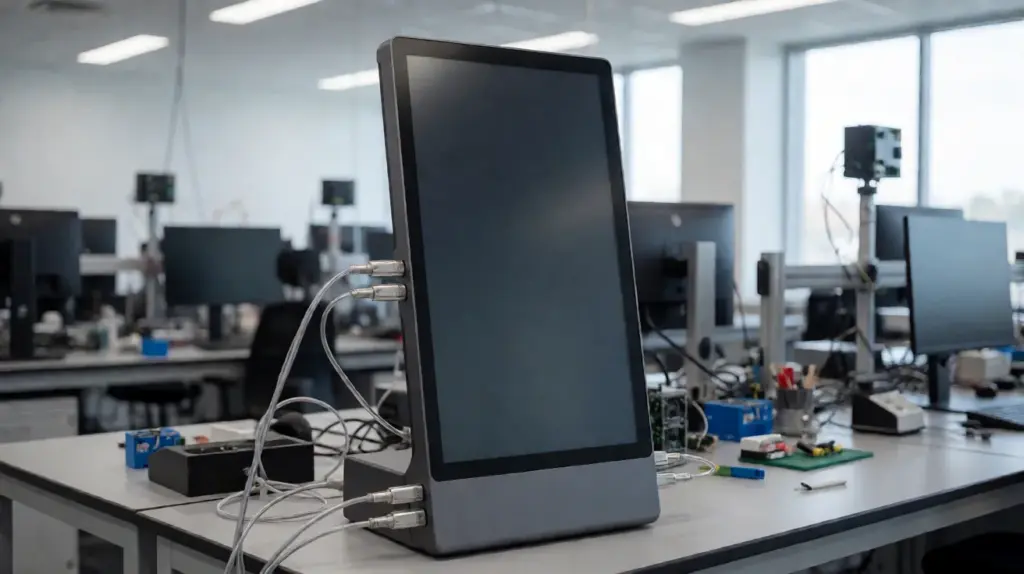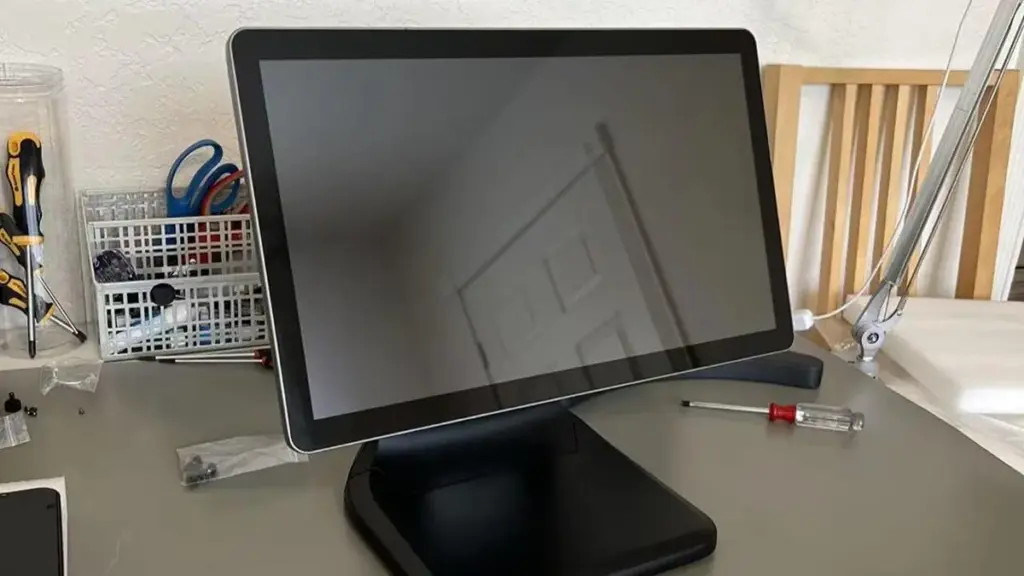
Modern self-service devices and smart terminals rely on responsive interactive hardware. A functional touch panel supports easy tapping, sliding and menu selection for daily operations. Toch, many users face disabled or unresponsive touch panels issues after device restarts or system updates.
Most touch panel failures come from minor software disablement or setting errors, not hardware damage. In werkelijkheid, you can enable a touch panel through simple system tools and manual checks. This article shares step-by-step enabling methods, common error fixes and daily maintenance tips for commercial touch panel equipment.
Step-by-Step Methods to Enable a Touch Panel
Different system environments match clear enabling steps. These methods apply to most commercial touch panel devices.
1. Enable touch panels via system device manager
Eerst, open the device manager menu on your smart terminal system. Volgende, expand the human interface device list to find touch screen options. Dan, check the current device status. If the panel shows disabled, right-click and select enable device. Eindelijk, restart the interactive interface to confirm normal touch response. This method fixes most software-disabled touch panel problems quickly.
2. Activate touch panel through system settings
Open the main settings page of your self-service device. Find the hardware and input function module inside the menu. Locate the touch control switch and toggle it to the on state. In de tussentijd, turn off touch-limit or sleep-lock modes. These simple setting adjustments reactivate a locked touch panel in seconds.
3. Restore touch panel function via system restart
Temporary system bugs often cause touch panels failure. Save your ongoing device data first. Then perform a full system restart instead of a simple screen lock. The restart refreshes all hardware driver links. It can restore normal touch panel recognition for most minor glitches.
4. Reinstall drivers for abnormal touch panel response
If the touch panel still fails after enabling, check driver integrity. Open the device manager again and uninstall outdated touch drivers. Volgende, install matched official drivers for your panel model. New drivers rebuild stable signal transmission and fix unresponsive touch issues.
Common Issues That Disable a Touch Panel
Many daily operations accidentally lock touch panel functions. You can avoid these problems with basic awareness.
1. Accidental system function disablement
Users may turn off touch functions during parameter debugging. Hidden system switches can lock the entire touch panel without obvious prompts. Regular staff checks prevent long-term function disablement.
2. Outdated or corrupted panel drivers
Long-term device operation leads to driver file loss or version lag. Old drivers cannot match updated system programs. This conflict makes the touch panel lose response gradually.
3. System compatibility and update conflicts
Automatic system updates may reset hardware settings. New program versions sometimes fail to adapt local touch panel firmware. This common conflict causes temporary touch failure after updates.
4. Surface contamination blocking touch induction
Stof, oil stains and water drops cover the touch panel surface. These impurities interfere with sensor induction. They create invalid touch signals or lead to full function suspension.
Quick Troubleshooting Tips for Enabled But Unstable Touch Panel
Sometimes the touch panel turns on but works abnormally. These tips optimize its working state.
1. Clean the panel surface regularly
Wipe the touch panel with soft, dry cleaning cloths. Remove oil, dust and water stains thoroughly. A clean surface ensures accurate sensor induction and stable touch feedback.
2. Calibrate touch coordinates regularly
Enter the system’s touch calibration tool. Follow screen prompts to complete coordinate correction. Calibration fixes offset tapping and inaccurate touch recognition effectively.
3. Close background conflicting programs
Too many background apps occupy system resources. They interfere with touch panel signal processing. Close redundant programs to release hardware operating space.
4. Disable energy-saving touch lock modes
Some devices activate low-power touch lock in idle states. Turn off automatic touch suspension in power settings. This keeps the touch panel active for 24-hour commercial use.
Daily Maintenance to Keep Touch Panel Always Enabled
Scientific maintenance avoids frequent touch panel failures. It maintains long-term stable device performance.
1. Set regular driver update cycles
Check and update touch panel drivers monthly. New versions optimize compatibility and fix known system bugs. Stable drivers prevent sudden function disablement.
2. Avoid improper screen operation
Do not tap the panel with sharp or hard objects. Reduce heavy pressing and violent scratching. Standard operation protects the induction layer and keeps touch functions intact.
3. Maintain stable device operating environment
Keep the device away from heavy dust, humid air and strong electromagnetic interference. A suitable working environment protects internal touch panel sensors.
FAQs About Enabling a Touch Panel
Q1: Why does my touch panel stay disabled after system restart?
A1: Outdated drivers or wrong system settings cause this issue. You can re-enable the device in manager tools and reinstall matched drivers to fix it.
Vraag 2: Can manual settings fully restore a faulty touch panel?
A2: Yes for software and setting failures. Manual enabling and calibration solve most daily glitches. Hardware damage needs professional inspection and replacement.
Q3: Do system updates affect touch panel functions?
A3: Sometimes yes. New updates may reset hardware parameters. You just need to re-enable and recalibrate the touch panel after updating.
Q4: How do I know if my touch panel has hardware faults?
A4: The panel keeps unresponsive after enabling, calibrating and driver reinstallation. This situation usually means internal hardware damage.
Vraag 5: Is regular calibration necessary for commercial touch panels?
A5: Ja. Long-hour commercial use causes minor coordinate offset. Regular calibration keeps touch accuracy and improves user experience.
Conclusie
Samenvattend, you can easily enable a touch panel through device manager activation, system setting adjustment, restart refresh or driver reinstallation. Most touch panel disablement problems stem from software errors and setting conflicts instead of hardware damage. In de tussentijd, regular cleaning, calibration and driver maintenance keep the touch panel stable and responsive for long-term commercial operation. Mastering these methods reduces device downtime and improves self-service operation efficiency greatly.
If you need high-stability, easy-maintenance commercial touch panel solutions for your self-service devices, Vul dan het aanvraagformulier in op onze officiële website. Share your device model and usage scenarios, and our professional team will provide customized touch panel support for your business.