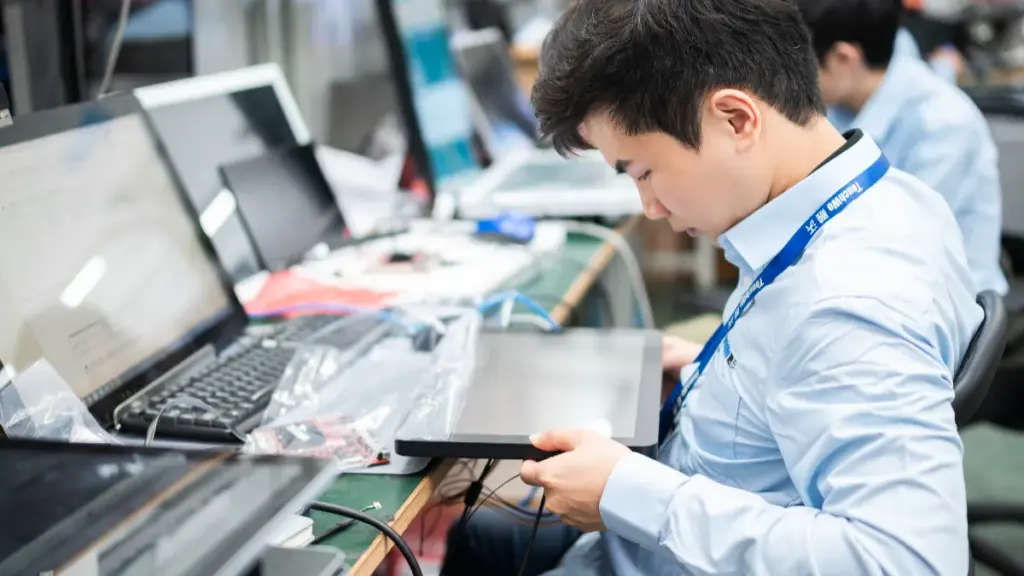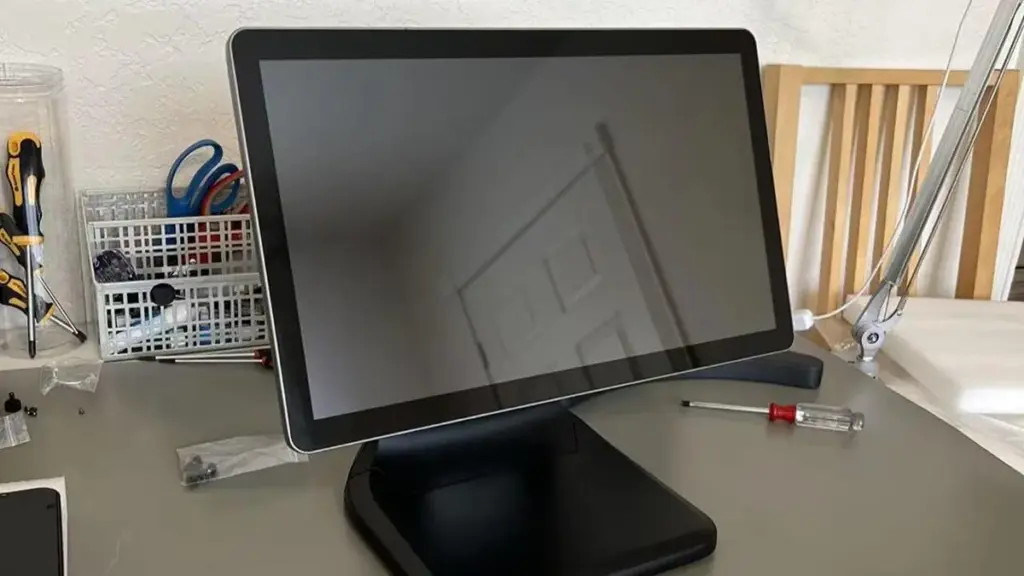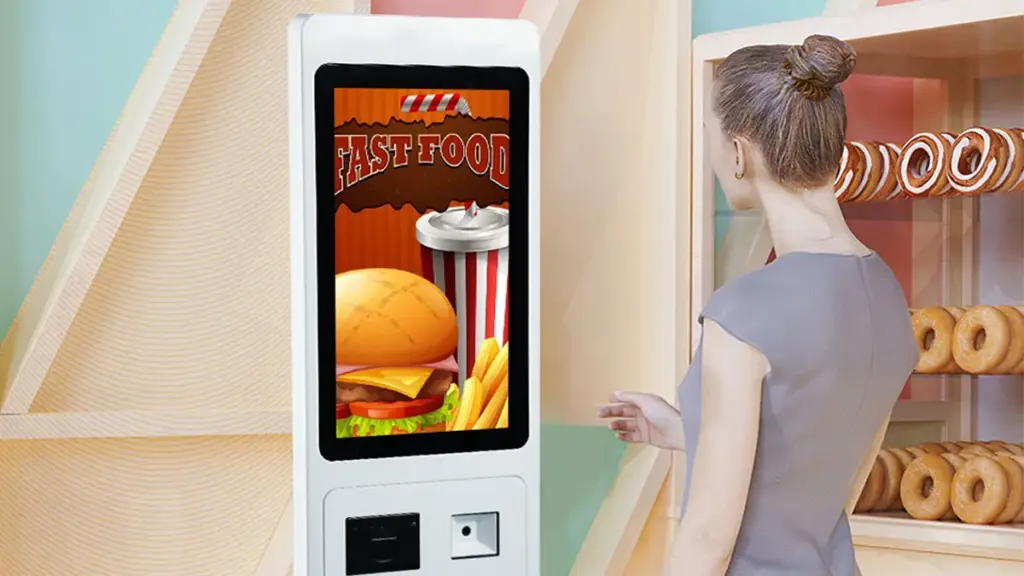
Una pantalla táctil de máquina de helados correctamente calibrada es clave para suavizar, funcionamiento eficiente en heladerías, cafés, y barras de postres. cuando tu pantalla táctil no está calibrado, Los grifos se registran en los lugares equivocados., los ajustes se confunden, y el personal pierde el tiempo luchando contra controles que no responden. Esto lleva a un servicio más lento., consistencia incorrecta del helado, y clientes frustrados.
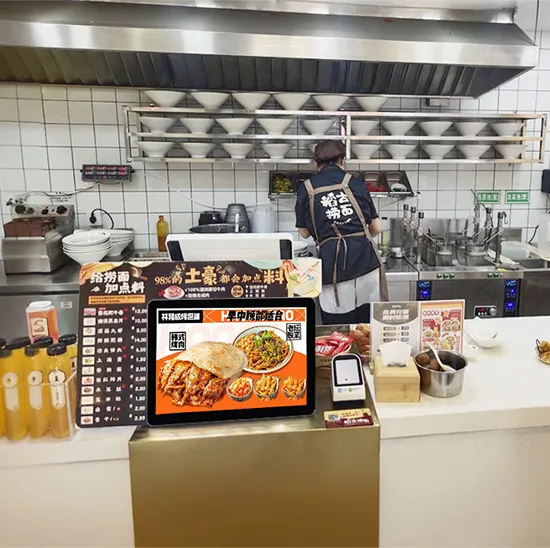
Calibrar la pantalla táctil de su máquina de helados no es complicado y solo lleva unos minutos. La mayoría de los problemas (entradas desalineadas, respuestas retrasadas) provienen de una simple deriva de calibración, lo que sucede con el tiempo con el uso regular, cambios de temperatura, o golpes menores. Esta guía desglosa un proceso de calibración paso a paso., señales comunes de que necesita calibración, consejos para solucionar problemas, y preguntas frecuentes para ayudarle a mantener la pantalla táctil de su máquina de helados funcionando perfectamente. Ya sea que tenga una pequeña tienda exclusiva o una concurrida cadena de postres, Estos pasos garantizarán que la pantalla táctil de su máquina responda con precisión en todo momento..
Señales de que la pantalla táctil de su máquina de helado necesita calibración
Antes de comenzar a calibrar, Confirma que tu pantalla táctil realmente lo necesita.. Estos signos comunes indican desviación o desalineación de la calibración.
1. Los grifos se registran en los lugares equivocados
La señal más obvia es cuando tocas un botón pero se activa una función diferente..
Por ejemplo, tocar "servicio suave" puede activar el modo "helado duro", o tocar "aumentar temperatura" podría reducirla.
Esto sucede cuando el pantalla táctil la deriva del sensor no coincide con el diseño visual de la pantalla.
Es especialmente frustrante durante las horas punta, ya que ralentiza la preparación de pedidos y provoca errores.
2. Entradas táctiles que no responden o son lentas
Si los grifos tardan unos segundos en registrarse, o algunas áreas de la pantalla no responden en absoluto, Es probable que se necesite calibración.
Esto ocurre a menudo después de mover la máquina., limpiado, o expuesto a cambios extremos de temperatura (común en máquinas de helado).
Las entradas retrasadas dificultan el ajuste rápido de la configuración, lo que lleva a una textura de helado inconsistente.
3. Toques fantasma o entradas aleatorias
aleatorio, grifos no controlados (toques fantasma) son otra señal clara de problemas de calibración.
La pantalla puede activar funciones por sí sola., cambiar la configuración, o desplazarse por los menús sin ninguna entrada.
Esto suele deberse a una desviación de la calibración combinada con residuos menores en la superficie. (como salpicaduras de helado).
4. Rendimiento inconsistente de la máquina
Si su máquina de helados comienza a producir lotes inconsistentes (demasiado suave, demasiado duro, o textura desigual), La calibración podría ser la culpable..
Las pantallas táctiles no calibradas provocan entradas de configuración incorrectas, que alteran los ciclos de congelación o mezcla de la máquina.
La reparación de la calibración a menudo resuelve estos problemas de rendimiento sin necesidad de reparar la máquina..
Guía paso a paso para calibrar la pantalla táctil de la máquina de helados
Calibrar tu pantalla táctil es sencillo, no requiere herramientas especiales, y tarda de 5 a 10 minutos. Siga estos pasos para obtener información precisa, resultados confiables.
1. Prepare la máquina y la pantalla
Primero, Asegúrese de que la máquina esté en un estado seguro para calibrarla..
Apague la máquina de helados y desenchúfela para evitar riesgos eléctricos o funcionamiento accidental..
Limpie la pantalla táctil con un paño suave, Paño de microfibra húmedo para quitar las salpicaduras de helado., polvo, o residuos pegajosos: estos pueden interferir con la calibración.
Deja que la pantalla se seque por completo. (1–2 minutos) para garantizar que la humedad no afecte al sensor.
2. Acceder al menú de calibración
Próximo, Vuelva a encender la máquina y navegue hasta la configuración de calibración..
La mayoría de las máquinas de helado tienen un botón de “Configuración” o “Mantenimiento” en la pantalla táctil (use el botón físico si la pantalla táctil no responde).
Desplácese por el menú hasta encontrar "Calibración de pantalla táctil" o una opción similar (Las etiquetas pueden variar ligeramente según la máquina.).
Toque la opción de calibración para iniciar el proceso; esto abrirá una pantalla de calibración con puntos objetivo..
3. Siga las indicaciones de calibración en pantalla
El proceso de calibración se basa en tocar puntos objetivo específicos para realinear el sensor..
La pantalla mostrará pequeñas cruces o puntos. (normalmente 4-5) en diferentes esquinas y el centro de la pantalla.
Utilice un limpio, dedo seco (o un lápiz, si está disponible) Para tocar exactamente en cada objetivo: mantenga presionado el dedo durante 1 a 2 segundos para asegurarse de que el sensor registre el toque..
Muévase lentamente entre los objetivos y evite tocar fuera de los puntos marcados; esto garantiza una calibración precisa..
4. Confirmar y guardar la configuración de calibración
Una vez que haya tocado todos los puntos objetivo, La pantalla le pedirá que confirme la calibración..
Toque "Guardar" o "Confirmar" para almacenar la nueva configuración de calibración; esto garantiza que los cambios surtan efecto de inmediato..
Algunas máquinas pueden requerir un reinicio rápido para finalizar la calibración, si se le solicita, Apagar y volver a encender la máquina..
5. Pruebe la pantalla táctil
Finalmente, Pruebe la pantalla para asegurarse de que la calibración haya sido exitosa..
Toca diferentes botones (p.ej., “encendido/apagado,” “ajuste de temperatura,“Selección de sabores”) para confirmar los grifos se registran correctamente.
Verifique que todas las áreas de la pantalla respondan y que las entradas coincidan con las funciones mostradas.
Si los problemas persisten, repita el proceso de calibración; a veces, un segundo intento corrige errores menores de alineación.
Solución de problemas de calibración
Si la calibración no soluciona los problemas de la pantalla táctil, Pruebe estos pasos rápidos de solución de problemas para resolver problemas comunes.
1. La calibración no repara los grifos desalineados
Si los grifos aún se registran en los lugares equivocados después de la calibración:
Limpie la pantalla nuevamente para eliminar cualquier residuo o mancha restante..
Asegúrate de estar tocando exactamente en los puntos objetivo. (Evite apresurarse en el proceso.).
Verifique si la pantalla táctil está suelta o desalineada en su montaje; apriete los tornillos sueltos para estabilizarla.
2. La pantalla táctil no responde
Si la pantalla aún no responde después de la calibración:
Apague y encienda la máquina (desconectar para 60 artículos de segunda clase, luego vuelva a enchufarlo) para restablecer el sensor de la pantalla táctil.
Verifique si hay conexiones sueltas detrás de la pantalla táctil (solo haz esto si tienes conocimientos técnicos básicos).
Si la pantalla está rota o dañada, la calibración no lo solucionará; es posible que necesite un reemplazo.
3. Los toques fantasma continúan después de la calibración
Si los toques fantasma persisten:
Limpiar la pantalla con un 50/50 mezcla de agua destilada y alcohol isopropílico para eliminar residuos rebeldes.
Asegúrese de que la máquina esté alejada de la luz solar directa o de fuentes de calor: las temperaturas extremas provocan fallos en el sensor.
Compruebe si la película protectora de la pantalla táctil (si se usa) está dañado o sucio; reemplácelo si es necesario.
Con qué frecuencia calibrar la pantalla táctil de su máquina de helados
La calibración regular evita problemas antes de que comiencen. Siga este programa para un rendimiento óptimo.
1. Calibración de rutina (Mensual)
Calibre la pantalla táctil una vez al mes para evitar que se desvíe debido al uso regular.
Esto es especialmente importante para tiendas con mucho tráfico donde la pantalla se usa docenas de veces al día..
Programe la calibración durante períodos lentos (p.ej., media tarde) para evitar interrumpir el servicio.
2. Después de eventos específicos (Según sea necesario)
Calibrar inmediatamente después de estos eventos, lo que puede causar una desviación de la calibración:
Mover la máquina de helados (La vibración del transporte desplaza el sensor.).
Limpieza profunda de la máquina. (la humedad o los productos químicos de limpieza pueden afectar la pantalla táctil).
Cambios extremos de temperatura (común en tiendas con diferentes temperaturas interiores).
Un corte de energía o una sobretensión (puede restablecer la configuración del sensor de la pantalla táctil).
Preguntas frecuentes sobre la calibración de la pantalla táctil de la máquina de helados
Q1: ¿Cuánto tiempo se tarda en calibrar la pantalla táctil de una máquina de helados??
A1: La calibración tarda entre 5 y 10 minutos en total, incluyendo preparación y pruebas. Es un proceso rápido que no interrumpirá su tienda por mucho tiempo..
Q2: ¿Necesito herramientas especiales para calibrar la pantalla táctil??
A2: No. Sólo necesitas un paño suave de microfibra, agua (o limpiador suave), y un dedo o un lápiz óptico limpio; no se requiere equipo especial.
Q3: ¿Qué pasa si no puedo encontrar el menú de calibración en mi máquina??
A3: Consulte el manual del usuario de su máquina; los menús de calibración a menudo se encuentran en "Configuración," "Mantenimiento,” o “Sistema”. Si no tienes el manual, busque un botón físico de “Calibrar” en la propia máquina.
Q4: ¿La calibración arreglará una pantalla táctil rota??
A4: No. La calibración solo soluciona problemas de alineación del sensor. Será necesario reemplazar una pantalla rota para restaurar la funcionalidad completa.
Q5: ¿Puedo calibrar la pantalla táctil mientras la máquina está funcionando??
A5: No. Siempre apague y desenchufe la máquina antes de calibrarla para evitar riesgos eléctricos y operación accidental..
Q6: ¿Por qué mi pantalla táctil necesita calibración con tanta frecuencia??
A6: Uso regular, vibración, cambios de temperatura, y los residuos de la superficie causan una desviación de la calibración.. Los talleres con mucho tráfico pueden necesitar calibraciones con más frecuencia (cada 2 a 3 semanas).
P7: ¿Qué pasa si la calibración no soluciona los problemas de mi pantalla táctil??
A7: Si la calibración falla, La pantalla táctil puede tener un sensor defectuoso o daño interno.. Póngase en contacto con un profesional para su inspección., o comuníquese con nuestro equipo para obtener orientación sobre el reemplazo..
Conclusión
Calibrar la pantalla táctil de su máquina de helados es muy sencillo, forma efectiva de arreglar grifos desalineados, entradas que no responden, y toques fantasmales, todo lo cual ralentiza el servicio y perjudica la eficiencia de su heladería. Siguiendo la guía paso a paso, puede mantener su pantalla táctil receptiva y precisa, asegurando que su máquina de helado funcione sin problemas y sirva consistentemente, lotes deliciosos cada vez.
La calibración regular tarda sólo unos minutos pero le ahorra tiempo, reduce los errores, y mantiene contentos a su personal y a sus clientes. No permita que una pantalla táctil no calibrada interrumpa su negocio: haga de la calibración una parte rutinaria del mantenimiento de su máquina.
Si tiene problemas persistentes con la pantalla táctil, o si necesita ayuda para encontrar una pantalla táctil de reemplazo para la máquina de helados, nuestro equipo está aquí para ayudar. Complete el formulario en nuestro sitio web para compartir su tipo de máquina, problemas con la pantalla tactil, y necesidades de la tienda. Proporcionaremos orientación personalizada., consejos de calibración, y recomendaciones de productos para mantener su máquina de helado funcionando al máximo. Mantengamos su servicio de postres fluido y eficiente: comience hoy!