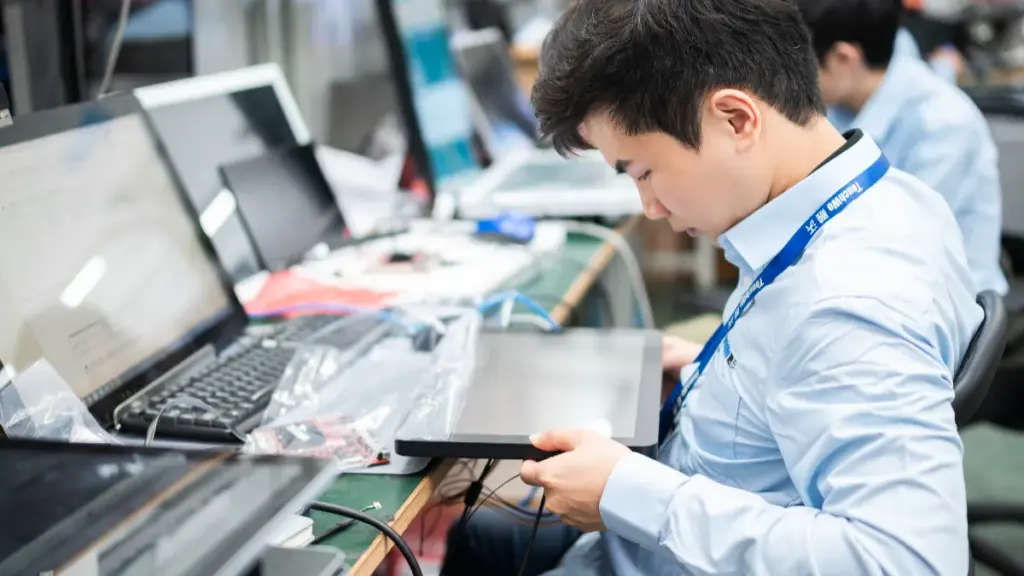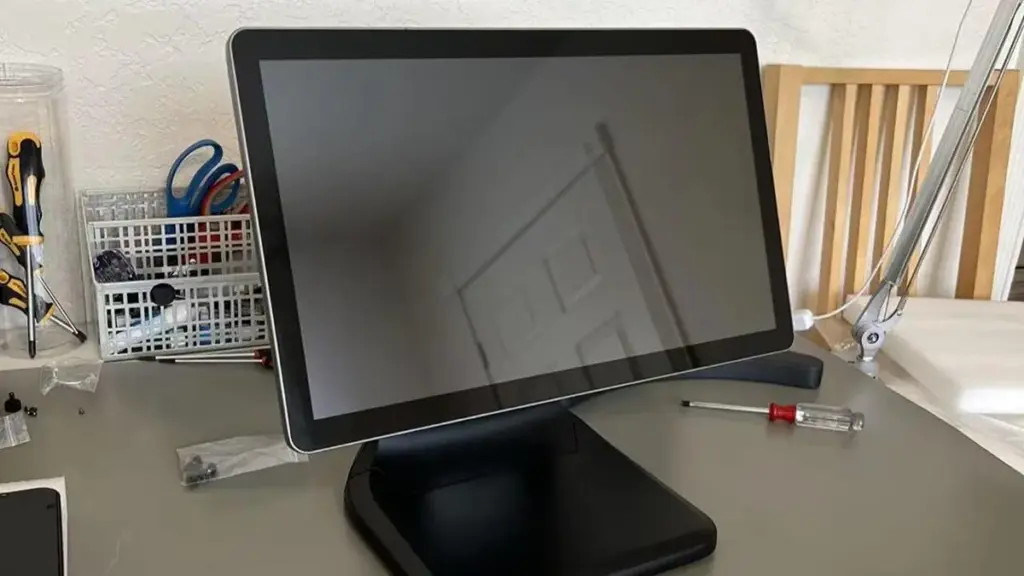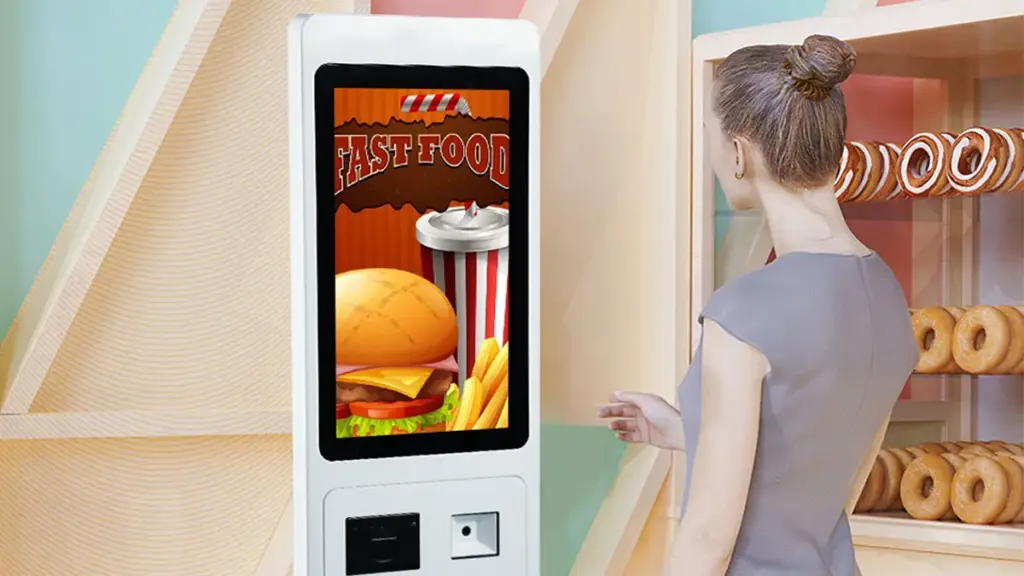
Tacobeställningskiosker är ryggraden i fastan, effektiv service för foodtrucks, snabba restauranger, och koncessionen står fast. De låter kunder anpassa beställningar, behandla betalningar, and skip long lines—all while cutting down staff workload. But nothing kills customer satisfaction faster than an unresponsive Taco Order Kiosk Pekskärm. A frozen or glitchy screen slows down service, frustrates hungry customers, and hurts your bottom line.
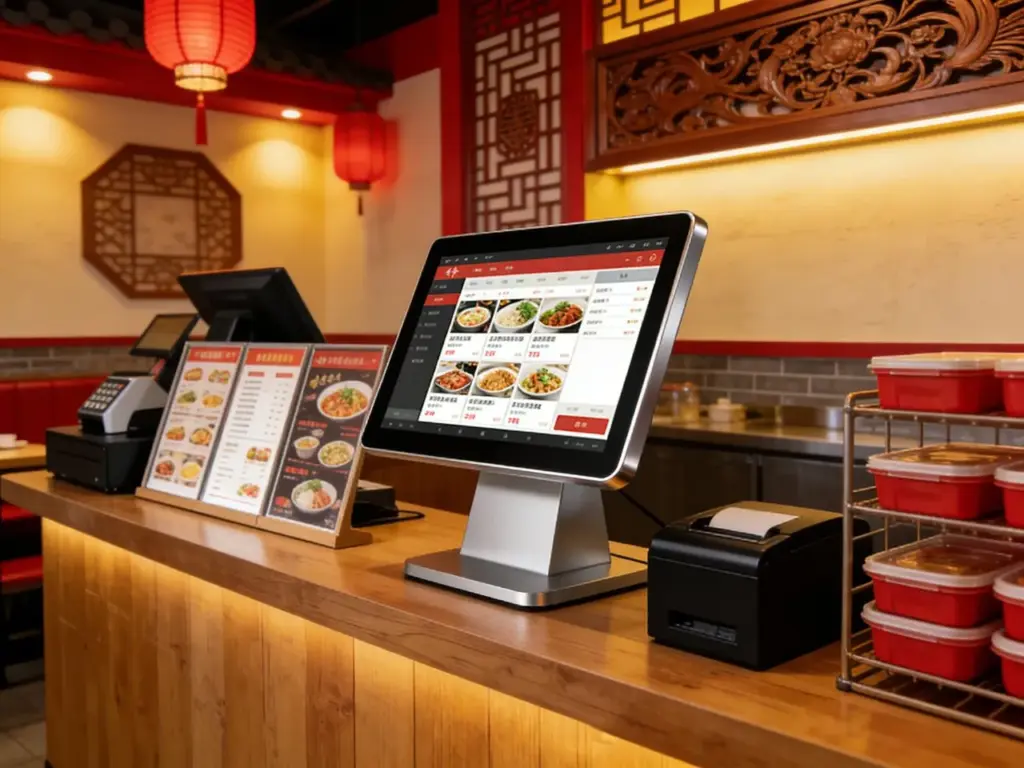
Unresponsive touch screens stem from common issues: dirty surfaces, software glitches, loose connections, or environmental factors like heat and moisture. The good news is that most problems have quick, easy fixes—no advanced technical skills required. This guide breaks down step-by-step troubleshooting for unresponsive taco order kiosk touch screens, preventive maintenance tips, common mistakes to avoid, and FAQs to help you get your kiosk back up and running in minutes. Whether you run a small taco truck or a busy restaurant chain, these insights will minimize downtime and keep your taco service smooth and profitable.
Quick Troubleshooting Steps for Unresponsive Taco Order Kiosk Touch Screens
Start with these simple, sequential steps to fix most unresponsive screen issues. Always test the screen after each step to see if it works.
1. Clean the Screen (The Most Common Fix)
Dirt, taco sauce splatters, grease, and dust build up on the screen over time, blocking touch sensitivity.
Turn off the kiosk and unplug it to avoid accidental inputs or electrical hazards.
Använd en mjuk, lint-free microfiber cloth—paper towels scratch the screen’s protective coating.
Wipe the screen gently in circular motions; for sticky residue, dampen the cloth with a 50/50 mix of distilled water and 70% isopropylalkohol.
Never spray liquid directly on the screen—always apply it to the cloth to prevent seepage into ports.
Let the screen air dry completely before plugging the kiosk back in and testing responsiveness.
2. Power Cycle the Kiosk (Fixes Software Glitches)
Temporary software bugs often cause unresponsive screens, and a simple power cycle clears these glitches.
Unplug the kiosk from the power source and wait 30–60 seconds—this drains residual power from internal components.
Press and hold the power button for 10 seconds to ensure a full shutdown (even if the screen is black).
Plug the kiosk back in and turn it on—wait for the system to boot fully (2–3 minutes) before testing the screen.
This step fixes 60% of unresponsive screen issues caused by frozen apps or software crashes.
3. Check for Loose Connections (For Wired Kiosks)
Loose or disconnected cables can disrupt communication between the screen and the kiosk’s main unit.
Unplug the kiosk and locate the touch screen’s data cable (usually a USB or HDMI cable) and power cable.
Gently unplug and re-plug each cable to ensure a tight, secure connection—wiggling loose cables often causes intermittent unresponsiveness.
Inspect cables for fraying, cuts, or bent pins—damaged cables need immediate replacement to avoid further issues.
Plug the kiosk back in and test the screen—if it works, secure cables with cable ties to prevent future disconnections.
4. Calibrate the Touch Screen (Fixes Misaligned Inputs)
Med tiden, pekskärmar can become misaligned, making taps register in the wrong spots or not at all.
Most taco order kiosks have a built-in calibration tool in the system settings menu.
Access the settings by connecting a mouse to the kiosk (if the screen is unresponsive to taps).
Navigate to “Touch Screen Calibration” and follow on-screen prompts—this usually involves tapping 4–5 target points on the screen.
Save the calibration settings and restart the kiosk—test the screen to ensure taps register accurately.
5. Check for Overheating (Fixes Environment-Related Issues)
Taco kiosks often sit in direct sunlight or near hot grills, causing overheating that disrupts screen functionality.
Feel the back of the kiosk—if it’s hot to the touch, move it to a shaded area away from heat sources.
Ensure the kiosk has proper ventilation—clear any obstructions from vents to let hot air escape.
If the kiosk has a built-in fan, check that it’s running—replace the fan if it’s broken to prevent future overheating.
Let the kiosk cool down for 10–15 minutes before turning it back on and testing the screen.
Preventive Maintenance to Avoid Future Unresponsive Screen Issues
Regular maintenance keeps your Taco Order Kiosk Touch Screen responsive and reduces the risk of downtime. These habits take minutes but save you from costly repairs.
1. Clean the Screen Daily (Before & After Service)
Make daily cleaning a non-negotiable part of your kiosk maintenance routine.
Wipe the screen with a dry microfiber cloth before opening to remove dust that accumulated overnight.
Wipe it again with a damp cloth after closing to remove grease, sauce splatters, and fingerprints from the day.
Avoid using harsh cleaners (ammonia, bleach, window cleaner)—they strip the screen’s oleophobic coating.
Assign a staff member to check the screen hourly during peak hours for buildup or spills.
2. Perform Weekly Power Cycles
Prevent software glitches from building up by power cycling the kiosk once a week.
Schedule a power cycle during slow periods (till exempel, mid-afternoon) to avoid disrupting service.
Unplug the kiosk, wait 60 sekunder, and plug it back in—this clears cached data and refreshes the system.
This simple step reduces the risk of frozen screens by 40% över tid.
3. Inspect Cables & Connections Weekly
Loose cables are a common cause of unresponsive screens—catch issues before they disrupt service.
Unplug the kiosk and check all data and power cables for damage or wear.
Tighten any loose connections and replace frayed or cut cables immediately.
Use cable ties to secure cables to the kiosk frame—this prevents them from being pulled loose during cleaning or customer use.
4. Protect the Kiosk from Environmental Damage
Taco kiosks face harsh conditions—sun, värme, and moisture—so protect them to extend screen life.
Use a sunshade or awning to block direct sunlight from hitting the screen—this prevents overheating and glare.
Place the kiosk away from grills, fryers, and other heat sources to avoid temperature damage.
Choose a kiosk with an IP65 splash-resistant rating to protect against sauce spills and rain (for outdoor kiosks).
Cover the kiosk with a waterproof cloth when not in use to keep dust and moisture out.
When to Call a Professional (Advanced Issues)
Most unresponsive screen issues fix with basic troubleshooting, but some problems require a technician’s help. Call a professional if:
The screen is cracked, chipped, or has dead spots (areas that never register taps).
The screen remains unresponsive after all troubleshooting steps (rengöring, power cycling, kalibrering).
Cables are severely damaged, or internal components (like the touch sensor) are broken.
The kiosk’s software is outdated and won’t update—this can cause persistent glitches.
FAQs About Taco Order Kiosk Touch Screens
Q1: How often should I calibrate my Taco Order Kiosk Touch Screen?
A1: Calibrate the screen once a month to maintain accurate touch responsiveness. You should also calibrate it after cleaning the screen with a damp cloth or moving the kiosk to a new location.
Q2: Can I use regular cleaning wipes on the touch screen?
A2: No—regular cleaning wipes often contain harsh chemicals that damage the screen’s protective coating. Stick to a microfiber cloth and a 50/50 mix of distilled water and isopropyl alcohol.
Q3: Why does my screen become unresponsive during peak hours?
A3: Peak hours mean more taps, more heat from the kiosk’s internal components, and more buildup on the screen. Clean the screen hourly during busy periods and ensure the kiosk has proper ventilation.
Q4: Will a screen protector help prevent unresponsive issues?
A4: Yes—use a screen protector designed for commercial kiosks. It adds a layer of protection against scratches and spills, and it’s easier to clean than the screen’s original coating.
F5: How long do Taco Order Kiosk Touch Screens usually last?
A5: With proper maintenance, a quality touch screen lasts 3–5 years. Frequent cleaning, power cycling, and environmental protection extend its lifespan significantly.
F6: Can extreme cold affect my kiosk’s touch screen?
A6: Yes—cold temperatures can slow down the screen’s response time. If you operate an outdoor kiosk in cold weather, choose a model with a wide temperature range (-10°C till 60 °C).
F7: What if my kiosk has no mouse port to access calibration settings?
A7: Most modern kiosks have a remote management tool that lets you access settings via a smartphone or computer. Check your kiosk’s user manual for instructions on how to use this tool.
Slutsats
An unresponsive Taco Order Kiosk Touch Screen doesn’t have to ruin your service day. With simple troubleshooting steps—cleaning the screen, power cycling the kiosk, checking connections, and calibrating inputs—you can fix most issues in minutes. Regular preventive maintenance also reduces the risk of future downtime, keeping your taco lines moving and customers happy.
No more lost sales from frustrated customers or costly emergency repairs. By following this guide, you can keep your taco order kiosk running smoothly, even during the busiest lunch and dinner rushes.
Ready to upgrade your taco order kiosk with a durable, responsive touch screen or get help with persistent issues? Fill out the form on our website to share your kiosk type, daily traffic, and current screen problems. Our food service tech experts will recommend the best solutions, provide maintenance tips, and answer any questions to help you keep your taco service efficient and profitable. Let’s make your taco kiosk the most reliable spot in town—start today!
Would you like me to help you create a Taco Order Kiosk Touch Screen Maintenance Checklist to streamline your daily and weekly tasks?