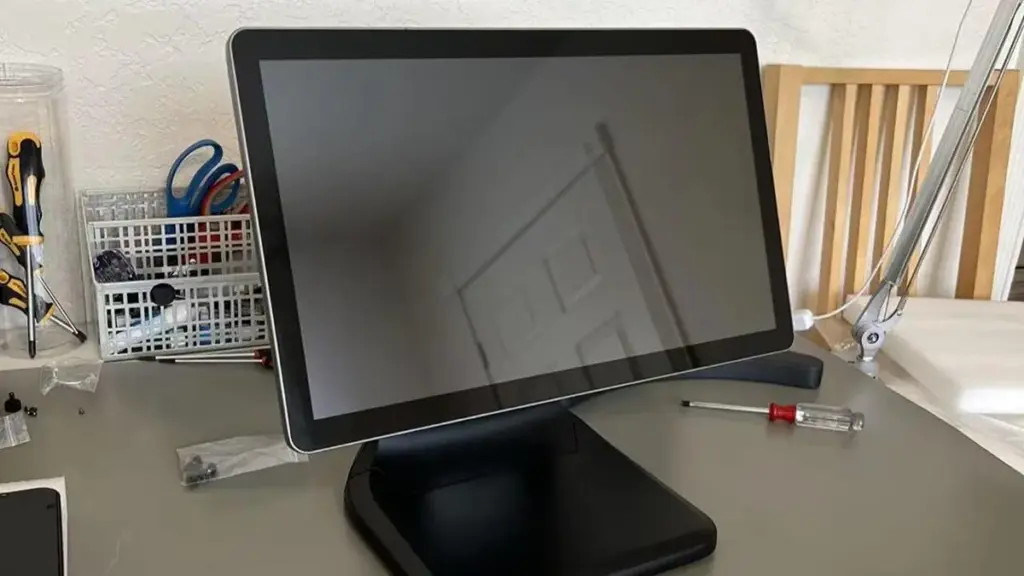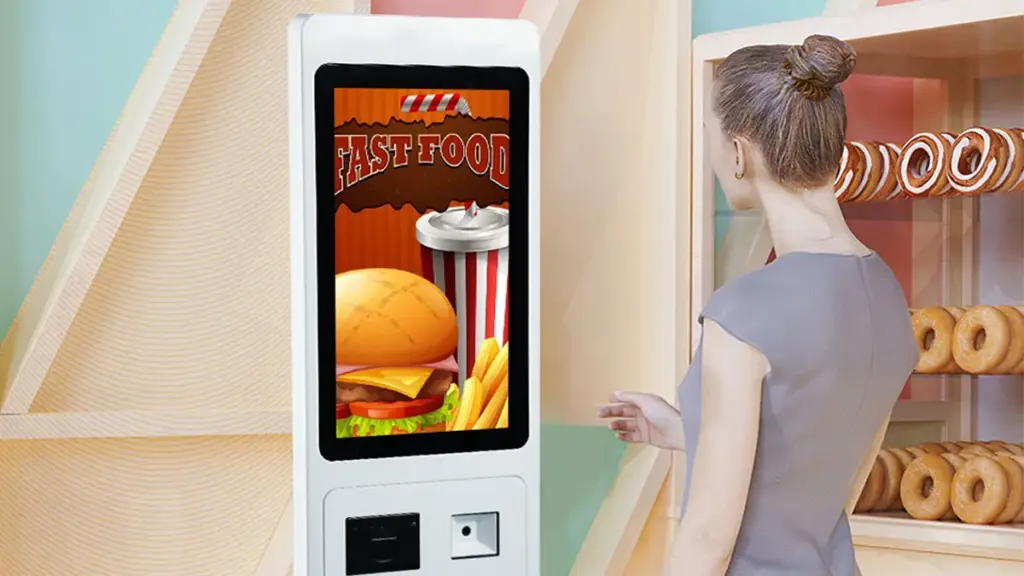
タコス注文キオスクはファストフードの根幹です, フードトラック向けの効率的なサービス, クイックサービスレストラン, そして売店. 顧客が注文をカスタマイズできるようにする, 支払いを処理します, スタッフの負担を軽減しながら、長い行列をスキップできます. しかし、反応のないタコスの注文ほど顧客満足度を損なうものはありません。 売店 タッチスクリーン. 画面がフリーズしたり不具合が発生したりするとサービスが遅くなります, お腹を空かせた顧客をイライラさせる, そして収益を損なう.
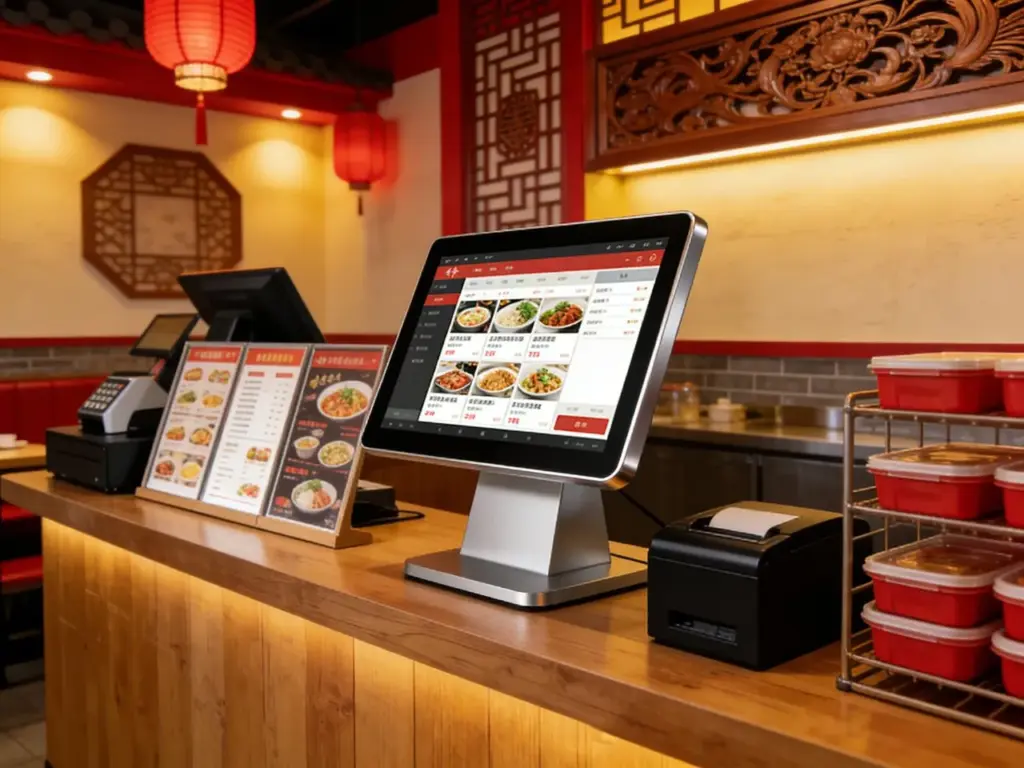
タッチスクリーンが反応しないのは一般的な問題が原因です: 汚れた表面, ソフトウェアの不具合, 接続が緩んでいる, または熱や湿気などの環境要因. 幸いなことに、ほとんどの問題はすぐに解決します。, 簡単な修正 - 高度な技術スキルは必要ありません. このガイドでは、タコス注文キオスクのタッチ スクリーンが応答しない場合のトラブルシューティングを段階的に説明します。, 予防保守のヒント, 避けるべきよくある間違い, キオスクを数分で復旧して実行できるようにするための FAQ と. 小さなタコストラックを経営している場合でも、忙しいレストランチェーンを経営している場合でも, これらの洞察はダウンタイムを最小限に抑え、タコスサービスをスムーズかつ収益性を維持します。.
タコス注文キオスクのタッチ スクリーンが応答しない場合の簡単なトラブルシューティング手順
まずはこれらの簡単なことから始めましょう, ほとんどの応答しない画面の問題を解決するための一連の手順. 各ステップの後に必ず画面をテストして、機能するかどうかを確認してください。.
1. 画面を掃除する (最も一般的な修正)
泥, タコスソースの飛び散り, グリース, 時間の経過とともに画面に埃が蓄積します, タッチ感度をブロックする.
誤入力や電気的危険を避けるために、キオスクの電源を切り、プラグを抜いてください。.
ソフトを使う, 糸くずの出ないマイクロファイバークロス - ペーパータオルは画面の保護コーティングを傷つけます.
画面を円を描くように優しく拭きます; 粘着性残留物用, 布を湿らせます 50/50 蒸留水との混合物 70% イソプロピルアルコール.
液体を画面に直接スプレーしないでください。ポートへの浸透を防ぐために、必ず布に塗布してください。.
キオスクを再度接続して応答性をテストする前に、画面を完全に自然乾燥させてください。.
2. キオスクの電源を入れ直します (ソフトウェアの不具合を修正)
一時的なソフトウェアのバグにより、画面が応答しなくなることがよくあります, 簡単な電源の入れ直しでこれらの不具合は解消されます.
キオスクを電源から抜き、30 ~ 60 秒待ちます。これにより、内部コンポーネントから残留電力が排出されます。.
電源ボタンを長押しします。 10 完全にシャットダウンするまでの秒数 (画面が真っ暗でも).
キオスクを再度接続して電源を入れます。システムが完全に起動するまで待ちます。 (2–3分) 画面をテストする前に.
この手順で修正されます 60% アプリのフリーズやソフトウェアのクラッシュが原因で画面が応答しない問題が発生する.
3. 接続が緩んでいないか確認してください (有線キオスクの場合)
ケーブルが緩んだり切断されたりすると、画面とキオスクのメインユニット間の通信が中断される可能性があります.
キオスクのプラグを抜き、タッチ スクリーンのデータ ケーブルを見つけます (通常はUSBまたはHDMIケーブル) と電源ケーブル.
各ケーブルをゆっくりと抜き差しし、しっかりと接続されていることを確認します。, 確実な接続 - 緩んだケーブルが揺れると、断続的な応答不能が発生することがよくあります.
ケーブルの擦り切れを検査する, カット, またはピンが曲がっている - 損傷したケーブルは、さらなる問題を避けるためにすぐに交換する必要があります.
キオスクを再度接続し、画面が機能するかどうかをテストします。, ケーブルタイでケーブルを固定し、将来の断線を防ぎます.
4. タッチスクリーンを調整する (位置ずれした入力を修正)
時間とともに, タッチスクリーン 位置がずれる可能性があります, タップを間違った場所に登録するか、まったく登録しないようにする.
ほとんどのタコス注文キオスクには、システム設定メニューに調整ツールが組み込まれています。.
マウスをキオスクに接続して設定にアクセスします (画面がタップに反応しない場合).
「タッチ スクリーン キャリブレーション」に移動し、画面上のプロンプトに従います。これには通常、画面上の 4 ~ 5 つのターゲット ポイントをタップする必要があります。.
調整設定を保存し、キオスクを再起動します。画面をテストして、タップが正確に登録されていることを確認します。.
5. 過熱を確認する (環境関連の問題を修正)
タコスのキオスクは、直射日光が当たる場所や熱いグリルの近くに置かれることがよくあります, 過熱を引き起こし、画面の機能を妨害する.
キオスクの背面を触ってみてください - 触ると熱かったら, 熱源から離れた日陰の場所に移動してください.
キオスクに適切な換気があることを確認します。熱気が逃げるように通気口から障害物を取り除きます。.
キオスクにファンが内蔵されている場合, 動作していることを確認します。ファンが壊れている場合は、将来の過熱を防ぐために交換します。.
キオスクを 10 ~ 15 分間冷ましてから、再び電源を入れて画面をテストします。.
将来的に画面が応答しなくなる問題を回避するための予防メンテナンス
定期的なメンテナンスにより、Taco Order Kiosk タッチ スクリーンの応答性が維持され、ダウンタイムのリスクが軽減されます。. これらの習慣には数分かかりますが、高価な修理の手間を省くことができます.
1. 毎日画面を掃除してください (前に & アフターサービス)
毎日の清掃をキオスクのメンテナンス ルーティンの一環として交渉の余地のない部分にしましょう.
開ける前に乾いたマイクロファイバークロスで画面を拭き、一晩蓄積したほこりを取り除いてください。.
閉めた後、再度湿らせた布で拭いて油分を取り除いてください。, ソースの飛び散り, そしてその日の指紋.
刺激の強いクリーナーの使用を避ける (アンモニア, 漂白剤, 窓拭き)- スクリーンの疎油性コーティングを剥がします.
ピーク時間帯に 1 時間ごとに画面に蓄積や流出がないかチェックするスタッフ メンバーを割り当てます。.
2. 毎週電源を入れ直します
週に一度キオスクの電源を入れ直し、ソフトウェアの不具合が蓄積するのを防ぎます.
低速期間中に電源を入れ直すスケジュールを設定する (例えば, 午後半ば) サービスの中断を避けるため.
キオスクの電源プラグを抜きます, 待って 60 秒, 再度差し込むと、キャッシュされたデータがクリアされ、システムが更新されます。.
この簡単な手順により、画面がフリーズするリスクが軽減されます。 40% 時間とともに.
3. ケーブルの検査 & 毎週の接続数
ケーブルの緩みは、画面が反応しなくなる一般的な原因です。サービスが中断される前に問題を発見します。.
キオスクのプラグを抜き、すべてのデータ ケーブルと電源ケーブルに損傷や磨耗がないか確認します。.
接続が緩んでいる場合は締め、擦り切れたり切れたりしたケーブルはすぐに交換してください。.
ケーブル タイを使用してケーブルをキオスク フレームに固定します。これにより、清掃中や顧客の使用中にケーブルが緩むのを防ぎます。.
4. キオスクを環境損傷から保護する
タコスのキオスクは太陽による厳しい環境に直面しています, 熱, スクリーンの寿命を延ばすためにそれらを保護してください.
サンシェードまたは日よけを使用して、直射日光が画面に当たるのを防ぎます。これにより、過熱や眩しさを防ぎます。.
キオスクをグリルから離して設置する, フライヤー, 温度損傷を避けるためのその他の熱源.
ソースのこぼれや雨から保護するために、IP65 防滴定格のキオスクを選択してください。 (屋外キオスク用).
使用しないときはキオスクを防水布で覆い、ほこりや湿気が入らないようにしてください。.
いつ専門家に電話するべきか (高度な問題)
画面が応答しない問題のほとんどは、基本的なトラブルシューティングで解決できます, ただし、問題によっては技術者の助けが必要な場合もあります. こんなときは専門家に電話してください:
画面が割れてしまった, 欠けた, またはデッドスポットがある (決してタップを登録しないエリア).
すべてのトラブルシューティング手順を実行しても画面が応答しないままになる (クリーニング, パワーサイクリング, 較正).
ケーブルがひどく損傷している, または内部コンポーネント (タッチセンサーのような) 壊れています.
キオスクのソフトウェアが古くて更新されないため、永続的な不具合が発生する可能性があります.
Taco Order Kiosk タッチ スクリーンに関するよくある質問
Q1: Taco Order Kiosk のタッチ スクリーンをどのくらいの頻度で調整する必要がありますか?
A1: 正確なタッチ応答性を維持するために、月に 1 回画面を調整してください。. 湿らせた布で画面を拭いた後、またはキオスクを新しい場所に移動した後も調整する必要があります。.
第2四半期: タッチスクリーンに通常のクリーニングワイプを使用できますか??
A2: いいえ、通常のクリーニングワイプには、画面の保護コーティングを損傷する強力な化学物質が含まれていることがよくあります。. マイクロファイバークロスと 50/50 蒸留水とイソプロピルアルコールの混合物.
Q3: ピーク時に画面が応答しなくなるのはなぜですか?
A3: ピーク時間帯はタップ数が増える, キオスクの内部コンポーネントからの熱の増加, 画面上にさらに蓄積. 繁忙期には 1 時間ごとに画面を清掃し、キオスクが適切に換気されていることを確認します。.
Q4: スクリーンプロテクターは反応しない問題を防ぐのに役立ちますか?
A4: はい - 商用キオスク用に設計されたスクリーンプロテクターを使用してください. 傷やこぼれに対する保護層を追加します。, スクリーンの元のコーティングよりも掃除が簡単です.
Q5: Taco Order Kiosk のタッチ スクリーンは通常どのくらい持続しますか?
A5: 適切なメンテナンスを備えています, 高品質のタッチスクリーンは 3 ~ 5 年間持続します. 頻繁な掃除, パワーサイクリング, と環境保護により寿命が大幅に延長されます.
Q6: 極度の寒さはキオスクのタッチスクリーンに影響を与える可能性がありますか?
A6: はい、気温が低いと画面の応答時間が遅くなる可能性があります. 寒い天候で屋外キオスクを操作する場合, 温度範囲が広いモデルを選択してください (-10°C〜60°C).
Q7: キオスクにキャリブレーション設定にアクセスするためのマウス ポートがない場合はどうすればよいですか?
A7: 最新のキオスクのほとんどには、スマートフォンやコンピュータから設定にアクセスできるリモート管理ツールが備わっています。. このツールの使用方法については、キオスクのユーザー マニュアルを確認してください。.
結論
Taco Order Kiosk のタッチ スクリーンが応答しなくても、サービス 1 日が台無しになる必要はありません. 簡単なトラブルシューティング手順 - 画面を掃除する, キオスクの電源を入れ直します, 接続をチェックする, 入力の調整 - ほとんどの問題は数分で解決できます. 定期的な予防メンテナンスにより、将来のダウンタイムのリスクも軽減されます, タコスの行列を常に動かし、顧客を満足させる.
顧客の不満や高価な緊急修理による売上損失はもうありません. このガイドに従ってください, タコスの注文キオスクをスムーズに稼働し続けることができます, 最も忙しいランチやディナーのラッシュ時でも.
耐久性に優れたタコス注文キオスクをアップグレードする準備ができました, 応答性の高いタッチ スクリーン、または永続的な問題についてのサポートを受けることができます? 当社 Web サイトのフォームに記入してキオスクのタイプを共有してください, 毎日の交通量, 現在の画面の問題. 当社のフードサービス技術専門家が最適なソリューションを推奨します, メンテナンスのヒントを提供する, タコスサービスの効率性と収益性を維持するために役立つ質問に答えてください. あなたのタコスキオスクを街で最も信頼できる場所にしましょう - 今日から始めましょう!
毎日および毎週のタスクを効率化するための Taco Order Kiosk タッチ スクリーン メンテナンス チェックリストの作成を手伝ってもらえませんか?