Til industrielle anvendelser, kiosker, detailterminaler, medicinsk udstyr, og interaktive skærme, systemkompatibilitet er en af de vigtigste faktorer, der afgør, om berøringsskærmen vil fungere problemfrit efter installationen.
Et touch-display skal kommunikere korrekt med operativsystemet, video interface, og berøringskommunikationsprotokol. En skærm kan vise billeder via HDMI eller DisplayPort, men berøringsfunktionen kræver en ekstra dataforbindelse og ordentlig driverunderstøttelse.
Før du køber en berøringsskærm, det er vigtigt at kontrollere kompatibiliteten med dit operativsystem, inklusive Windows, Android, Linux, og indlejrede platforme. Denne vejledning forklarer, hvordan kompatibilitet med berøringsskærme fungerer, og hvad du har brug for at vide om drivere, grænseflader, og fejlfinding.
Oversigt over kompatibilitet med Touch Screen Monitor
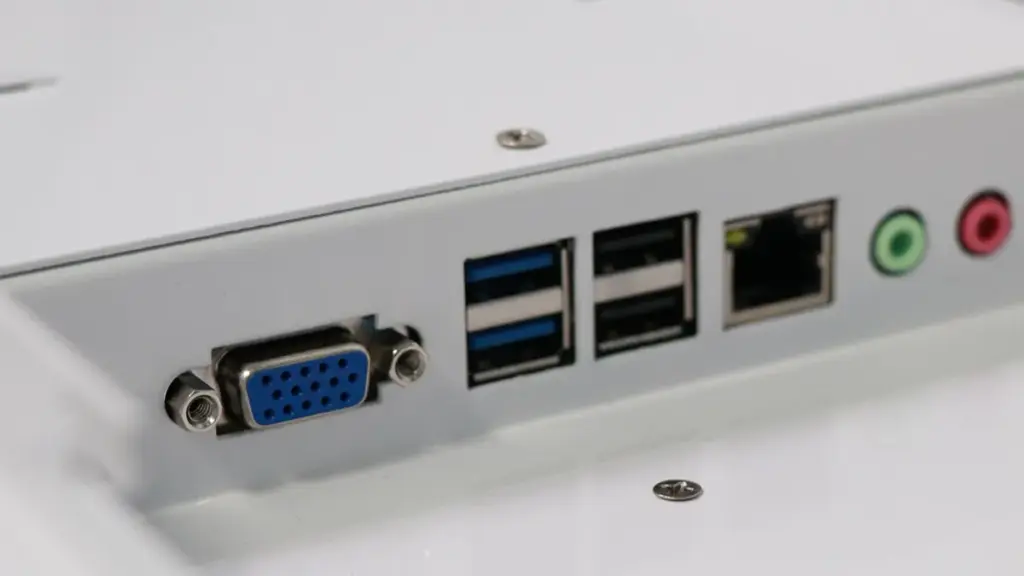
Berøringsskærmens kompatibilitet afhænger af dual-interface-forbindelser, understøttelse af native operativsystem, og ansøgningsparathed, ikke specialiseret computerhardware.
Kernegrænseflade og tilslutningskrav
En fungerende berøringsskærm kræver to uafhængige signalveje. Videokablet leverer billedet, mens et dedikeret datakabel sender de fysiske berøringsinput tilbage til værtsmaskinen.
- Dobbelt forbindelse nødvendig: Implementeringer kræver et videosignal (HDMI, DisplayPort, DVI, eller VGA) sammen med et separat berøringsdatasignal (typisk USB-A til USB-B eller USB-C).
- HID transmission: Berøringsdataforbindelsen passerer Human Interface Device (HID) input direkte til værtssystemet.
- Grafikkrav: Værts-GPU'en skal behandle skærmens native opløsning og opdateringshastighed for at forhindre grænsefladeforsinkelse eller skaleringsforvrængning.
- Strømforsyning: Indlejrede systemer eller lavenergi-værtsenheder skal levere tilstrækkelig USB-strøm for at holde berøringsgrænsefladen aktiv.
OS-niveau Native Support
Operativsystemer fortolker berøringsdata forskelligt. At vide, hvordan dit mål OS håndterer HID-input dikterer, om din implementering vil være plug-and-play eller kræver manuel softwarekonfiguration.
- Windows økosystem: Windows 10 og 11 har indbygget plug-and-play HID multi-touch-understøttelse, tilbyder den nemmeste integrationsvej til kommercielle og industrielle opsætninger.
- Android plug-and-play: De fleste Android-medieafspillere behandler USB HID-berøring som indbygget input, hvilket gør dem til pålidelige muligheder for digital skiltning og detailkiosker.
- Linux distributioner: Moderne builds som Ubuntu med GNOME eller KDE håndterer grundlæggende berøring indbygget, forudsat at kernen understøtter det specifikke touch-controller-chipsæt.
- macOS-begrænsninger: Apple-operativsystemer mangler indbygget ekstern touchscreen-markørunderstøttelse. Mac-implementeringer kræver næsten altid producentspecifikke drivere til at læse berøringsinput.
Drivertyper og firmwareovervejelser
Touch-controlleren, der er indlejret i skærmen, bestemmer driverkravene. Mens generiske drivere håndterer standardinteraktioner, specifikke use cases kræver proprietær software.
- Standardiserede PCAP-grænseflader: Mange projekterede kapacitive (PCAP) skærme bruger standard HID-protokoller til at omgå manuelle driverinstallationer på kompatible systemer.
- Proprietære krav: Brugerdefinerede drivere bliver obligatoriske for ikke-indfødte platforme som macOS eller for at aktivere avancerede funktioner som håndfladeafvisning, berøring med handsker, og stylus-integration.
- Opgraderingsrisici: Større operativsystemopdateringer kan bryde berøringsfunktionaliteten, hvis administratorer undlader at opdatere leverandørspecifikke drivere på samme tid.
- Kompatibilitetsstrategi: Valg af touch-controllere, der afslører en standard HID-grænseflade sikrer høj out-of-the-box kompatibilitet på tværs af forskellig hardware.
Multi-Monitor-konfigurationer og applikationsberedskab
Hardwareforbindelse er kun det første trin. Flerskærmsmiljøer og selve softwareapplikationerne skal konfigureres til at behandle berøringskommandoer nøjagtigt.
- Manuel koordinatkortlægning: Multi-display opsætninger på Windows og Linux kræver, at administratorer manuelt kortlægger specifikke USB-berøringsindgange til deres tilsvarende fysiske skærme.
- Fejljusterede indgange: Hvis denne kortlægning ikke konfigureres nøjagtigt, får berøringsbevægelser på én skærm til at styre markøren på en helt anden skærm.
- Softwarehændelsesbehandling: De underliggende desktop-applikationer skal være i stand til at oversætte berøringsgenererede pointerhændelser til eksekverbare kommandoer.
- UI optimering: Softwareudviklere skal bygge berøringsvenlige grænseflader med knapper i passende størrelse, udvidede rullebjælker, og tilgængelige tastaturer på skærmen.
Understøttelse af Windows Touch Screen Monitor: Plug-and-Play vs drivere
Moderne Windows håndterer de fleste berøringsskærme indbygget gennem USB HID-protokoller. Standard til plug-and-play for simple implementeringer, forbeholder leverandørdrivere udelukkende til ældre systemer eller avancerede hardwarefunktioner.
Native Plug-and-Play-arkitektur i Windows
Windows 10 og 11 håndtere berøringsinput rent ved hjælp af en indbygget Human Interface Device (HID) touch klasse driver. Dette system eliminerer behovet for manuelle softwareinstallationer på moderne hardwareopsætninger.
- Dobbelt tilslutningskrav: Implementeringer kræver en videoforbindelse til skærmudgangen sammen med en separat USB-dataforbindelse for at sende berøringssignaler tilbage til værten.
- Automatisk detektion: Operativsystemet genkender automatisk skærmen som en HID-kompatibel berøringsskærm i det øjeblik, du tilslutter den, omgå manuelle driverdownloads.
- Microsoft vedligeholdelse: At stole på native drivere reducerer kompatibilitetsrisici under OS-opdateringer, da Microsoft aktivt vedligeholder kerne-HID-stakken.
Muligheder for indbygget HID-support
Du har sjældent brug for tredjepartssoftware til standard berøringsoperationer. Den indbyggede Windows touch-stack leverer omfattende funktionalitet lige fra kassen.
- Grundlæggende interaktion: Understøtter øjeblikkelig tryk, trække, og rullebevægelser uden brugerkalibrering.
- Multi-Touch og bevægelser: Muliggør op til 10-punkts multi-touch sammen med bevægelser på systemniveau som knib-zoom og rotation.
- System kalibrering: Inkluderer indbyggede kontrolpanelværktøjer til præcis skærmkalibrering og multi-monitor touch-mapping.
- Kommerciel parathed: Opfylder alle grundlæggende inputkrav til standard kommercielle udrulninger, herunder point-of-sale-systemer og selvbetjeningskiosker.
Når leverandørspecifikke drivere er nødvendige
Mens den native HID-arkitektur håndterer standard use cases, visse tekniske krav eller ældre miljøer kræver proprietære leverandørdrivere for at bygge bro over funktionalitetshuller.
- Ældre miljøer: Påkrævet til ældre operativsystemer som Windows 7 eller hardware, der bruger ikke-HID-controllere.
- Avanceret funktionalitet: Låser op for specifikke brugerdefinerede bevægelser, genvejsmotorer, og finjusterede indstillinger for håndfladeafvisning.
- Muse-emulering: Vigtigt for ældre softwaremiljøer, der kræver ældre muse-emuleringsprotokoller frem for moderne standardberøringsbegivenheder.
- Industriel integration: Bruges meget i specialiserede industrielle applikationer, der kræver dyb integration med leverandørens diagnostiske eller konfigurationsværktøjer.
Bedste praksis for implementering og fejlfinding
For at holde langsigtet vedligeholdelse håndterbar, systemintegratorer bør prioritere baseline plug-and-play-arkitekturen. Gem leverandørens driverinstallationer udelukkende til edge-tilfælde, hvor den oprindelige support kommer til kort.
- Indledende verifikation: Bekræft altid enhedsoptællingen i Enhedshåndtering under Human Interface Devices under den første fysiske opsætning.
- Displayjustering: Løs fejljusterede berøringssvar på tværs af flere skærme ved hjælp af den indbyggede Windows Tablet PC opsætningsguide i stedet for tredjeparts kalibreringsværktøjer.
- Driver tilbagefald: Installer kun de specifikke leverandør INF-filer, hvis en berøringsskærm ikke kan registreres som en HID-enhed efter genscanning af hardwaren.
- Reduktion af kompleksitet: Prioriter standard plug-and-play som din standardstrategi for at minimere den samlede integration og opdateringskompleksitet.
Brugerdefinerede industrielle berøringsskærme bygget til at holde
Android-integration til selvbetjeningskiosker
Android leverer en mobil-native oplevelse med lav overhead. Succes kræver matchende ARM-hardware, HID berøringspaneler, og streng fjernstyring til at bygge sikker, 24/7 terminaler.
Opbygning af en pålidelig Android-terminal starter ved det fysiske lag. Integratorer skal matche operativsystemets muligheder med det fysiske miljø og skærmhardwaren for at garantere oppetid.
Hardware og berøringsskærm kompatibilitet
- Termisk profil: Par energieffektive ARM-baserede SoC'er med ventilatorløse design, der er egnet til forseglet 24/7 kioskskabe for at eliminere bevægelige dele og reducere risikoen for fejl.
- Berøringsgrænseflader: Vælg PCAP touch skærme med indbygget USB HID multi-touch støtte. Dette sikrer førerløs, plug-and-play-funktionalitet på tværs af forskellige Android-versioner.
- Grafisk kortlægning: Bekræft, at Android GPU'en naturligt understøtter skærmens EDID, standard opløsninger, og krævede stående eller liggende retninger direkte ud af æsken.
Kiosklåsning og fjernstyring
En interaktiv skærm, der ikke administreres, skaber en øjeblikkelig sårbarhed. Du har brug for absolut kontrol over terminalen for at forhindre brugere i at få adgang til systemindstillinger eller afslutte den primære applikation.
- Enhedsejer (GØR) Mode: Implementer Android Enterprise DO-tilstand for at begrænse systemets brugergrænseflade, deaktiver fysiske hardwarenøgler, og lås terminalen til specifikke applikationer.
- Automatiseret provisionering: Skaler operationer hurtigt ved hjælp af nul-touch-tilmelding eller Samsung Knox Mobile Enrollment (KME) for at springe over manuel opsætning på individuelle enheder.
- UEM kontrol: Brug Unified Endpoint Management-værktøjer til at fjernstyre skærmtimeouts, kraftorienteringslåse, og udløs vagthunde til automatisk genstart i tilfælde af en HDMI-afbrydelse.
Softwarelag og brugeroplevelse
Selvbetjeningsterminaler betjener et mangfoldigt offentligt publikum. Den brugerdefinerede software skal bygge bro mellem standard mobilappdesign og de fysiske realiteter i en stationær, offentligt vendt kiosk.
- Touch-optimerede grænseflader: Udvikl applikationslayout med store hitmål for at imødekomme forskellige brugerinteraktioner og minimalt tekstinput.
- Ydelsesvalidering: Test multi-touch-bevægelser og UI-animationer direkte mod målet SoC og specifik skærmopløsning for at garantere lav latenstid.
- Perifer integration: Integrer robust softwarehåndtering til vigtige hardwaretilføjelser som stregkodescannere, ID-kameraer, og termiske printere via direkte USB eller serielle forbindelser.
Sikkerhed, Betalingsoverholdelse, og livscyklusstrategi
Langsigtede implementeringer står over for strenge regulatoriske miljøer og eventuel hardwareforfald. En stærk livscyklusstrategi holder kiosken kompatibel og operationel år efter den første installation.
- Patch-forpligtelser: Kræv en minimum 5-årig sikkerhedspatch-forpligtelse fra hardwareleverandører for at opretholde langsigtet stabilitet for kernesystemet og tilknyttede perifere enheder.
- Betalingshåndtering: Oprethold PCI DSS-overensstemmelse ved at bruge eksterne EMV-terminaler og end-to-end-kryptering. Bearbejd aldrig rå kortdata på selve Android-enheden.
- Implementeringstest: Implementer trinvise OS-opdateringer parret med streng regressionstest for at verificere berøringsnøjagtighed og layoutbevarelse, før du udfører en flådedækkende implementering.
Linux Touch-drivere: Ubuntu, Debian, og hinsides
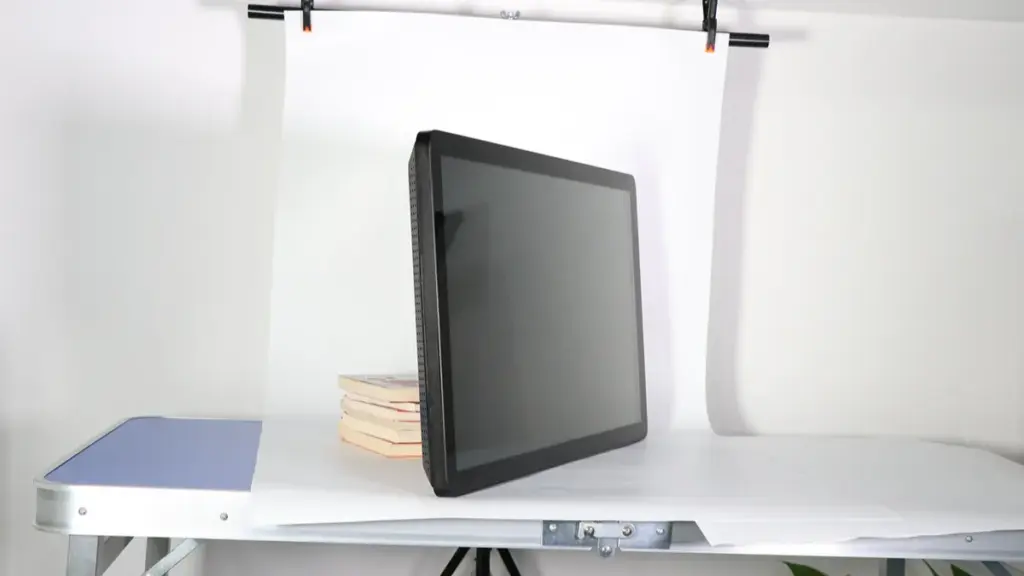
De fleste moderne Linux-opsætninger håndterer USB-berøring indbygget via hid-multitouch-kernen. Ældre seriel hardware og proprietære opsætninger kræver manuel input-routing og stram kerneversionsstyring.
Core Linux Touch-arkitektur
Moderne USB- og I²C-berøringspaneler fungerer normalt som HID-kompatible enheder. Linux-kernen understøtter disse ud af boksen ved hjælp af drivere som hid-multitouch og evdev. Grundlæggende enkelt-touch-funktionalitet aktiveres med det samme på standarddistributioner uden at kræve ekstra leverandørsoftware.
Displaystakken håndterer hændelsesoversættelsen. Xorg og Wayland behandler det rå touch-input gennem enten libinput eller den ældre xf86-input-evdev-pakke. Denne arkitektur holder standard plug-and-play-scenarier enkle og er helt afhængig af kernen for hardwarekompatibilitet.
Ubuntu Integration og Kalibrering Workflow
Ubuntu-skrivebordsmiljøer genkender de fleste USB-berøringsskærme med det samme. Når fejljusterede akser eller berøringsforskydninger forekommer, administratorer bruger det grafiske hjælpeprogram xinput-kalibrator til at rette koordinattilknytningen.
Du skal låse disse indstillinger manuelt. Kalibreringsdata bliver kun persistente, når du gemmer den genererede InputClass-blok i mappen /etc/X11/xorg.conf.d/. Du kan også redigere denne Xorg-konfigurationsfil direkte for at aktivere lang-tryk-højreklik-emulering.
Debian-konfigurationer til seriel og ældre berøring
Industrielle panel-pc'er afhængig af RS-232 serielle controllere, ligesom PenMount 9000, understøtter ikke plug-and-play. De kræver manuel undersystembinding for at fungere i Debian-miljøer.
- Brugsbinding: Inputattach-værktøjet forbinder den udpegede serielle port til evdev input-driveren som en baggrundsdæmon.
- GRUB-ændringer: Høje COM-portnumre tvinger dig ofte til at ændre GRUB-startparametre (gerne 8250.nr_uarts) at afsløre de nødvendige tty-grænseflader.
- Boot Automation: Systemadministratorer skal automatisere disse forbindelsesscripts via rc.local eller systemd-tjenester for at garantere funktionalitet efter en genstart.
Håndtering af leverandørspecifikke drivere
Hardware fra leverandører som EETI (eGalax) eller Elo kræver ofte arkitekturspecifikke binære driverpakker for at låse op for avancerede panelfunktioner. Implementering kræver at udføre leverandørens opsætningsscripts og eksplicit pege installationsprogrammet til den korrekte kommunikationsgrænseflade, uanset om det er USB eller RS-232.
Dette introducerer et permanent vedligeholdelseslag. Leverandørens driverkompatibilitet er tæt knyttet til specifikke kerneversioner. OS-opgraderinger vil bryde berøringsfunktionaliteten, medmindre du planlægger kerneopdateringer omkring leverandørens drivertilgængelighed.
HDMI vs VGA vs DisplayPort til berøringsskærme
DisplayPort er det bedste valg til moderne pc-berøringsskærme, HDMI maksimerer kompatibilitet for forbrugerenheder, og VGA tjener udelukkende som et gammelt tilbagefald.
Kerne tekniske forskelle mellem grænseflader
- DisplayPort: Håndterer digital video og lyd med høj båndbredde, understøtter flere daisy-chained skærme, og bruger låsestik til sikre pc-integrationer.
- HDMI: Leverer enkelt-kabel tilslutning til digitale medier, sikrer universel kompatibilitet med kommercielle AV-enheder og medieafspillere.
- VGA: Sender rent analoge videosignaler, stærkt begrænsende opløsning og skarphed på moderne hardware.
Hvordan videoforbindelser relaterer til berøringsinput
Videoporte sender kun billedsignalet. Aktivering af berøringspanelet kræver en separat, dedikeret USB-dataforbindelse tilbage til værtssystemet. Den videogrænseflade, du vælger, dikterer skærmstabiliteten, strenge opløsningsgrænser, og overordnet hardwarekompatibilitet med værts-pc'en eller medieafspilleren.
Det er afgørende at matche videogrænsefladen til skærmens native opløsning. Korrekte digitale forbindelser forhindrer problemer med billedskalering og bevarer tekstens klarhed, holde berøringsmål skarpe og præcise for brugerne.
Ideelle brugsscenarier og implementeringsscenarier
- Detail POS og Digital Signage: HDMI giver plug-and-play enkelhed på tværs af et stort udvalg af standard medieafspillere.
- Industri- og HMI-paneler: DisplayPort fungerer som den moderne standard, tilbyder sikre låseforbindelser og pålidelig multi-display ydeevne på fabriksgulve.
- Ældre kontrolrum: VGA er kun nødvendigt i ældre miljøer, ikke-opgraderbare controllere kører stadig aktivt.
Billedkvalitet og hardwareydelse
Professionelle berøringspaneler er afhængige af DisplayPort for at nå det højeste ydeevneloft. Standarden understøtter let de avancerede opdateringshastigheder og 4K-opløsninger, som kræves af multi-monitor arbejdsstationer. HDMI garanterer fremragende digital billedkvalitet til standard 1080p eller 4K skærme, prioritering af bred enhedskompatibilitet frem for rå båndbredde.
Analoge VGA-signaler er meget følsomme over for kabelnedbrydning og elektromagnetisk interferens. Denne interferens reducerer skarpheden og forårsager farveskift, gør grænsefladen uegnet til moderne højopløselige berøringsskærme.
Udvælgelsesregler for nye og ældre opsætninger
Altid som standard til DisplayPort for nye pc-tilsluttede berøringsskærme. Implementering af denne standard maksimerer båndbredden og sikrer robuste fysiske forbindelser. Vælg HDMI, når du integrerer berøringsskærme med bærbare computere, digital skiltning afspillere, eller blandet forbrugerelektronik.
Undgå VGA helt for enhver ny installation. Begræns dets anvendelse strengt til obligatorisk ældre hardware, der mangler digitale udgange. Før du afslutter ethvert skærmkøb, verificer de nøjagtige videoudgange på din værtsenhed og bekræft de USB-krav, der er nødvendige for at overføre berøringsdataene.
USB vs RS232: Tryk på kommunikationsgrænseflader
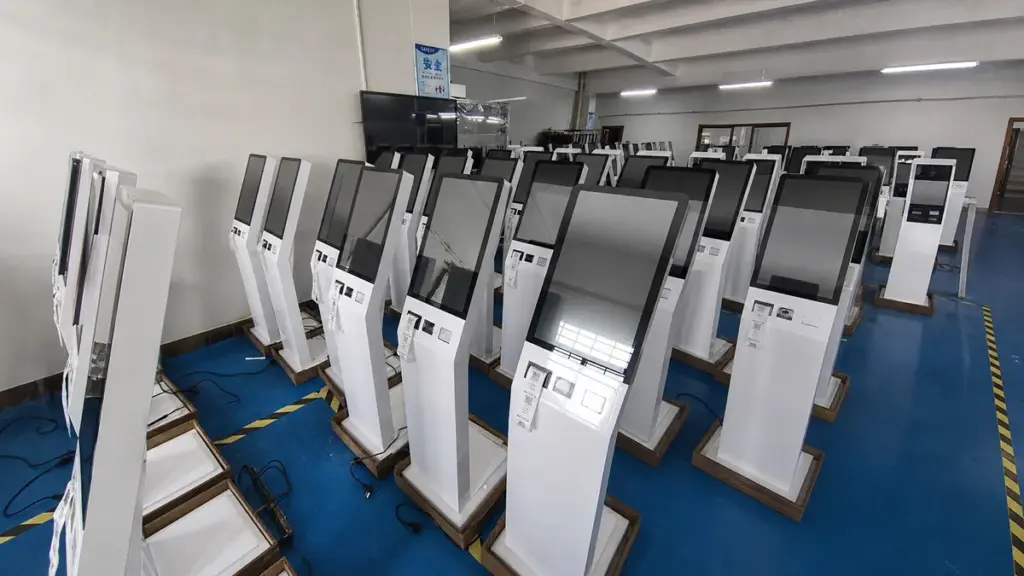
USB dominerer moderne touch-økosystemer med hurtig, plug-and-play ydeevne, mens RS232 forbliver den robuste, støjbestandig standard for industrielle legacy-systemer. Dit værtsmiljø dikterer det rigtige valg.
USBs rolle i moderne berøringsskærme
USB fungerer som den primære digitaliseringssti til berøringskontrol. Den fungerer fuldstændig uafhængigt af videogrænseflader som HDMI eller DisplayPort. Et enkelt kabel leverer både højhastigheds datatransmission og stabil busstrøm, fjerner installationskompleksiteten og reducerer kabelrod i panelkabinetter.
Du får øjeblikkelig plug-and-play-funktionalitet, fordi USB-controllere passer perfekt til standard HID-drivere. Dette sikrer øjeblikkelig berøringsgenkendelse på tværs af Windows, Linux, og moderne indlejrede operativsystemer uden at kræve brugerdefinerede driverinstallationer.
RS232 til industrielle og ældre systemer
RS232 bruger en standard 9-pin D-sub (DB9) stik til at etablere pålidelig punkt-til-punkt seriel kommunikation. Fabriksgulve og tunge forarbejdningsanlæg er afhængige af denne grænseflade for dens stabile ydeevne og stærke modstand mod elektrisk støj.
Denne serielle forbindelse er fortsat vigtig, når man integrerer berøringsgrænseflader med ældre PLC'er, industrielle styreterminaler, og ældre seriel hardware. Det garanterer fortsat drift for ældre udstyr, der mangler moderne USB-inputkanaler.
Vigtigste tekniske og ydeevne forskelle
Evaluering af hardwarebegrænsningerne afslører tre primære forskelle mellem formaterne:
- Hastighed og kraft: USB giver væsentligt højere gennemløb og en integreret strømforsyning, hvorimod RS232 tilbyder lavere hastigheder og generelt mangler strømforsyning.
- Topologi: USB er designet til dynamiske værtsenhedsøkosystemer, mens RS232 er afhængig af en streng en-til-en-arkitektur.
- Konnektor Robusthed: RS232 funktioner større, mekanisk sikre forbindelser velegnet til tung industri, sammenlignet med den kompakte karakter af USB-porte.
Sådan vælger du den rigtige grænseflade
Match grænsefladen direkte til din værtshardwareprofil. Vælg USB, når du prioriterer maksimal reaktionsevne, out-of-the-box moderne OS-kompatibilitet, og strømlinede opsætninger. Vælg RS232, når du har at gøre med ældre enhedssupport, specifikke krav til lange kabler, eller etablerede serielle kontrolnetværk.
Overvej dual-interface touch-skærme til miljøer med blandet flåde. Denne hardwarekonfiguration sikrer bagudkompatibilitet for ældre serielle værter, mens den understøtter fremtidige USB-opgraderinger uden at kræve paneludskiftninger.
Fejlfinding af almindelige driverproblemer
Touch-driverfejl stammer normalt fra OS-uoverensstemmelser, blokerede macOS-udvidelser, eller utilstrækkelig USB-strøm. Isolering af grænsefladen og validering af specifikke hardware-id'er løser hurtigt manglende respons.
| Fejlpunkt | Almindelig symptom | Øjeblikkelig handling |
|---|---|---|
| OS kompatibilitet | Total mangel på berøringsrespons | Match den nøjagtige OS major/minor-version til driverpakken. |
| USB interface | Intermitterende dråber eller spøgelsesberøringer | Tilslut direkte til en bundkortport, omgå udrevne hubs. |
| Tryk på Kortlægning | Tryk på register på den forkerte skærm | Kør OS-opsætningsguiden for at tildele berøring til den fysiske skærm. |
OS-driverkompatibilitet og versionsmatchning
Installation af den forkerte driver garanterer en død berøringsskærm. Du skal bekræfte, at den downloadede pakke eksplicit angiver din specifikke touch-controllermodel eller den nøjagtige USB VID/PID som understøttet hardware. Drivere binder tæt til operativsystemets kerne. Sørg for, at din driver matcher den nøjagtige større og mindre OS-version for at forhindre tab af multi-touch-bevægelser eller fatale kerneudvidelsesfejl.
Før du installerer en ny driver, fjern alle generiske HID-drivere eller ældre leverandørsoftware. Tilbageværende pakker opfanger ofte inputsignaler og er i konflikt med den rene installation.
USB- og strømgrænsefladebekræftelse
Hardwaretilslutningsfejl udgiver sig ofte som softwarefejl. Tilslut skærmens upstream USB-kabel direkte til en bundkortport for at udelukke signalforringelse forårsaget af strømløse hubs eller billige forlængere. Åbn din systemenhedshåndtering, og bekræft, at touch-controlleren forbliver konstant til stede uden at miste forbindelsen, når du flytter kablerne.
Du skal også kontrollere, at værtsporten leverer tilstrækkelig USB-strøm. Marginal strømforsyning fører direkte til intermitterende manglende reaktion, uregelmæssig markøradfærd, og spøgelsesberøringer hen over panelet.
Løsning af Windows-driver- og kalibreringsfejl
Windows håndterer typisk berøring native, men brugerdefinerede opsætninger kræver manuel indgriben. Åbn Enhedshåndtering, og find den HID-kompatible berøringsskærmindgang for at aktivere, opdatering, eller geninstaller enhedens software fuldstændigt. Skærmdriverkonflikter kan også bryde berøringsinputkortlægning på tværs af udvidede desktops.
Installer de seneste versioner af disse specifikke komponenter ved hjælp af officielle leverandøropdateringsværktøjer:
- Vise (GPU) chauffører: Retter skærmoptælling og EDID-læsningsfejl.
- Chipset drivere: Løser underliggende USB-værtscontrollerfejl, der forårsager frafald.
- Touch panel drivere: Gendanner avanceret multi-touch-funktionalitet og håndfladeafvisning.
En gang opdateret, Åbn appen Tablet PC Settings i kontrolpanelet. Brug dette værktøj til at genkalibrere skærmen og tilknytte berøringsinputtet korrekt med den tilsigtede fysiske skærm.
Løsning af macOS-sikkerhedsblokke og udvidelsesproblemer
Apple låser eksternt berøringsinput som standard. Kontroller USB-træet for systemoplysninger for at bekræfte, at operativsystemet aktivt registrerer hardwaren og binder driveren til touchcontrolleren. Hvis hardwaren vises, men berøring mislykkes, operativsystemet blokerer sandsynligvis softwaren.
Ret macOS-specifikke vejspærringer ved at målrette mod disse systemtilladelser og baggrundsprocesser:
- Privatliv & Sikkerhedsindstillinger: Tillad manuelt blokerede tredjepartssystemudvidelser til touch-driveren.
- Driver-dæmoner: Konfigurer baggrundstjenester til at starte automatisk ved systemstart.
- Multi-touch apps: Sørg for, at gestus mapping-softwaren kører umiddelbart efter, at du vågner fra dvale.
Mangler den indledende sikkerhedsprompt, efterlader driveren installeret, men fuldstændig ikke-funktionel.
Korrigering af Multi-Monitor Touch Mapping
Tilføjelse af en anden skærm forvrænger ofte berøringskoordinater. Kør de indbyggede OS-opsætningsguider for nøjagtigt at dirigere berøringsdata til den korrekte fysiske skærm i stedet for som standard til den primære skærm. Defekte eller forældede skærmdrivere forårsager forkert skærmopregning og EDID-læsningsfejl, som direkte kaster din touch-målretning af sig.
Hvis markøren hopper til den forkerte skærm, afbryd sekundære skærme og test berøringsskærmen som den eneste aktive skærm. Dette trin isolerer kortlægningssoftwarekonflikter fra bredere hardwarefejl.
Hvorfor TouchWo tilbyder Universal OS-kompatibilitet
Universal OS-kompatibilitet fjerner softwarebegrænsninger fra hardwarekøb, giver integratorer mulighed for at implementere identiske berøringsskærme på tværs af Windows, Android, og Linux-økosystemer uden friktion.
Multi-OS-understøttelse af forskellige økosystemer
TouchWo udvikler universel OS-kompatibilitet direkte i sine skærme og panel-pc'er, garanterer indbygget support på tværs af almindelige platforme som Windows, Linux, og Android. Denne tilgang løser hardwareudvælgelsesprocessen ud af softwarestakken.
- Native integration: Berøringspaneler kommunikerer pålideligt med Windows, Linux, og Android-miljøer ud af boksen.
- Hardwarekonsistens: Systemintegratorer kan implementere identiske hardware-fodspor på tværs af helt forskellige software-økosystemer.
- Budgetfleksibilitet: Købere vælger det installerede operativsystem baseret på nøjagtige applikationskrav og budgetparametre snarere end hardwarebegrænsninger.
Standardiseret hardware- og grænsefladeteknik
Universel tilslutning starter ved det fysiske lag. TouchWo opnår kommunikation på tværs af platforme ved udelukkende at stole på industristandard videoindgange som HDMI, VGA, og DisplayPort. I stedet for at bruge proprietære protokoller, der låser købere til specifikke leverandører, alle berøringsdatatransmissionsruter gennem standard USB-forbindelser. Dette garanterer øjeblikkelig hardwaregenkendelse i det øjeblik, du tilslutter skærmen.
Til at rumme forskellige værtsarkitekturer, TouchWo designer forskellige portkonfigurationer, der er optimeret til specifikke systemer:
- Windows-implementeringer: Multi-video-indgange og dual-display opsætninger designet til kompleks arbejdsstations routing.
- Android miljøer: Integrerede SoC-kort parret med eksterne perifere udvidelsesporte.
PCAP-teknologi med indbygget driverudnyttelse
Projekteret kapacitiv (PCAP) touch-controllere håndterer selve oversættelsen af fysiske tryk til digitale signaler. TouchWo programmerer disse controllere til at præsentere sig selv som standard USB Human Interface Device (HID) komponenter til værtsmaskinen. Denne HID-overholdelse udnytter de indbyggede touch-drivere, der allerede findes i moderne OS-kerner, etablering af ægte plug-and-play-funktionalitet.
Fordi operativsystemet håndterer berøringsdataene indbygget, komplekse multi-touch-input oversætter nøjagtigt på tværs af platforme. Brugere kan udføre pinch-to-zoom, stryge, og tegne bevægelser uden at kræve, at it-teams installerer tredjepartssoftware eller baggrundsdriverapplikationer.
OEM-tilpasning og firmwaretilpasning
Standard plug-and-play håndterer kommercielle miljøer godt, men specialiserede industrielle applikationer kræver nøjagtige softwareparametre. TouchWo understøtter disse edge cases ved at levere tilpassede firmwarejusteringer og målrettede drivermoduler kompileret til specifikke Linux-kerner.
- Android tilpasning: Ændring af hardwaregrænseflader, så de stemmer overens med stærkt låste, proprietære Android-billeder.
- Windows Legacy Support: Justering af controllere til at kommunikere jævnt med ældre Windows SCADA-miljøer.
Denne dybe software-hardware-integration garanterer langsigtet driftsstabilitet. Selv når en produktionsfacilitet opgraderer sin underliggende netværksarkitektur eller operativsystemer, berøringsgrænsefladen forbliver pålidelig og lydhør.
Konklusion
At vælge den rigtige berøringsskærmsskærm kræver mere end at kontrollere skærmspecifikationerne. Operativsystem kompatibilitet, berøringsgrænseflade, chauffører, og forbindelsesmetoder påvirker alle den endelige brugeroplevelse.
Windows giver den nemmeste plug-and-play-oplevelse, Android er ideel til kioskapplikationer, og Linux tilbyder fleksibilitet til industrielle og indlejrede systemer. At forstå, hvordan hver platform kommunikerer med touch-hardware, hjælper dig med at undgå kompatibilitetsproblemer før installation.
Med bred OS-understøttelse, pålidelige touch-controllere, og tilpassede industrielle løsninger, TouchWo hjælper virksomheder med at bygge stabile og effektive interaktive systemer til forskellige applikationer verden over.
Ofte stillede spørgsmål
Er touch screen skærme plug-and-play med Windows 10/11?
Ja, de fleste moderne berøringsskærme fungerer som plug-and-play-enheder på Windows 10 og 11. Operativsystemet inkluderer indbyggede USB HID-drivere, der øjeblikkeligt registrerer grundlæggende berøringsinput som aflytning, rulle, og kniber. Hvis du kører en multi-monitor opsætning, Windows kan i første omgang kortlægge dine berøringer til den forkerte skærm. Du kan løse dette ved at åbne 'Kalibrer skærmen til pen- eller berøringsinput'’ værktøj i kontrolpanelet for at tildele berøringsgrænsefladen til den korrekte fysiske skærm.
Hvordan får jeg touch til at arbejde på et Linux/Ubuntu-system?
Moderne Linux-distributioner som Ubuntu understøtter de fleste eksterne USB-berøringsskærme via den indbyggede hid-multitouch-kernedriver. Du tilslutter blot USB-datakablet, og grundlæggende touch-funktionalitet virker med det samme. Til multi-monitor miljøer, du skal kortlægge berøringsindgangen til det korrekte display. På Xorg-sessioner, brug xinput map-to-output kommandoen. På Wayland, du konfigurerer dette i dine kompositorindstillinger. Hvis du bruger ældre industripaneler, du skal muligvis installere en specifik leverandørdriver som en eGalax- eller Elo-pakke.
Understøtter Android multi-touch-skærme via USB?
Android-kernestrukturen understøtter USB HID multi-touch, men den virkelige verden afhænger i høj grad af værtsenheden. Moderne Android-telefoner og -tablets med USB-C OTG-understøttelse genkender normalt eksterne berøringsskærme problemfrit. Generiske Android TV-bokse eller billige medieafspillere mangler ofte de nødvendige kernedrivere, fordi producenterne fjerner dem. Til kiosk eller kommercielle applikationer, du skal vælge hardware, der udtrykkeligt er markedsført som berøringsklar eller bruge en integreret Android-panel-pc.
Har jeg brug for specielle drivere til en Mac-berøringsskærmopsætning?
Ja. Når du tilslutter en berøringsskærm til en Mac, macOS genkender videosignalet og bruger det som en standard ekstern skærm. Apple understøtter ikke indbygget eksterne berøringsindgange. For at aktivere tryk, trække, og flerfingerbevægelser, du skal installere en producentleveret macOS-driver eller en tredjepartsløsning som UPDD. Du skal også give disse drivere de relevante adgangs- og systemudvidelsestilladelser i dine Mac-indstillinger.
Hvad er forskellen mellem USB og RS232 berøringsgrænseflader?
USB er standarden for moderne berøringsskærme. Det tilbyder højhastigheds datatransmission, understøtter indbygget plug-and-play-funktionalitet på tværs af moderne operativsystemer, og håndterer nemt komplekse multi-touch-bevægelser. RS232 er en ældre seriel forbindelse, der foretrækkes i ældre industrielle miljøer. RS232 mangler båndbredden til avanceret multi-touch og kræver dedikerede drivere, men det giver ekstremt robust punkt-til-punkt-kommunikation over lange kabelløb og modstår elektrisk støj på fabriksgulve.
Kan jeg bruge en berøringsskærm med en Raspberry Pi?
Ja. Den nemmeste rute er at bruge de officielle Raspberry Pi Touch Displays, som forbinder direkte til DSI-porten og arbejder med det samme på Raspberry Pi OS uden ekstra drivere. Du kan også bruge standard HDMI-skærme parret med en USB touch-forbindelse. Raspberry Pi OS behandler disse som standard HID-inputenheder. Hvis du forbinder flere skærme, Åbn skærmkonfigurationsværktøjet for at tildele USB-berøringsindgangen til det korrekte display.
Hvorfor reagerer min berøringsskærm ikke efter tilslutning af HDMI?
HDMI-kabler overfører kun video- og lydsignaler. De kan ikke bære de data, der kræves til berøringsinput. For at få berøringsskærmen til at reagere, du skal tilslutte et dedikeret USB-datakabel fra skærmen til din computer sammen med HDMI-videokablet. Når USB-kablet er sikkert, operativsystemet genkender skærmen som en Human Interface Device og begynder at behandle dine berøringskommandoer.