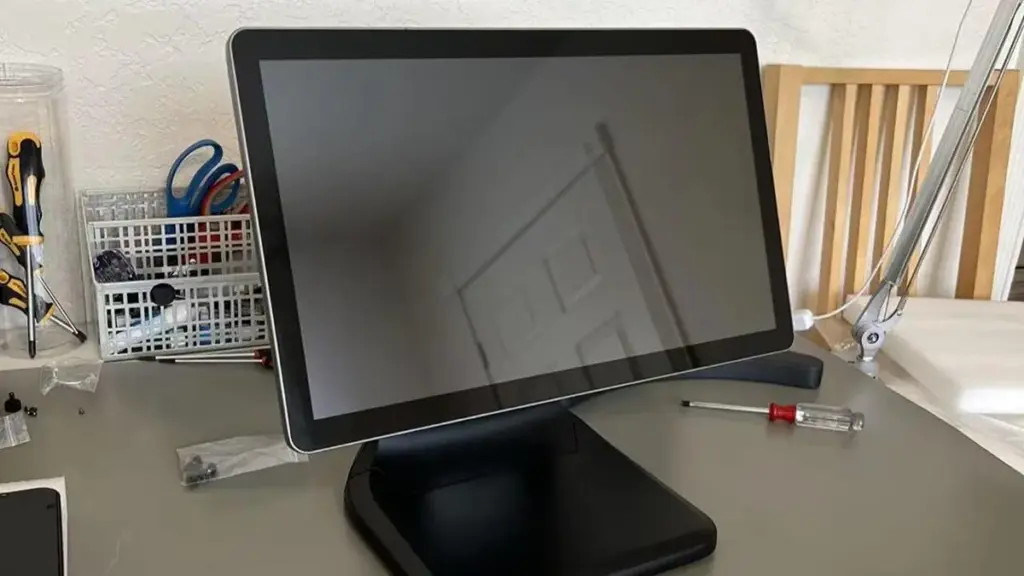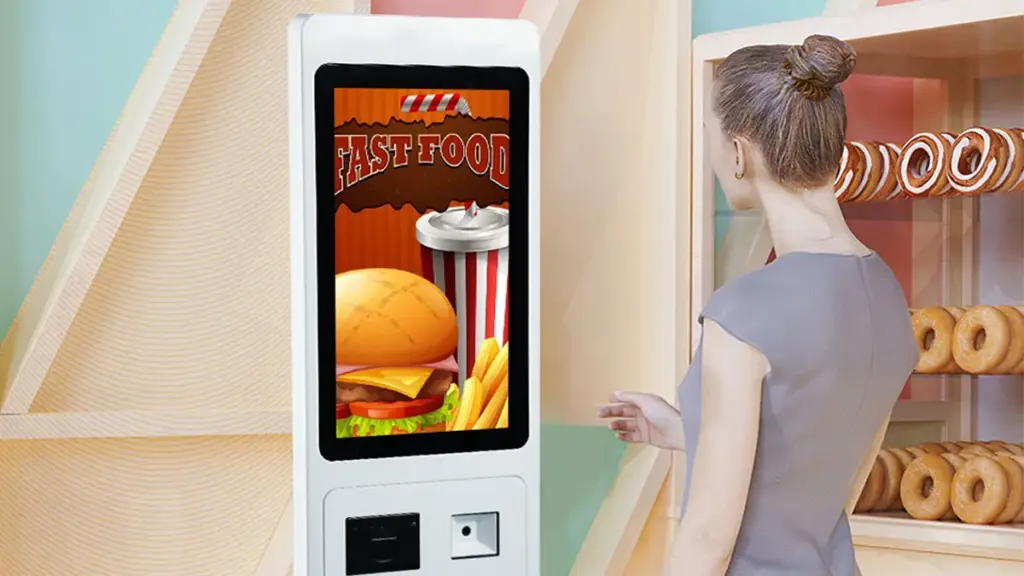
Banyak PC panel dan terminal skrin sentuh menjalankan sistem Windows terbenam. Pengguna kadangkala mendapati fungsi sentuhan tidak aktif selepas sistem dimulakan semula atau kemas kini perisian. Anda mungkin sukar untuk mencari menu konfigurasi yang betul pada mulanya.
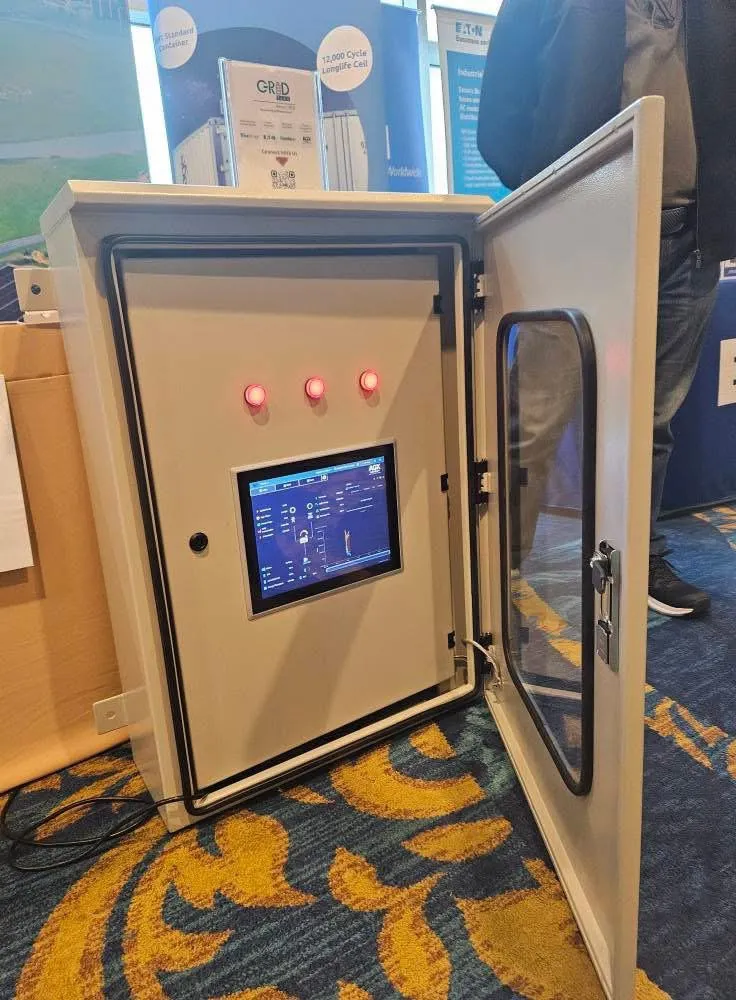
Versi sistem yang berbeza meletakkan pilihan skrin sentuh dalam menu berasingan. Minor driver errors can also make touch input unresponsive before you adjust settings. This article shares practical steps to enable touch screen settings and fix common small issues on industrial and commercial touch devices.
Turn on Touch Screen Settings for Windows Systems
Windows is the most widely used system on industrial panel PCs and touch terminals. You can complete basic configuration through two common methods.
1. Enable touch input via Windows Settings
Open the main Settings menu from the start menu. Find the section labeled Devices or Bluetooth & devices.
Locate Pen and touch to check related touch screen options. Confirm that touch display input remains enabled.
Reboot the device if new settings do not take effect immediately.
2. Activate touch drivers inside Device Manager
Right-click the start icon and open Device Manager. Expand the category for Human Interface Devices.
Look for entries related to touch screen or HID touch device. Right-click the item and select Enable device.
If the option shows Disable device, your touch screen function is already active.
Adjust Advanced Touch Screen Calibration Settings
Simply turning on touch functions may not solve offset touch points. Calibration settings help align your touch screen accurately.
1. Find touch calibration control panel
Type Calibrate the screen for pen or touch input in the system search bar. Open the matching control panel tool.
Select the target display screen and launch the calibration process. Follow on-screen prompts to tap marked positions.
2. Save calibration data properly
Complete all calibration points step by step. Choose save calibration when the process finishes.
Unsaved data will disappear after a restart and cause inaccurate touch positioning again.
Basic Troubleshooting If Touch Screen Will Not Turn On
Sometimes settings appear enabled, yet the touch screen still fails to respond. Try these simple checks in order.
1. Check physical connection status
For externally connected touch screens, confirm all data cables fit firmly. Loose wiring often blocks touch signal transmission.
Embedded panel PCs rarely face loose cables, so move on to driver checks first.
2. Restart or reinstall touch drivers
Open Device Manager again and select Uninstall device for the touch screen entry. Restart your terminal.
The operating system will reload default touch drivers automatically after reboot.
3. Check third-party software limits
Certain industrial control programs contain touch lock functions. Close related testing software to restore normal touch screen operation.
Tips to Keep Touch Screen Settings Stable
Small maintenance habits prevent frequent touch setting failures on long-running equipment.
1. Avoid frequently switching display modes
Frequent screen resolution changes may reset stored touch calibration data. Adjust display parameters only when necessary.
2. Complete system updates cautiously
Major system updates sometimes change driver configurations. Check touch screen functions right after each update.
3. Protect terminals from sudden power cuts
Unexpected power loss can corrupt touch configuration files. Use stable power supplies for industrial touch terminals.
FAQs About Touch Screen Settings
Q1: Where can I find touch screen settings on an industrial panel PC?
A1: Most Windows-based panel PCs store touch options inside Settings and Device Manager. You can also access calibration tools via system search.
S2: Why is my touch screen disabled after a system restart?
A2: Outdated drivers, incomplete system updates or unstable power supply can change touch screen status automatically. Re-enable the touch device in Device Manager.
Q3: Do I need calibration after turning on touch screen settings?
A3: Calibration is optional if touch positions match correctly. Run calibration if taps land on wrong screen areas.
Q4: Can touch screen settings get locked by industrial software?
A4: Ya. Some industrial applications include touch restriction modes. Exit the program to test basic touch screen performance.
S5: Does Linux-based touch terminal use the same setting steps?
A5: Tidak. Linux systems adopt different configuration workflows. Setting paths depend on your specific embedded operating system.
Kesimpulan
Kesimpulannya, you can turn on touch screen settings through Windows Settings or Device Manager for most touch terminals. Calibration tools fix offset touch points, while connection and driver checks resolve most unresponsive touch faults. Consistent equipment maintenance reduces unexpected changes to touch configurations. Properly adjusted touch screen settings guarantee stable human-machine interaction for daily operation.
If you seek reliable industrial touch screen terminals or need technical support for touch configuration solutions, sila isi borang pertanyaan di laman web rasmi kami. Share your system version and equipment requirements, and our professional team will provide targeted support for your projects.