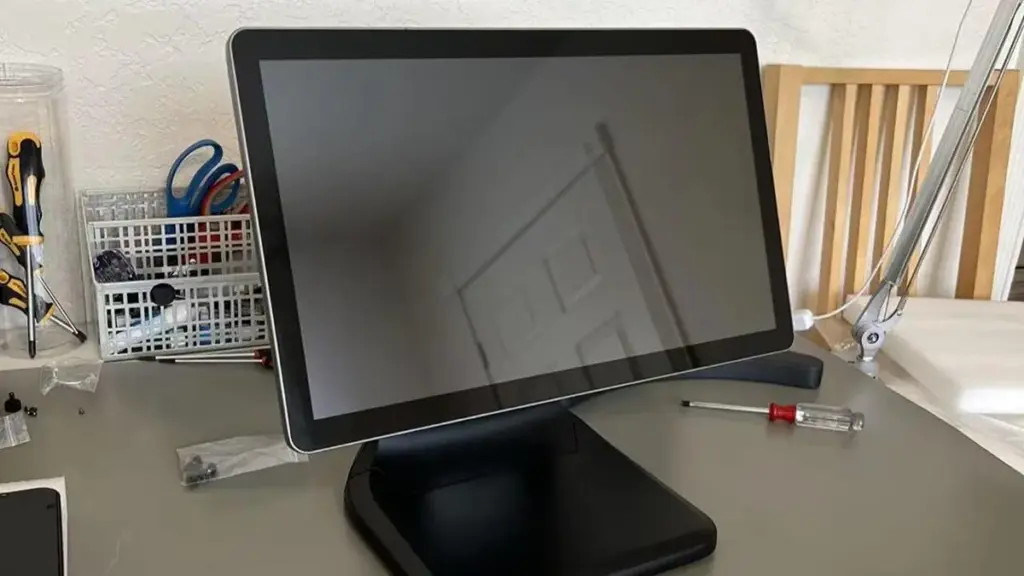
Veel panel-pc's en touchscreenterminals draaien op ingebouwde Windows-systemen. Gebruikers vinden aanraakfuncties soms inactief nadat het systeem opnieuw is opgestart of software-updates zijn uitgevoerd. In eerste instantie kan het lastig zijn om het juiste configuratiemenu te vinden.
Verschillende systeemversies plaatsen touchscreen-opties in afzonderlijke menu's. Kleine stuurprogrammafouten kunnen er ook voor zorgen dat de aanraakinvoer niet meer reageert voordat u de instellingen aanpast. In dit artikel worden praktische stappen besproken om instellingen voor het aanraakscherm in te schakelen en veelvoorkomende kleine problemen op industriële en commerciële aanraakapparaten op te lossen.
Schakel touchscreen-instellingen in voor Windows-systemen
Windows is het meest gebruikte systeem op industriële panel-pc's en touchterminals. U kunt de basisconfiguratie voltooien via twee veelgebruikte methoden.
1. Schakel aanraakinvoer in via Windows-instellingen
Open het hoofdmenu Instellingen vanuit het startmenu. Zoek het gedeelte met het label Apparaten of Bluetooth & apparaten.
Zoek Pen en tik om gerelateerde touchscreen-opties te controleren. Controleer of invoer via het aanraakscherm ingeschakeld blijft.
Start het apparaat opnieuw op als de nieuwe instellingen niet onmiddellijk van kracht worden.
2. Activeer aanraakstuurprogramma's in Apparaatbeheer
Klik met de rechtermuisknop op het startpictogram en open Apparaatbeheer. Vouw de categorie voor Human Interface Devices uit.
Zoek naar vermeldingen met betrekking tot het aanraakscherm of het HID-aanraakapparaat. Klik met de rechtermuisknop op het item en selecteer Apparaat inschakelen.
Als de optie Apparaat uitschakelen weergeeft, uw touchscreen-functie is al actief.
Pas de geavanceerde kalibratie-instellingen voor het aanraakscherm aan
Het simpelweg inschakelen van aanraakfuncties lost mogelijk geen offset-aanraakpunten op. Kalibratie-instellingen helpen uw touchscreen nauwkeurig uit te lijnen.
1. Zoek het bedieningspaneel voor aanraakkalibratie
Type Kalibreer het scherm voor pen- of aanraakinvoer in de systeemzoekbalk. Open de bijbehorende configuratieschermtool.
Selecteer het doelweergavescherm en start het kalibratieproces. Volg de aanwijzingen op het scherm om op gemarkeerde posities te tikken.
2. Sla kalibratiegegevens correct op
Voltooi alle kalibratiepunten stap voor stap. Kies kalibratie opslaan wanneer het proces is voltooid.
Niet-opgeslagen gegevens verdwijnen na een herstart en veroorzaken opnieuw een onnauwkeurige aanraakpositionering.
Basisproblemen oplossen als het aanraakscherm niet kan worden ingeschakeld
Soms lijken de instellingen ingeschakeld, toch reageert het touchscreen nog steeds niet. Probeer deze eenvoudige controles op volgorde.
1. Controleer de fysieke verbindingsstatus
Voor extern aangesloten touchscreens, controleer of alle datakabels stevig vastzitten. Losse bedrading blokkeert vaak de overdracht van aanraaksignalen.
Ingebouwde paneel-pc's hebben zelden te maken met losse kabels, dus ga eerst verder met chauffeurscontroles.
2. Start de touch-stuurprogramma's opnieuw of installeer deze opnieuw
Open Apparaatbeheer opnieuw en selecteer Apparaat verwijderen voor het touchscreen-item. Start uw terminal opnieuw op.
Het besturingssysteem zal de standaard touch-stuurprogramma's automatisch opnieuw laden na het opnieuw opstarten.
3. Controleer softwarelimieten van derden
Bepaalde industriële besturingsprogramma's bevatten touch lock-functies. Sluit gerelateerde testsoftware aan om de normale werking van het aanraakscherm te herstellen.
Tips om de touchscreen-instellingen stabiel te houden
Kleine onderhoudsgewoonten voorkomen frequente fouten bij het instellen van de aanraking bij langdurig werkende apparatuur.
1. Vermijd vaak wisselen van weergavemodus
Regelmatige wijzigingen in de schermresolutie kunnen de opgeslagen aanraakkalibratiegegevens resetten. Pas de weergaveparameters alleen aan als dat nodig is.
2. Voer systeemupdates voorzichtig uit
Grote systeemupdates veranderen soms de stuurprogrammaconfiguraties. Controleer de touchscreenfuncties direct na elke update.
3. Bescherm terminals tegen plotselinge stroomuitval
Onverwacht stroomverlies kan aanraakconfiguratiebestanden beschadigen. Gebruik stabiele voedingen voor industriële touchterminals.
Veelgestelde vragen over touchscreen-instellingen
Q1: Waar kan ik de touchscreen-instellingen vinden op een industriële panel-pc?
A1: De meeste Windows-gebaseerde panel-pc's slaan aanraakopties op in Instellingen en Apparaatbeheer. U kunt ook toegang krijgen tot kalibratietools via systeemzoeken.
Vraag 2: Waarom is mijn touchscreen uitgeschakeld na een herstart van het systeem??
A2: Verouderde stuurprogramma's, onvolledige systeemupdates of een onstabiele stroomvoorziening kunnen de status van het aanraakscherm automatisch wijzigen. Schakel het aanraakapparaat opnieuw in Apparaatbeheer in.
Q3: Heb ik kalibratie nodig nadat ik de instellingen voor het aanraakscherm heb ingeschakeld??
A3: Kalibratie is optioneel als de aanraakposities correct overeenkomen. Voer een kalibratie uit als tikken op de verkeerde schermgebieden terechtkomen.
Q4: Kunnen de instellingen van het aanraakscherm worden vergrendeld door industriële software??
A4: Ja. Sommige industriële toepassingen omvatten modi voor aanraakbeperking. Sluit het programma af om de basisprestaties van het aanraakscherm te testen.
Vraag 5: Gebruikt op Linux gebaseerde touch-terminal dezelfde instellingsstappen?
A5: Nee. Linux-systemen hanteren verschillende configuratieworkflows. Instellingspaden zijn afhankelijk van uw specifieke ingebedde besturingssysteem.
Conclusie
Samenvattend, Voor de meeste aanraakterminals kunt u de instellingen voor het aanraakscherm inschakelen via Windows-instellingen of Apparaatbeheer. Kalibratietools fixeren offset-aanraakpunten, terwijl verbindings- en stuurprogrammacontroles de meeste niet-reagerende aanraakfouten oplossen. Consistent apparatuuronderhoud vermindert onverwachte wijzigingen in aanraakconfiguraties. Goed afgestelde touchscreen-instellingen garanderen een stabiele mens-machine-interactie voor de dagelijkse bediening.
Als u op zoek bent naar betrouwbare industriële touchscreen-terminals of technische ondersteuning nodig heeft voor touch-configuratieoplossingen, Vul dan het aanvraagformulier in op onze officiële website. Deel uw systeemversie en apparatuurvereisten, en ons professionele team ondersteunt uw projecten doelgericht.