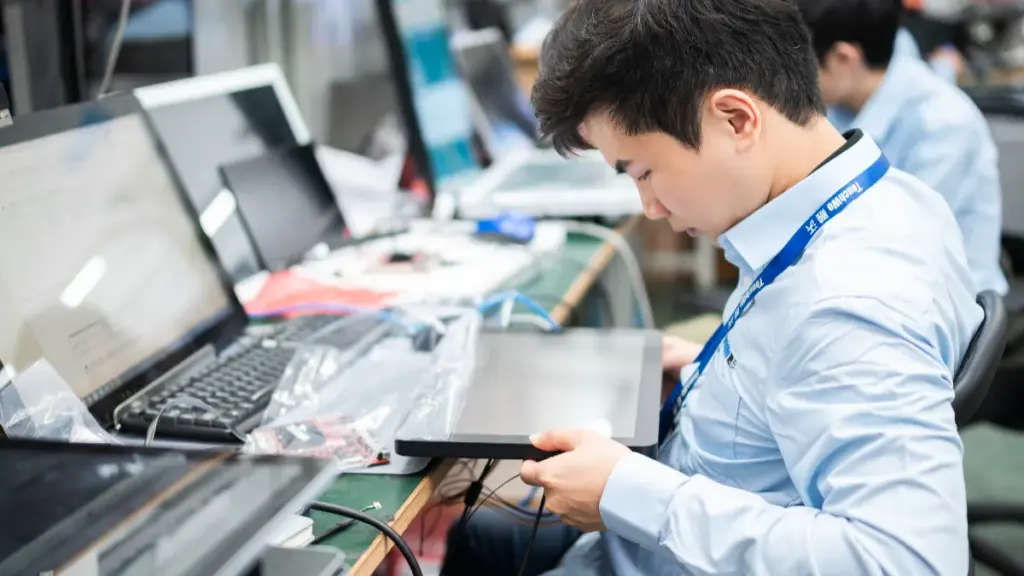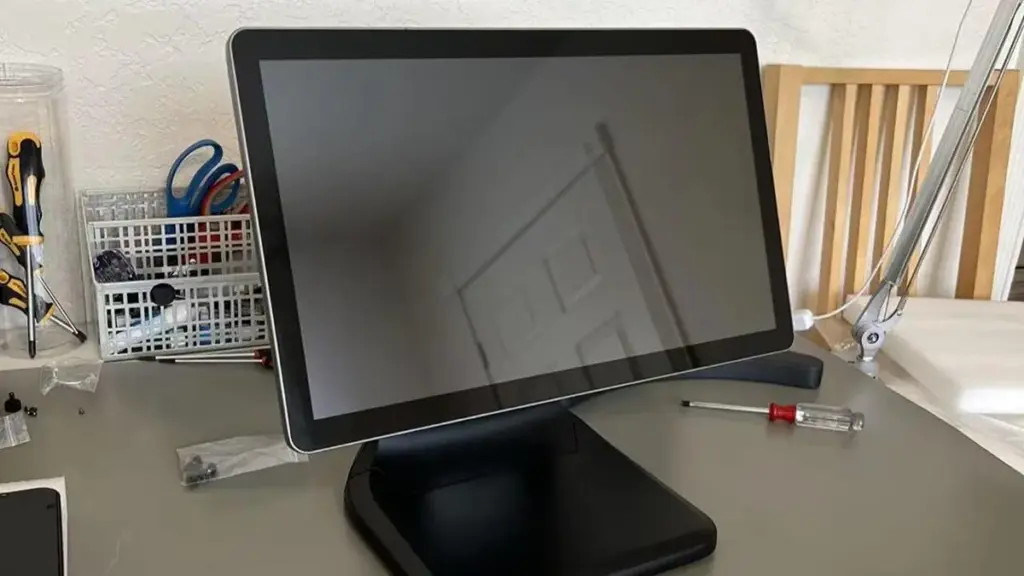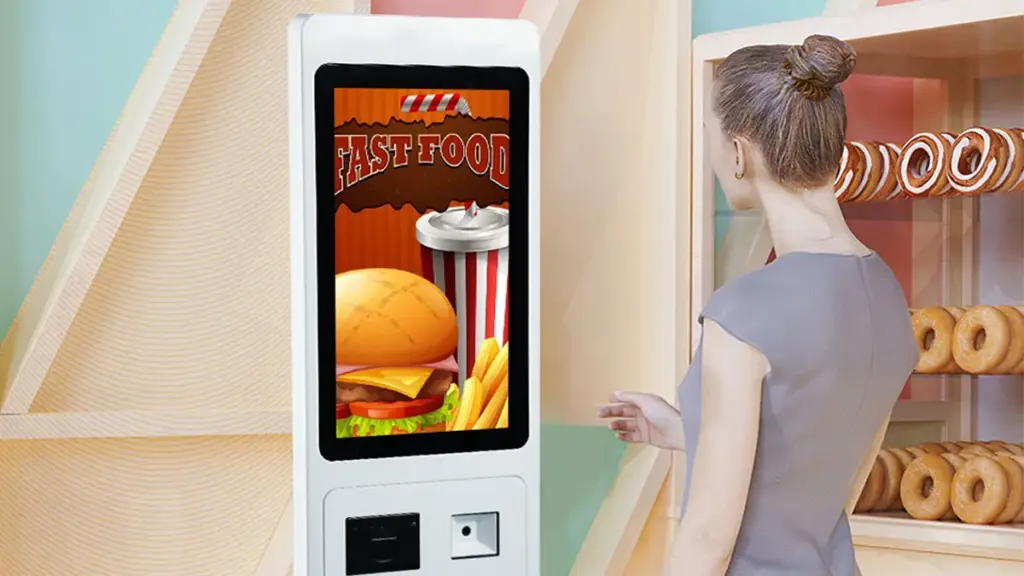
A properly calibrated Ice Cream Machine Touch Screen is key to smooth, efficient operation in ice cream shops, cafes, and dessert bars. When your touch screen is uncalibrated, taps register in the wrong spots, settings get mixed up, and staff waste time fighting unresponsive controls. This leads to slower service, incorrect ice cream consistency, and frustrated customers.
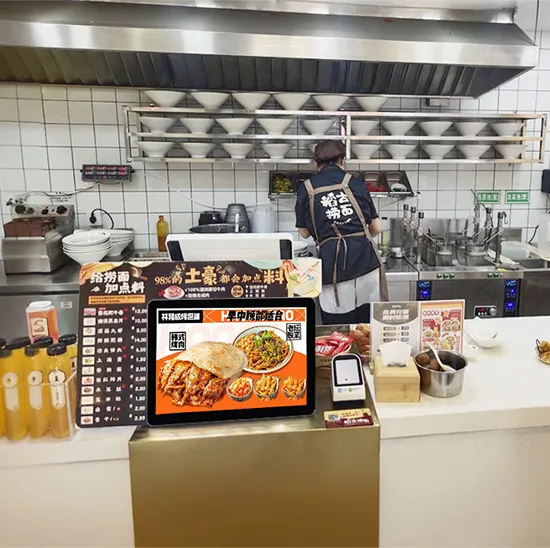
Calibrating your ice cream machine’s touch screen isn’t complicated—and it only takes a few minutes. Most issues (misaligned inputs, laggy responses) stem from simple calibration drift, which happens over time with regular use, temperature changes, or minor bumps. This guide breaks down a step-by-step calibration process, common signs you need calibration, troubleshooting tips, and FAQs to help you keep your Ice Cream Machine Touch Screen working perfectly. Whether you run a small scoop shop or a busy dessert chain, these steps will ensure your machine’s touch screen responds accurately every time.
Signs Your Ice Cream Machine Touch Screen Needs Calibration
Before you start calibrating, confirm your touch screen actually needs it. These common signs indicate calibration drift or misalignment.
1. Taps Register in the Wrong Spots
The most obvious sign is when you tap one button but a different function activates.
For example, tapping “soft serve” might trigger “hard ice cream” mode, or tapping “increase temperature” might lower it instead.
This happens when the touch screen’s sensor drift doesn’t match the display’s visual layout.
It’s especially frustrating during busy rushes, as it slows down order prep and leads to mistakes.
2. Unresponsive or Laggy Touch Inputs
If taps take seconds to register, or some areas of the screen don’t respond at all, calibration is likely needed.
This often occurs after the machine is moved, cleaned, or exposed to extreme temperature changes (common in ice cream machines).
Laggy inputs make it hard to adjust settings quickly, leading to inconsistent ice cream texture.
3. Ghost Touches or Random Inputs
Random, uncommanded taps (ghost touches) are another clear sign of calibration issues.
The screen might activate functions on its own, change settings, or scroll through menus without any input.
This is often caused by calibration drift combined with minor surface residue (like ice cream splatters).
4. Inconsistent Machine Performance
If your ice cream machine starts making inconsistent batches (too soft, too hard, or uneven texture), calibration could be the culprit.
Uncalibrated touch screens lead to incorrect setting inputs, which throw off the machine’s freezing or mixing cycles.
Fixing calibration often resolves these performance issues without needing to service the machine itself.
Step-by-Step Guide to Calibrate Ice Cream Machine Touch Screen
Calibrating your touch screen is simple, requires no special tools, and takes 5–10 minutes. Follow these steps for accurate, reliable results.
1. Prepare the Machine and Screen
First, ensure the machine is in a safe state to calibrate.
Turn off the ice cream machine and unplug it to avoid electrical hazards or accidental operation.
Wipe the touch screen with a soft, damp microfiber cloth to remove ice cream splatters, dust, or sticky residue—these can interfere with calibration.
Let the screen dry completely (1–2 minutes) to ensure no moisture affects the sensor.
2. Access the Calibration Menu
Next, turn the machine back on and navigate to the calibration settings.
Most ice cream machines have a “Settings” or “Maintenance” button on the touch screen (use the physical button if the touch screen is too unresponsive).
Scroll through the menu until you find “Touch Screen Calibration” or a similar option (labels may vary slightly by machine).
Tap the calibration option to start the process—this will bring up a calibration screen with target points.
3. Follow On-Screen Calibration Prompts
The calibration process relies on tapping specific target points to realign the sensor.
The screen will display small crosshairs or dots (usually 4–5) in different corners and the center of the screen.
Use a clean, dry finger (or a stylus, if available) to tap exactly on each target—hold your finger down for 1–2 seconds to ensure the sensor registers the tap.
Move slowly between targets and avoid tapping outside the marked points—this ensures accurate calibration.
4. Confirm and Save Calibration Settings
Once you’ve tapped all target points, the screen will prompt you to confirm the calibration.
Tap “Save” or “Confirm” to store the new calibration settings—this ensures the changes take effect immediately.
Some machines may require a quick restart to finalize calibration—if prompted, turn the machine off and back on.
5. Test the Touch Screen
Finally, test the screen to ensure calibration was successful.
Tap different buttons (e.g., “on/off,” “temperature adjustment,” “flavor selection”) to confirm taps register correctly.
Check that all areas of the screen are responsive and that inputs match the displayed functions.
If issues persist, repeat the calibration process—sometimes a second attempt fixes minor alignment errors.
Troubleshooting Calibration Issues
If calibration doesn’t fix your touch screen problems, try these quick troubleshooting steps to resolve common issues.
1. Calibration Doesn’t Fix Misaligned Taps
If taps still register in the wrong spots after calibration:
Wipe the screen again to remove any remaining residue or smudges.
Ensure you’re tapping exactly on the target points (avoid rushing through the process).
Check if the touch screen is loose or misaligned in its mounting—tighten any loose screws to stabilize it.
2. Touch Screen Remains Unresponsive
If the screen is still unresponsive after calibration:
Power cycle the machine (unplug for 60 seconds, then plug back in) to reset the touch screen sensor.
Check for loose connections behind the touch screen (only do this if you have basic technical knowledge).
If the screen is cracked or damaged, calibration won’t fix it—you may need a replacement.
3. Ghost Touches Continue After Calibration
If ghost touches persist:
Clean the screen with a 50/50 mix of distilled water and isopropyl alcohol to remove stubborn residue.
Ensure the machine is placed away from direct sunlight or heat sources—extreme temperatures cause sensor glitches.
Check if the touch screen’s protective film (if used) is damaged or dirty—replace it if needed.
How Often to Calibrate Your Ice Cream Machine Touch Screen
Regular calibration prevents issues before they start. Follow this schedule for optimal performance.
1. Routine Calibration (Monthly)
Calibrate the touch screen once a month to prevent drift from regular use.
This is especially important for high-traffic shops where the screen is used dozens of times per day.
Schedule calibration during slow periods (e.g., mid-afternoon) to avoid disrupting service.
2. After Specific Events (As Needed)
Calibrate immediately after these events, which can cause calibration drift:
Moving the ice cream machine (vibration from transport shifts the sensor).
Deep cleaning the machine (moisture or cleaning chemicals can affect the touch screen).
Extreme temperature changes (common in shops with varying indoor temperatures).
A power outage or surge (can reset the touch screen’s sensor settings).
FAQs About Ice Cream Machine Touch Screen Calibration
Q1: How long does it take to calibrate an Ice Cream Machine Touch Screen?
A1: Calibration takes 5–10 minutes total, including preparation and testing. It’s a quick process that won’t disrupt your shop for long.
Q2: Do I need special tools to calibrate the touch screen?
A2: No. You only need a soft microfiber cloth, water (or mild cleaner), and a clean finger or stylus—no special equipment is required.
Q3: What if I can’t find the calibration menu on my machine?
A3: Check your machine’s user manual—calibration menus are often under “Settings,” “Maintenance,” or “System.” If you don’t have the manual, look for a physical “Calibrate” button on the machine itself.
Q4: Will calibration fix a cracked touch screen?
A4: No. Calibration only fixes sensor alignment issues. A cracked screen will need to be replaced to restore full functionality.
Q5: Can I calibrate the touch screen while the machine is running?
A5: No. Always turn off and unplug the machine before calibrating to avoid electrical hazards and accidental operation.
Q6: Why does my touch screen need calibration so often?
A6: Regular use, vibration, temperature changes, and surface residue all cause calibration drift. High-traffic shops may need calibration more frequently (every 2–3 weeks).
Q7: What if calibration doesn’t fix my touch screen issues?
A7: If calibration fails, the touch screen may have a faulty sensor or internal damage. Contact a professional for inspection, or reach out to our team for guidance on replacement.
Conclusion
Calibrating your Ice Cream Machine Touch Screen is a simple, effective way to fix misaligned taps, unresponsive inputs, and ghost touches—all of which slow down service and hurt your ice cream shop’s efficiency. By following the step-by-step guide, you can keep your touch screen responsive and accurate, ensuring your ice cream machine runs smoothly and serves consistent, delicious batches every time.
Regular calibration takes just a few minutes but saves you time, reduces errors, and keeps your staff and customers happy. Don’t let an uncalibrated touch screen disrupt your business—make calibration a routine part of your machine maintenance.
If you’re struggling with persistent touch screen issues, or if you need help finding a replacement Ice Cream Machine Touch Screen, our team is here to assist. Fill out the form on our website to share your machine type, touch screen problems, and shop needs. We will provide tailored guidance, calibration tips, and product recommendations to keep your ice cream machine operating at its best. Let’s keep your dessert service smooth and efficient—start today!