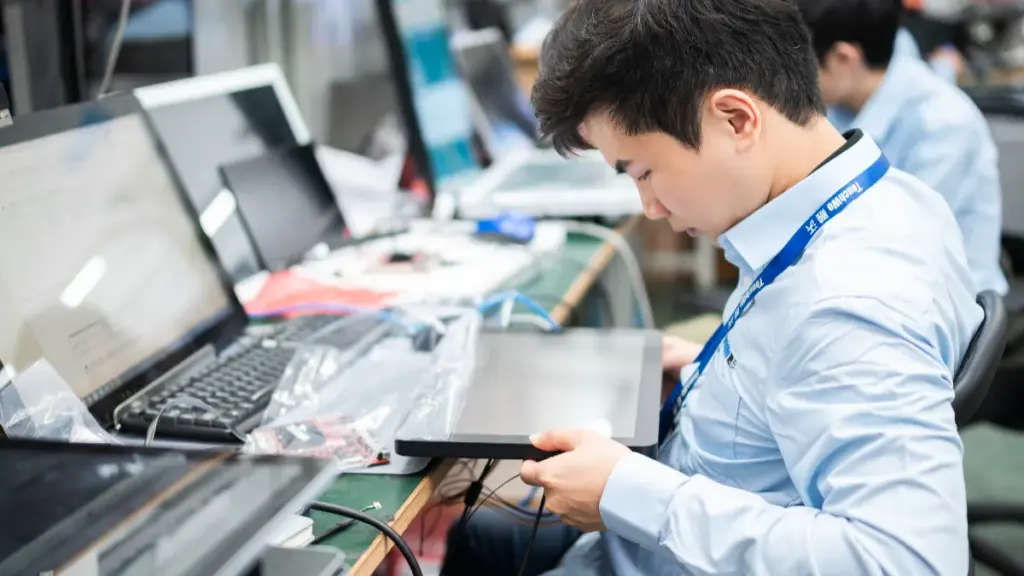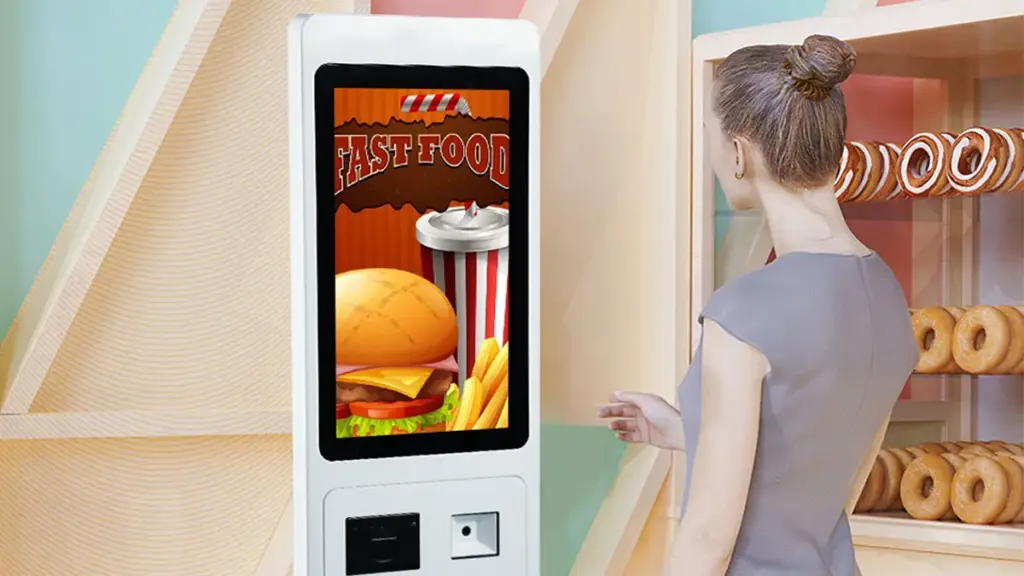
Kitskos-spitsure skep elke dag lang toue by handtoonbanke. Mondelinge bestellings lei dikwels tot verwarring en ekstra wagtyd vir gaste. Om hierdie rede, Selfbestelmasjiene word standaardtoerusting binne byna alle winkelplekke.
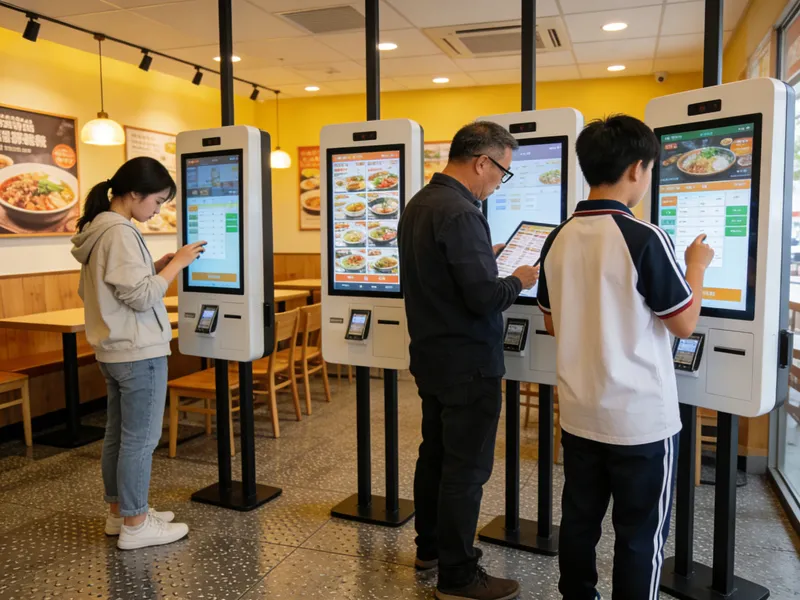
Hierdie raakskermterminale verminder toudruk en laat gaste self bestellings volledig bou. Behalwe vinniger diens, hulle wys ook alle huidige transaksies en duidelike pryse vir volle deursigtigheid. Hierdie volledige gids loop deur voorgebruikkontroles, volledige operasie stappe, handige wenke, klein foutoplossings en algemene vrae oor selfbestelmasjiene.
Vinnige voorgebruikkontroles voordat u selfbestelmasjiene gebruik
Drie vinnige kontroles verwyder klein vertragings voordat jy begin om jou maaltydbestelling te bou.
1. Maak die onaktiewe raakskerm wakker
Eerstens, tik op enige plek op die donker skerm om bystandmodus te verlaat. Die masjien laai onmiddellik die volledige kosspyskaart en aktiewe winkelpromosies.
2. Kies jou eet-in of wegneemete tipe
Volgende, kyk na die boonste balk van die tuisblad. Wissel tussen aandete en wegneemetes om jou bestellingtipe korrek te merk. Dit voorkom kombuissorteerfoute later.
3. Kry jou betaalmetode gereed
Gryp jou kaart of mobiele beursie voor die tyd. Gereed-betalingsinstrumente verkort jou volle bedryfstyd op die Selfbestelmasjiene.
Stap-vir-stap gids om selfbestelmasjiene te bedryf
Volg hierdie ses eenvoudige stappe om 'n volledige te voltooi, akkurate volgorde op die raakskermtoestel.
1. Blaai deur gekategoriseerde kos- en drankspyskaarte
Blaai deur benoemde afdelings vir hamburgers, kante, nageregte en drankies. Tik elke item se prent om dit direk by jou digitale mandjie te voeg. Pryse verfris direk op die skerm.
2. Pas elke ete aan om by jou smaak te pas
Tik op elke mandjie-item om die pasmaakpaneel oop te maak. Jy kan toppe verwyder, pas porsiegroottes aan of voeg ekstra kante by. Elke verandering werk jou subtotaal outomaties op.
3. Voeg geldige kombinasie-stelle by en winkel afslag
Blaai na die promosie-oortjie om bondels en koepons vir beperkte tyd te sien. Tik op enige kwalifiserende aanbod om die afslag daarvan op jou volle bestelling toe te pas. Die stelsel herbereken jou finale koste onmiddellik.
4. Gaan jou volledige bestellys na
Lees deur alle geselekteerde maaltye, pasgemaakte wysigings en totale fooie stadig. Vee verkeerde items uit of voeg ontbrekende versnaperinge by voordat u na die betaalbladsy beweeg. Hierdie stap stop na-betaling aanpassings.
5. Kies betaalkanaal en voltooi afhandeling
Kies jou voorkeur betaaltipe uit die opwiplys. Volg kort skerminstruksies om te skandeer, tik of voeg jou betaalinstrument in. Wag vir die sukses-vinkje om te verskyn.
6. Gryp jou kwitansie en wag vir ete optel
Kry die gedrukte strokie met jou unieke bestelnommer. Hou vas aan die kwitansie en staan by die toegewyde bakkietoonbank totdat personeel jou nommer bel.
Praktiese truuks om selfbestelmasjiengebruik te bespoedig
Hierdie klein gewoontes maak jou raakskermbestelling vinniger en minder stresvol tydens besige winkelure.
1. Kies alle groepmaaltye in een enkele bondel
Kies elke item vir jou hele partytjie op een slag. Dit verminder herhaalde skermkrane en verminder jou algehele masjiengebruikstyd.
2. Voltooi alle wysigings voordat jy betaling bevestig
Die stelsel sluit alle bestellingbesonderhede na suksesvolle afhandeling. Dus, voltooi elke aanpassing en verwydering terwyl jou mandjie redigeerbaar bly.
3. Wissel taalmodusse vir duideliker lees
Die boonste hoek bevat 'n taalwisselknoppie. Wissel na jou bekende taal as spyskaartteks moeilik voel om te lees op die Selfbestelmasjiene.
4. Maak die wa skoon om 'n morsige bestelling te herbegin
Tik die "maak kar"-knoppie as jy te veel verkeerde items kies. Dit stel die skerm terug sonder om die volledige bestelprogram toe te maak.
Maklike oplossings vir geringe selfbestelmasjienkwessies
U kan die meeste klein foute oplos sonder om vir winkelpersoneelondersteuning te vra.
1. Stadige of nie-reageerbare raakkrane
Tik elke knoppie liggies en wag een volle sekonde tussen aanraking. Moeilik, vinnige krane oorlaai die skerm en skep vertraging in plaas van spoed.
2. Mislukte betalingsverwerkingspogings
Gaan eers jou selfoonsein of kaartbalans na. Keer terug na die betaalbladsy en probeer weer, of skakel oor na 'n alternatiewe betaalopsie.
3. Bevorderingsbaniere op die skerm ontbreek
Tik die tuisikoon om die hele bladsy te verfris. Verouderde promosie vertoon herlaai sodra die masjien weer aan die winkelnetwerk gekoppel is.
Gereelde vrae oor selfbestelmasjiene by KFC
V1: Sukkel nuwe gebruikers om selfbestelmasjiene te bestuur?
A1: Nee, die koppelvlak gebruik groot ikone en kort geskrewe aanwysings. Die meeste gaste voltooi volle bestellings binne een minuut met geen personeelhulp nie.
V2: Kan ek my maaltydkeuses verander nadat ek op die masjien betaal het?
A2: Byna nooit. Die stelsel sluit alle bestellingsdata na-betaling. Verifieer altyd alle aanpassings voordat jy jou transaksie indien.
V3: Toon selfbestelmasjiene elke aktiewe winkelafslag?
A3: Ja, die terminale sinchroniseer daaglikse kombinasies en koepons in reële tyd. Dit pas alle geldige aanbiedings outomaties toe om u betaalkoste te verminder.
V4: Wat moet ek doen as die masjien mid-order vries?
A4: Stap weg van die toestel en stel nabygeleë winkelpersoneel in kennis. Spanlede sal die stelsel herbegin en jou onvoltooide wa-data herstel.
V5: Moet alle klante selfbestelmasjiene gebruik om kosbestellings te plaas?
A5: Glad nie. Selfbediening dien as 'n buigsame opsionele kanaal. Jy kan steeds van aangesig tot aangesig met toonbankpersoneel bestel as jy dit verkies.
Gevolgtrekking
Om op te som, die gebruik van selfbestelmasjiene by KFC volg 'n eenvoudige ses-stap-vloei van skermaktivering tot kwitansie-ophaal. Die raakskermuitleg ondersteun volledige maaltydaanpassing, outomatiese afslagpassing en verskeie veilige betalingskeuses. Hierdie toestelle krimp spitsuur-toue, sny verbale bestelfoute en lewer konsekwente diens vir elke gas. Hulle staan nou as 'n kern, gebruikersvriendelike dienshulpmiddel vir daaglikse bedrywighede in kitskoswinkels.
As jy 'n spysenierings- of kitskosonderneming bedryf en duursaam wil wees, intuïtiewe selfbestelmasjiene om u diensdoeltreffendheid in die winkel op te gradeer, vul asseblief die navraagvorm op ons amptelike webwerf in. Deel jou winkelgrootte, vloeruitleg en vereiste funksionele kenmerke, en ons professionele span sal ten volle pasgemaakte selfdiens-terminale oplossings vir jou venue skep.