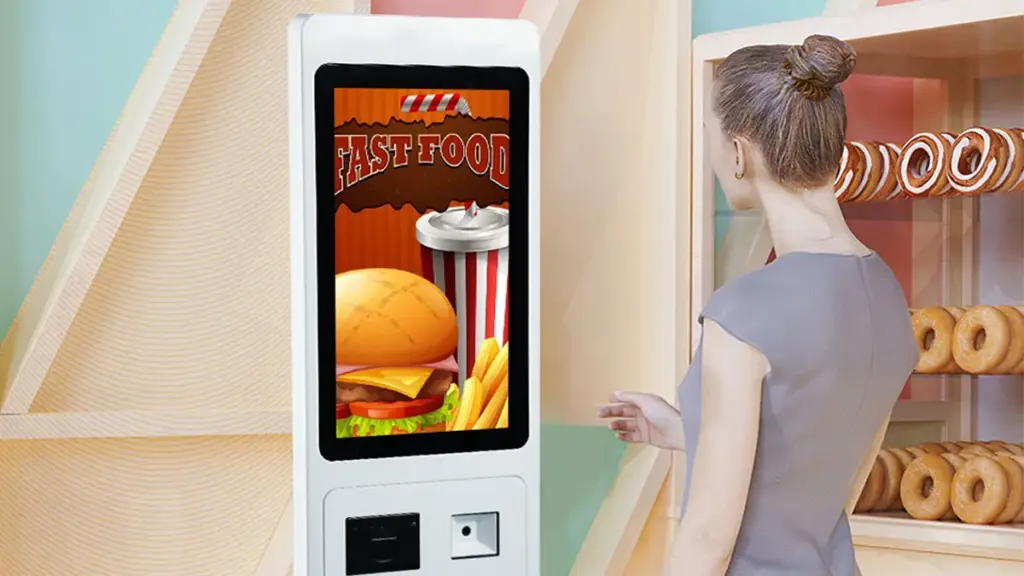
Fast food rush hours create long lines at manual counters every single day. Verbal orders often lead to mix-ups and extra waiting time for guests. Per questo motivo, Self-Ordering Machines become standard equipment inside nearly all store locations.
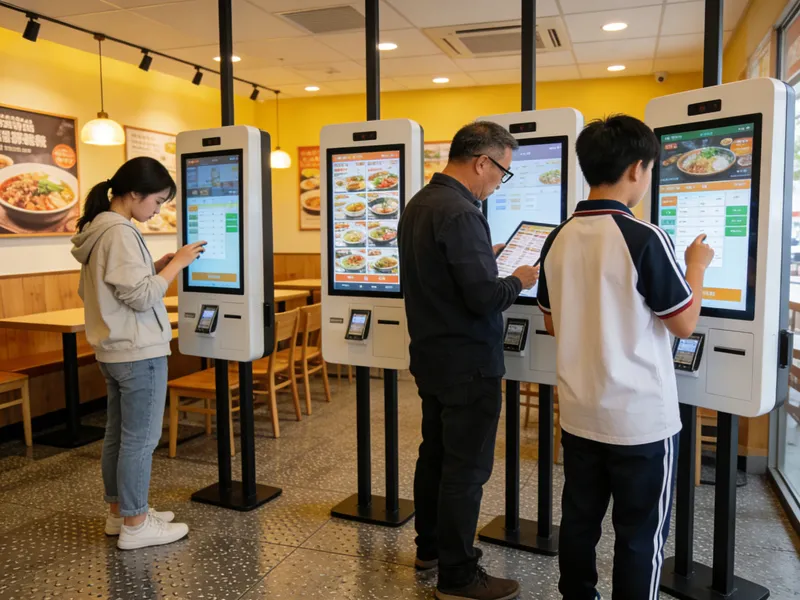
These touchscreen terminals cut queue pressure and let guests build orders fully on their own. Besides faster service, they also show all current deals and clear pricing for full transparency. This complete guide walks through pre-use checks, full operation steps, handy tips, small error solutions and common questions about Self-Ordering Machines.
Quick Pre-Use Checks Before Operating Self-Ordering Machines
Three fast checks remove small delays before you start building your meal order.
1. Wake the inactive touch display
Primo, tap any spot on the dark screen to leave standby mode. The machine instantly loads the full food menu and active store promotions.
2. Pick your dine-in or takeaway type
Prossimo, look at the top bar of the homepage. Toggle between dine-in and takeaway to mark your order type correctly. This avoids kitchen sorting errors later.
3. Get your payment method ready
Grab your card or mobile wallet ahead of time. Ready payment tools shorten your full operating time on the Self-Ordering Machines.
Step-by-Step Guide to Operate Self-Ordering Machines
Follow these six simple steps to finish a full, accurate order on the touchscreen device.
1. Browse categorized food and drink menus
Scroll through labeled sections for burgers, lati, desserts and beverages. Tap each item’s image to add it straight to your digital cart. Prices refresh right on screen.
2. Customize every meal to match your taste
Tap each cart item to open the customization panel. You can remove toppings, regolare le dimensioni delle porzioni o aggiungere lati extra. Every change updates your subtotal automatically.
3. Add valid combo sets and store discounts
Scroll to the promotion tab to view limited-time bundles and coupons. Tap any eligible offer to apply its discount to your full order. The system recalculates your final cost instantly.
4. Double-check your full order list
Read through all selected meals, custom edits and total fees slowly. Delete wrong items or add missing snacks before moving to the payment page. This step stops post-payment adjustments.
5. Select payment channel and complete checkout
Choose your preferred payment type from the pop-up list. Follow short screen prompts to scan, tap or insert your payment tool. Wait for the success checkmark to pop up.
6. Grab your receipt and wait for meal pickup
Collect the printed slip with your unique order number. Hold onto the receipt and stand by the dedicated pickup counter until staff call your number.
Practical Tricks to Speed Up Self-Ordering Machine Use
These small habits make your touchscreen ordering faster and less stressful during busy store hours.
1. Select all group meals in one single batch
Pick every item for your whole party at once. This cuts repeated screen taps and reduces your overall machine usage time.
2. Finish all edits before you confirm payment
The system locks all order details after successful checkout. Così, complete every customization and removal while your cart stays editable.
3. Switch language modes for clearer reading
The top corner holds a language toggle button. Swap to your familiar language if menu text feels hard to read on the Self-Ordering Machines.
4. Clear the cart to restart a messy order
Tap the “clear cart” button if you pick too many wrong items. This resets the screen without closing the full ordering program.
Easy Fixes for Minor Self-Ordering Machine Issues
You can resolve most small glitches without asking for store staff support.
1. Slow or unresponsive touch taps
Tap each button gently and wait one full second between touches. Hard, rapid taps overload the screen and create lag instead of speed.
2. Failed payment processing attempts
Check your mobile signal or card balance first. Return to the payment page and retry, or switch to an alternate payment option.
3. Missing promotion banners on screen
Tap the home icon to refresh the whole page. Outdated promotion displays reload once the machine reconnects to the store network.
FAQs About Self-Ordering Machines at KFC
Q1: Do new users struggle to run Self-Ordering Machines?
A1: NO, the interface uses big icons and short written prompts. Most guests finish full orders within one minute with zero staff help.
Q2: Can I change my meal choices after I pay on the machine?
A2: Almost never. The system locks all order data post-payment. Always verify all customizations before you submit your transaction.
Q3: Do Self-Ordering Machines show every active store discount?
A3: SÌ, the terminal syncs daily combos and coupons in real time. It auto-applies all valid offers to cut your checkout cost.
Q4: What should I do if the machine freezes mid-order?
A4: Step away from the device and notify nearby store staff. Team members will restart the system and recover your unfinished cart data.
Q5: Must all customers use Self-Ordering Machines to place food orders?
A5: Not at all. Self-service acts as a flexible optional channel. You can still order face-to-face with counter staff if you prefer.
Conclusione
Per riassumere, using Self-Ordering Machines at KFC follows a straightforward six-step flow from screen activation to receipt pickup. The touchscreen layout supports full meal customization, automatic discount matching and multiple secure payment choices. These devices shrink peak-hour queues, cut verbal order mistakes and deliver consistent service for every guest. They now stand as a core, user-friendly service tool for fast food store daily operations.
If you operate a catering or fast-food business and want durable, intuitive Self-Ordering Machines to upgrade your in-store service efficiency, si prega di compilare il modulo di richiesta sul nostro sito ufficiale. Share your store size, floor layout and required functional features, and our professional team will craft fully customized self-service terminal solutions for your venue.